




When you’re working in InDesign’s Pages panel, descriptive prefixes and color labels can make it a lot easier to tell pages apart in a long document.
By default, InDesign displays thumbnail images of each page in the Pages panel. But that’s not always the most useful option for telling one page from another, especially in a document with a lot of pages that share a similar design.
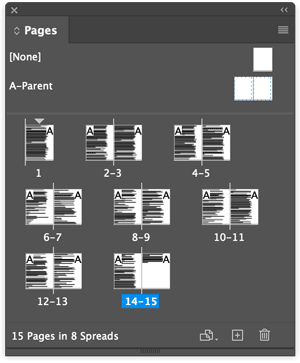
You can turn off thumbnails in the Panel Options dialog box inside the Pages panel menu.

When thumbnails are turned off, each document page is shown with its parent page prefix (say that three times fast) in the center. You can put up to four characters here, so don’t be shy. Descriptive prefixes make it easier to navigate a long InDesign document.

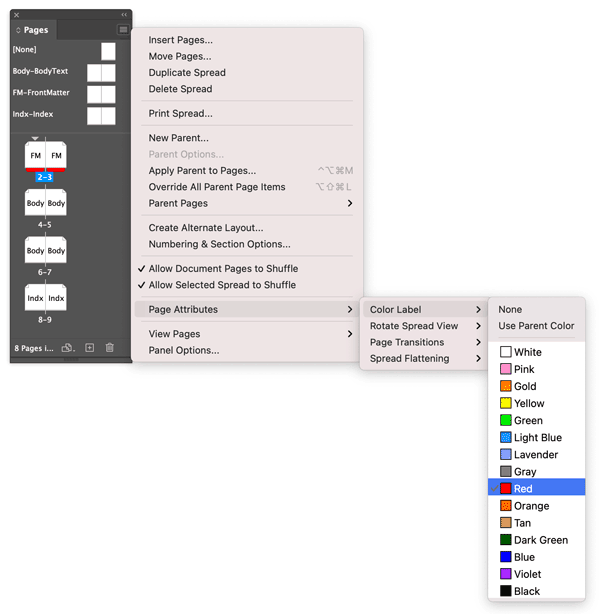
To take it one step further, you can also add color labels that appear under pages in the Pages panel. To apply color labels, select one or more pages in the Pages panel, right click and choose Page Attributes > Color Label, then select the color of your choice.
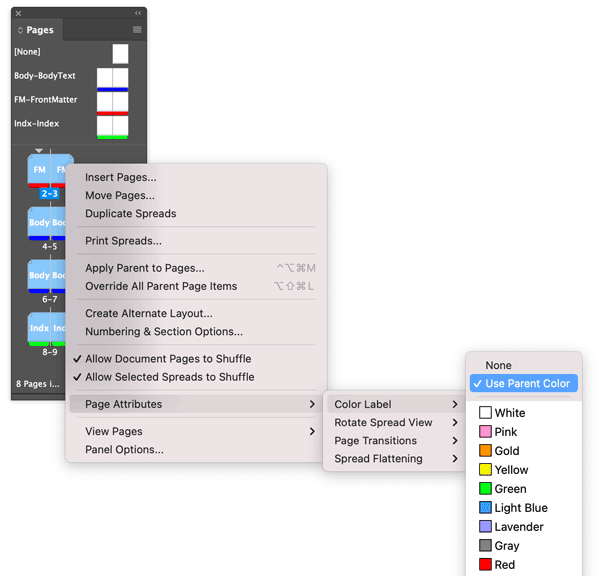
You can also set color labels on parent pages and automatically have document pages display the color label of their parents.
This article was last modified on March 10, 2022
This article was first published on March 10, 2022
Commenting is easier and faster when you're logged in!

Recommended for you

Tip of the Week: Controlling Hyphenation
This tip was sent to Tip of the Week email subscribers on March 5, 2015. Sign up...
InDesign Tip: Starting a New Document on a Specific Page Number
Did you know that InDesign allows you to specify a starting page number when you...
Tip of the Week: Dynamic Spelling
This tip was sent to Tip of the Week email subscribers on June 18, 2015. Sign up...