




You may know that InDesign includes a feature for converting automatic bullets and numbering to live text at the paragraph level. Put your cursor in the paragraph, right-click, and choose Convert Bullets/Numbering to Text.
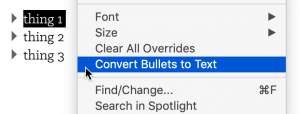
The same command appears in the Type menu under Bulleted & Numbered Lists.
What’s less obvious is that you can select all the text in a story (or a text frame if it contains the entire story) and use the same command to convert all the lists in the story to live text.
But what if your list is continued over multiple stories in unthreaded text frames? Then the command can be problematic because each time you use it, the numbering in the other text frames/stories updates, and becomes incorrect.
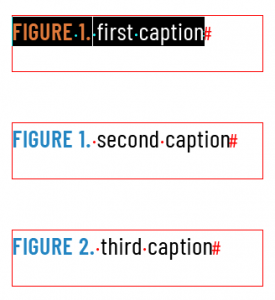
Mixed auto numbering and live text. Not so good.
Fortunately, there are two good solutions. First, if you just need to convert all bullets or numbering in the document from one paragraph style, you can select that style in the Paragraph Styles panel, then go to the panel menu and choose Convert “(the style name)” Bullets/Numbering to Text.

If you need to convert all bullets and numbers in a document to live text, use this script by Masood Ahmad.
This article was last modified on January 17, 2024
This article was first published on January 6, 2020
Commenting is easier and faster when you're logged in!

Recommended for you

InDesign How-to Video: Use Indent to Here
In this week’s InDesignSecrets video, David Blatner explains what InDesign’s Ind...
InQuestion: Automatic Table and Figure Numbering
Jamie McKee shows how to use defined lists to take the time and toil out of numb...

InQuestion: Numbering Headings and Synchronizing Text Frames
Erica Gamet recounts the best Q&A from the InDesignSecrets Facebook group.