




One of the new features in InDesign 2020 allows you to reverse the direction of a spell check, which can be very helpful if you clicked the Skip button too fast and need to go back to a word that isn’t spelled right. But it won’t help you if you clicked the Ignore All button by accident. When you click Ignore All, you tell InDesign to add the word to your User Dictionary, so it won’t be flagged in any future spell checks.

To remove the word from your User Dictionary, choose Edit > Spelling > User Dictionary. Then in the dialog box, choose Ignored Words from the Dictionary List menu.

Click on the word, then click Remove.
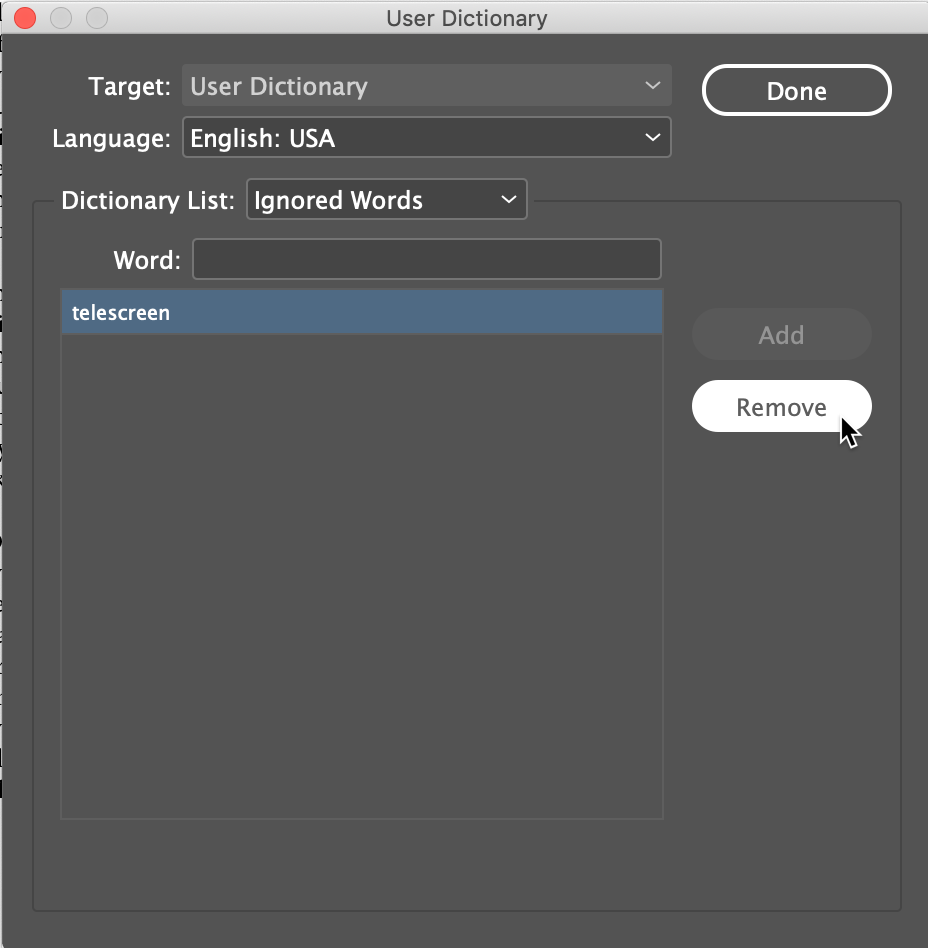
Now, the un-ignored word will be flagged again when you spell check.
This article was last modified on May 7, 2020
This article was first published on November 18, 2019
Commenting is easier and faster when you're logged in!

Recommended for you

Spell Checking Is No Replacement for a Good Proofer
When a student editor grabbed the first suggestion InDesign made for a mispelled...

5 Reasons InDesign Spell Check Isn’t Working
InDesign's spell check malfunctioning? One of these reasons is usually the culpr...

Adding Hunspell Dictionaries to InDesign
Once a year I go to Oahu to teach at the University of Hawaii. (It’s a dir...