




To add a graphic separator between paragraphs, anchor the graphic as the first character in the second paragraph, select it, choose Object > Anchored Object > Options, and choose the Above Line option.

Bonus: You can use the Anchored Object Control (the little blue square that appears on an object when it is selected) to anchor an object and set the options. To anchor an object, simply drag the blue square to the point in the text where you want the anchor to be located. To anchor an object and open the options dialog box at the same time, hold Option/Alt as you drag and release the blue square.
This article was last modified on January 12, 2026
This article was first published on June 10, 2019
Commenting is easier and faster when you're logged in!

Recommended for you

How to Put a Stroke Around a Group of Objects in InDesign
You can make text wrap around a group, so why not a stroke?
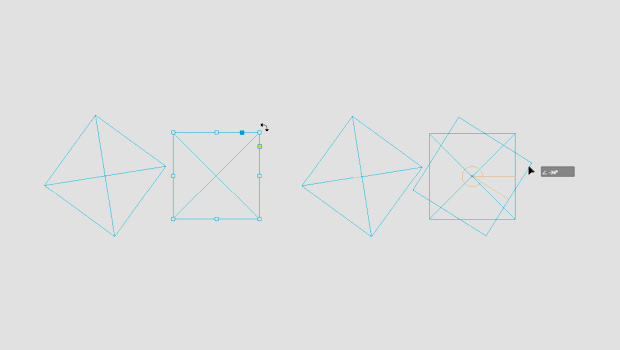
InQuestion: Applying Consistent Rotations With Smart Guides
Q. In previous versions of InDesign, I’d rotate a frame, and then select an adja...

Improving the SelectObjects Script
Learn the fastest way to use the Find Change feature in InDesign with these two...