




To add a graphic separator between paragraphs, anchor the graphic as the first character in the second paragraph, select it, choose Object > Anchored Object > Options, and choose the Above Line option.

Bonus: You can use the Anchored Object Control (the little blue square that appears on an object when it is selected) to anchor an object and set the options. To anchor an object, simply drag the blue square to the point in the text where you want the anchor to be located. To anchor an object and open the options dialog box at the same time, hold Option/Alt as you drag and release the blue square.
This article was last modified on January 12, 2026
This article was first published on June 10, 2019
Commenting is easier and faster when you're logged in!

Recommended for you
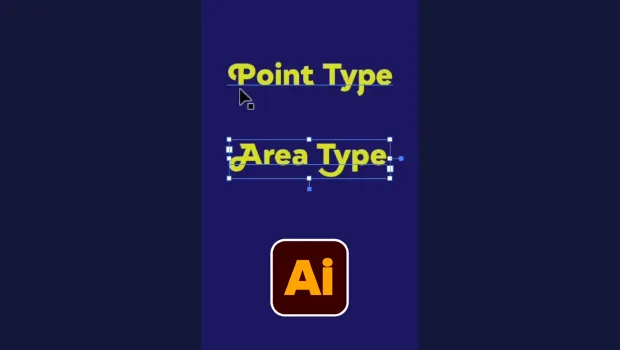
Illustrator’s Two Kinds of Type
Khara Plicanic explains the two kinds of type in Illustrator.

Sort Cross References
Cross-references are printed in the order in which they were added to the docume...
Essential Illustrator Shortcuts
Save time with Kat Kremser's cheat sheet of Illustrator shortcuts!