I have a document which I am making into an EPUB for iPad [in InDesign CS5.5]. I want every chapter title and subheading to appear on it’s own separate page, and be viewable in the Table of Contents.
If you’re new to creating EPUB files from InDesign, you might think that you could just use a Page Break or Frame Break character, and that would carry over into an EPUB file. But you’d be wrong. All white space, extra paragraph returns, and break characters are ignored when exporting to EPUB.
Instead, in order to force breaks without actually editing the XHTML and CSS, you have to use a method of exporting which differs, depending on the version of InDesign you’re using:
- In InDesign CS4, you must use the Book feature to break your document into chapters. Then each chapter will start on a new page in the EPUB file.
- In InDesign CS5, you can use the Book method. But you also have another option. If you create a Table of Contents style, and select the paragraph style you wish as as first-level entry, you can then select that TOC style and use the first-level entry as a chapter break.
If you want to learn more about how to do page breaks in CS4 and CS5, I recommend Anne-Marie’s EPUB videos on Lynda.com, or Elizabeth Castro’s excellent eBook, EPUB Straight to the Point for directions.
Changes in InDesign CS5.5
InDesign CS5.5 brings major improvements to EPUB export. Instead of choosing the first-level entry of the TOC style as a chapter break, you can now choose any paragraph style as a page break in the Contents panel of the EPUB Export Options dialog. But only one paragraph style. Thus, the question which I saw today by the user in the Adobe InDesign User Forum. How could you use two paragraph styles?
It turns out you can combine two different methods to create two kinds of page breaks:
1. You’ll need to break up your InDesign document into separate files by chapter, and create a book file to combine the chapters together. Below is a single sample chapter I created. The title of each chapter uses the Chapter Header paragraph style. The section break uses the Section Header style.

Chapter in InDesign CS5.5
2. In the first chapter, create a TOC style (Layout > Table of Contents Styles). If you want the Chapter Header and Section Header styles to be included in the EPUB’s navigational TOC (which appears in each EPUB reader), select Chapter Header style as a level one style, and Section Header style as a level two style.

TOC Style
3. In the book file, make sure Chapter 1 is the style source for the book because it contains the TOC style for the EPUB file.
4. You’ll need to export the EPUB file from the book file. From its panel menu, choose Export to EPUB… On the Contents tab of the EPUB Export Options dialog, check Use InDesign TOC Style and select the TOC style in chapter 1. Then check Break Document at Paragraph Style and select the Section Header style.
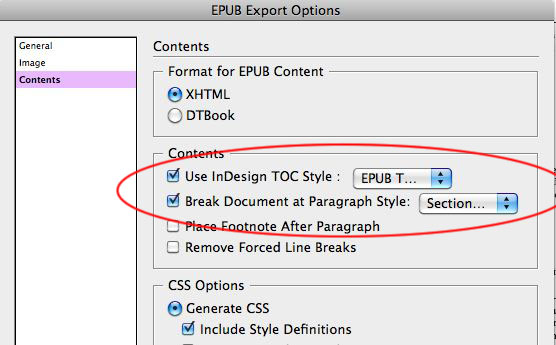
EPUB Export - Contents
The result is shown below in Adobe Digital Editions. Each Chapter Header and Section Header now has been broken in to a new XHTML file in the EPUB file. You can also see the navigational TOC on the left side of Adobe Digital Editions shows all the chapter and section titles.

Adobe Digital Editions - Chapter Break

Adobe Digital Editions - Section Break
This article was last modified on December 21, 2021
This article was first published on July 12, 2011
Commenting is easier and faster when you're logged in!

Recommended for you

This Week in InDesign Articles, Number 43
Whether you're into interactive or print, there's always more to learn about Ado...

You’ve got to try TextStitch
How to use the free TextStitch plug-in to simplify difficult text threading task...