



This InDesign tip on Finding the ICC Color Profile Assigned to the Current Document was sent to Tip of the Week email subscribers on July 12, 2018.

Sign up now and every week you’ll get a new tip, keyboard shortcut, and roundups of new articles, plus exclusive deals sent right to your Inbox!
Just scroll down to the bottom of this page, enter your email address, and click Go! We’ll take care of the rest. Now, on with the tip!
Did you ever need to know which ICC profile is assigned to your InDesign document? Unlike Photoshop, where it’s easy to find, in InDesign it’s not obvious at all. Some people believe you can view the current document’s profiles by choosing Edit > Color Settings, but this is not so; the Color Settings dialog box shows the default settings for new documents you create, not the current document. The easiest way to get this information is to choose Edit > Convert to Profile, where you can see the assigned profiles under Source Space.
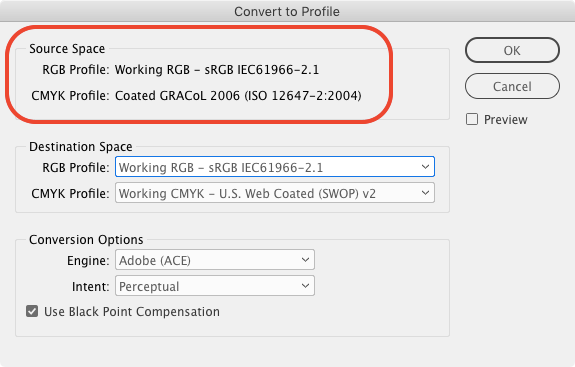
Be sure to click Cancel to dismiss this dialog box to prevent unwanted color transformations.
–Haeme Ulrich
This article was last modified on July 7, 2021
This article was first published on July 17, 2018
Commenting is easier and faster when you're logged in!

Recommended for you

CreativePro Tip of the Week: Locking Objects in Illustrator
This CreativePro Tip of the Week on locking objects in Illustrator was sent to C...

Tip of the Week: Viewing Document History
Sign up for the InDesign tip of the week to get a new tip, roundups of new artic...
Tip of the Week: Justify Text With Last Line Aligned Right
Sign up for the InDesign tip of the week to get a new tip, roundups of new artic...