



This InDesign tip on Placing a CC Library Item at Specific Coordinates was sent to Tip of the Week email subscribers on April 5, 2018.

Sign up now and every week you’ll get a new tip, keyboard shortcut, and roundups of new articles, plus exclusive deals sent right to your Inbox!
Just scroll down to the bottom of this page, enter your email address, and click Go! We’ll take care of the rest. Now, on with the tip!
When you add an InDesign object or group to a CC library, its location on the page is recorded.
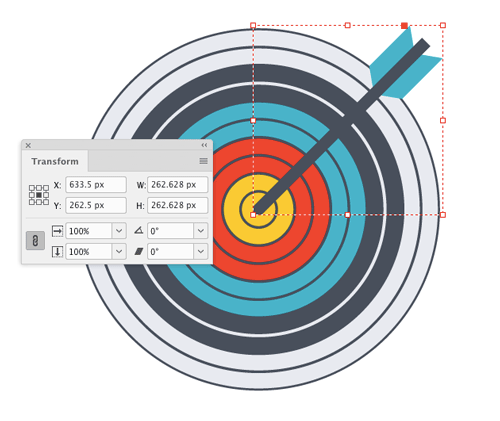
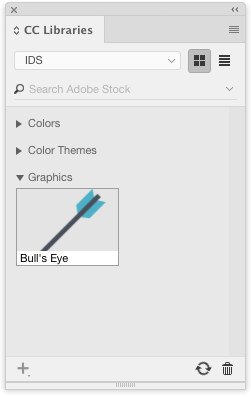
You can use this location information later on, to place the library item at the same position.
To do this, drag the item out of the CC Library. You’ll see the familiar loaded place cursor with a preview of the item.

Then hold down Option/Alt. You’ll see your cursor change to indicate the position information of the item will be used.
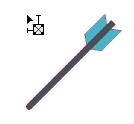
Click anywhere on the page, and the new object (or group) will be placed at the same X and Y coordinates as the original.

This article was last modified on July 25, 2019
This article was first published on April 10, 2018
Commenting is easier and faster when you're logged in!

Recommended for you
Backing Up Your CC Libraries
Back up your Creative Cloud Libraries to keep linked assets safe when archiving...
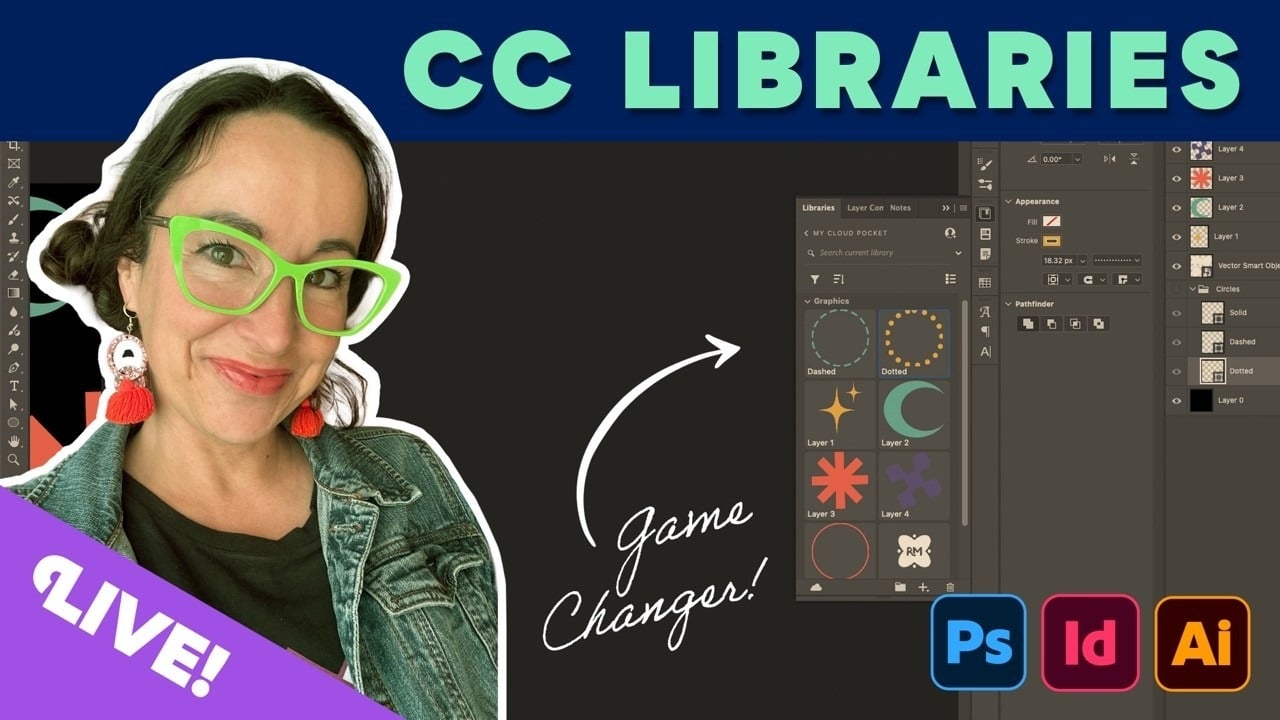
Livestream Video: CC Libraries: A Crash Course
Are you using CC Libraries? Tune in to find out why you should be!
Tips to Control Photoshop Layers
Khara Plicanic shares smart Photoshop Layers panel tips to help you find and man...