



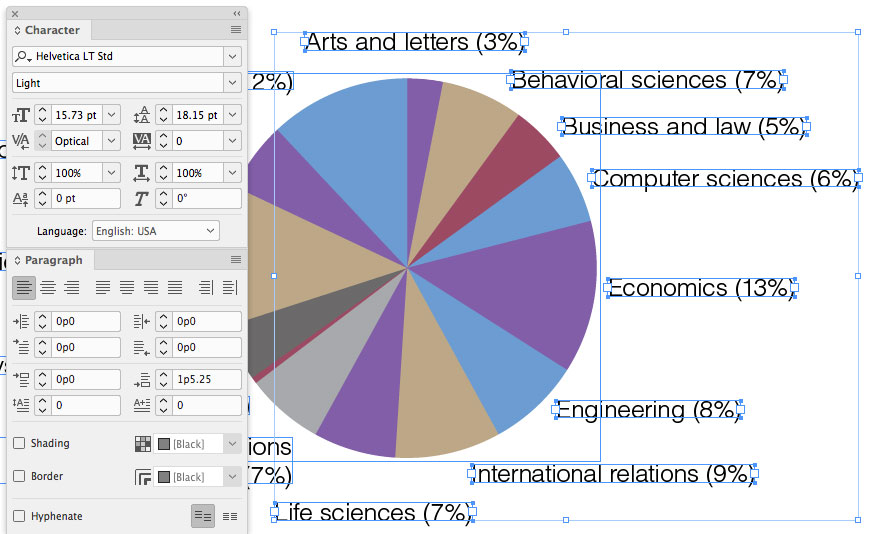
Because InDesign’s Control panel (the bar across the top of the screen) displays most of the necessary type attributes when text is selected, most people don’t keep the Character panel (Window > Type and Tables > Character) or Paragraph panel (Window > Type and Tables > Paragraph) open on their screen. However, there are two situations where these panels are timesavers.
When text frames are selected
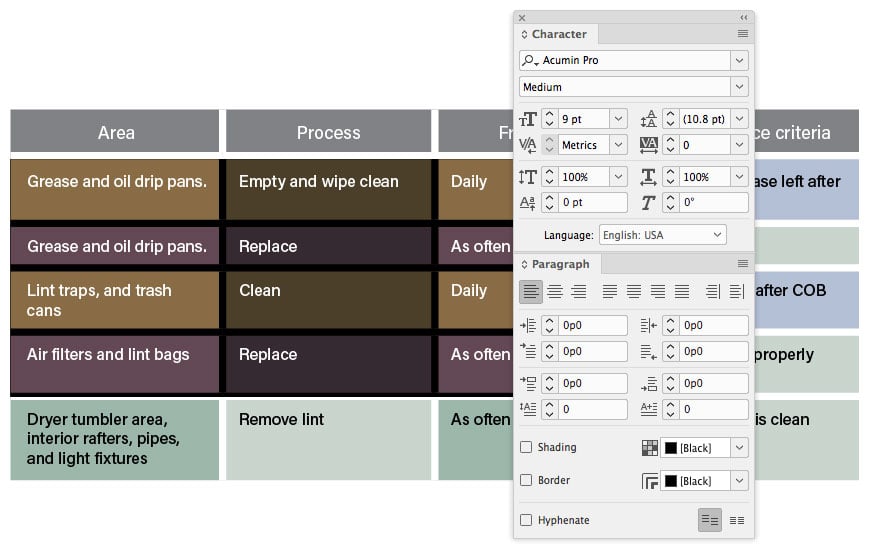
When multiple table cells are selected
When multiple table cells are selected, most of the type specifications don’t display in the Control panel, but they can still be changed in the Character and Paragraph panels.
Of course it would be even better to assign paragraph styles to the text to make these changes quick and easy. But if you don’t want to be bothered with styles, I think you’ll find this useful!
This article was last modified on July 20, 2021
This article was first published on February 26, 2018
Commenting is easier and faster when you're logged in!

Recommended for you

Tip of the Week: Resizing Frames with a Click
This tip was sent to Tip of the Week email subscribers on April 2, 2015. Sign up...
Use Split Window when Applying Colors to Text
How to fix the problem of seeing selected text in inverted colors in InDesign.
The Mystery of the Missing Menu Items Contest Answer and Winner
Solve this InDesign mystery for a chance at winning a great prize.