



Here’s a wacky little InDesign issue that just popped up… possibly a bug, but definitely something that needs to be considered when making character styles for variable fonts.
I made a paragraph style, using a variable font. Then I selected one word and applied a custom variable font style setting (adjusting it’s width, thickness, and slant):
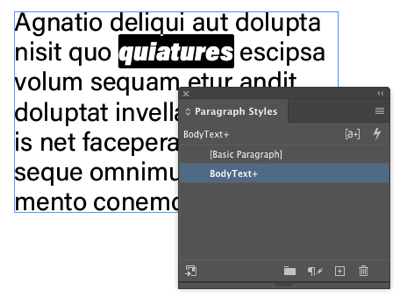
Now that I have the word selected, I open the Character Styles panel and create new style. As you know, character styles can change just one or more attributes of text—it doesn’t have to change the font and the style and the size, and so on.
So this is interesting… when I look at the Font Style menu, it shows the values of the three sliders that I chose:
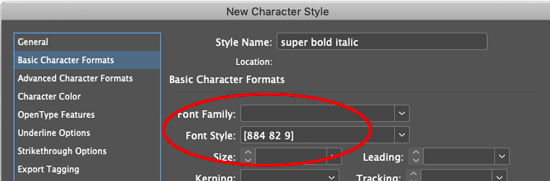
The fact that the values are in brackets like that makes me think this is some programmer’s idea of how it should be saved. But I just said, “okay whatever,” and I clicked OK.
Here’s the problem… I deselected the text, and then realized I had forgotten to actually apply the style. So I selected it again and clicked the character style and… the dreaded pinkness!

What the heck happened? Well, it turns out that when you create a character style with variable fonts and custom settings, you may need to make sure you apply both the font style and the font family!
I have tried this multiple times and unfortunately, sometimes it works the way you expect and sometimes you’ll get the “missing font” pink highlighting.
In general, however, I have found that turning on the “Apply Style to Selection” checkbox when creating the character style seems to apply the style properly every time.
Of course, if you try to apply this character style to another font, it won’t work. After all, there’s no such thing as “Helvetica [884 82 9]”
This article was last modified on December 17, 2021
This article was first published on April 15, 2020
Commenting is easier and faster when you're logged in!

Recommended for you

How to Tell Which Styles Use a Particular Font
Did you ever want to know which styles in your InDesign document use a particula...

How to Find and Fix Partially Italic Words with GREP
You can banish incomplete italics fast with Find/Change and the clever use of a...

Understanding the Stacking Order of Paragraph Rules
Understand how underlines, rules, borders and shading interact when you combine...