




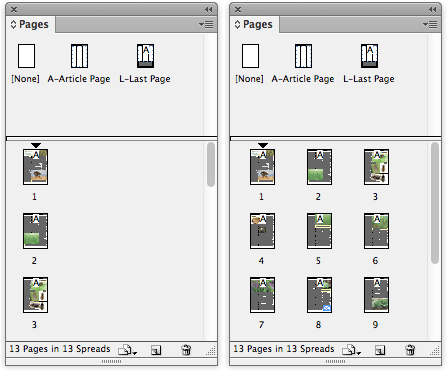
Pages in the Pages panel displayed vertically (left) and horizontally (right).
If you’ve recently upgraded to InDesign CS6 and were used to toggling the way in which the page spreads in the Pages panel were displayed from the default vertical to horizontal, you might have wondered what happened to the “Show Vertically” setting previously found in the Panel Options in earlier versions of InDesign.
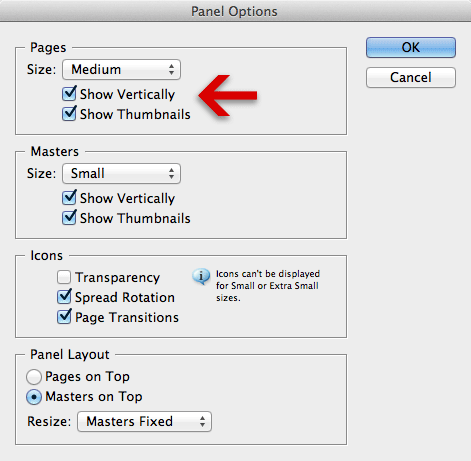
InDesign CS5.5 - Panel Options
We access the Panel Options… from the Pages panel menu, and unchecking the Show Vertically option would display the page spreads horizontally. So where did this command go in CS6?

InDesign CS6 - Panel Options
InDesign CS6 introduces the ‘Alternate Layout’ feature, which required the introduction of a third method for displaying pages in the pages panel: By Alternate Layout.
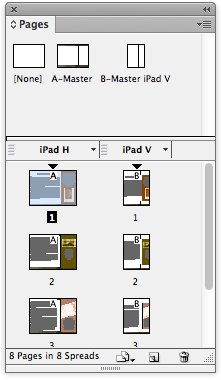
CS6 Pages panel displaying Alternate Layout page view.
As a result a new command was added to the Pages panel menu: View Pages, that now allows us to toggle between three different view options.
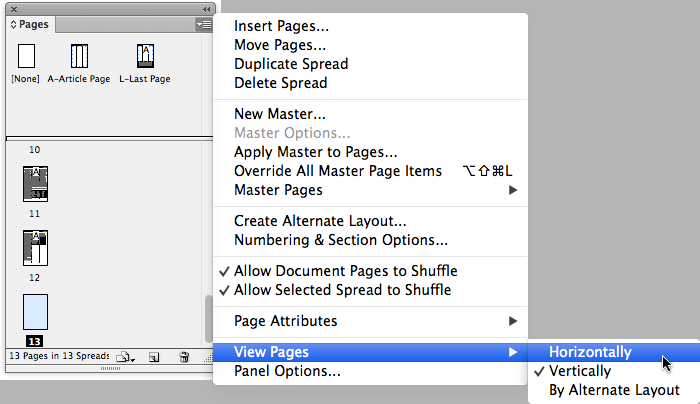
The three different View Pages options for InDesign CS6.
This article was last modified on December 21, 2021
This article was first published on July 27, 2012
Commenting is easier and faster when you're logged in!

Recommended for you
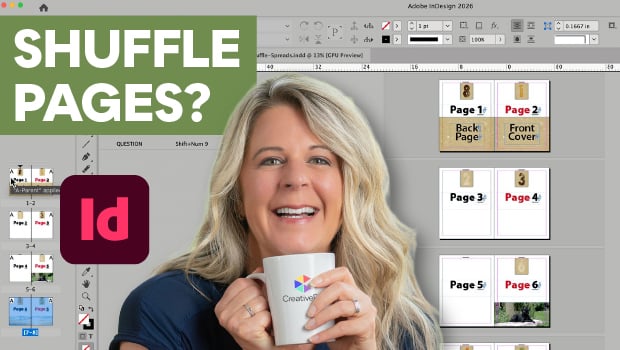
Stop InDesign from Shuffling Pages
Stop InDesign from shuffling your pages with Laurie Ruhlin.

InDesign How-to Video: How to Print a Page Range
Learn how easy it is to print any range of pages in InDesign.
Tip of the Week: Starting a Document on a Left-Hand Page
David Blatner shows the easy way to change a document so it starts on a left-han...