




Adobe released an update to InDesign 2020 version 15.1 today which introduces a potentially powerful new Share for Review feature, and a couple of other small features. The update should be available from the Creative Cloud desktop app (found in the menu bar in InDesign or the task bar in Windows).
But the first thing you’ll notice when you launch the new update is a new InDesign icon and splash screen (Figure 1). In May, Adobe announced that they were “evolving our brand identity,” with changes to the Adobe logo, the Creative Cloud logo, and the product logos. Notice the new multi-colored appearance now sported by the Creative Cloud logo.
Figure 1. The splash screen for the InDesign 2020 version 15.1 shows off the new Adobe InDesign logo and the new multi-colored Creative Cloud logo.
New Share for Review Feature
The first version of a new Share for Review feature is available to try out. It was previewed at the Creative Pro Week by Adobe Senior Product Manager Abhinav Agarwal with a short video. Mike Rankin wrote up a description of the introduction in a posting with many illustrations during the conference.
The biggest advantage of the new review workflow is that it sends a document to the web from the author to multiple reviewers directly from InDesign without the exporting and importing steps of a traditional PDF review workflow. Reviewers of the content can provide feedback on the content during production stages and can get updated versions without requiring a new link.
The Share for Review process can originate from a new Share button at the top right of the InDesign window (Figure 2). Notice that other export processes can also be initiated from the menu under that button like Publish Online or PDF export. Or you can initiate a review by choosing File > Share for Review and clicking the Create button.
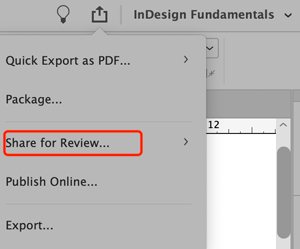
Figure 2. A new Share button provides entry to starting a Share for Review workflow, or other export processes like Publish Online.
Once initiated, you can manage the review from the Share for Review window (Figure 3). You can invite people to the review or share a link to the review. You can create or delete reviews or manage your reviews on the web. Or, if you have modified your InDesign document, you can update the review document by clicking the Update Link button at the bottom of the window without having to send out a new link.

Figure 3. The Share for Review window lets you invite people or share links to the review and manage the document review process.
Comments can be viewed in the Web interface used by reviewers by clicking the link in the Share for Review window (Figure 4). In this version 1 of the review feature, there are only two tools available for reviewing—Place a Pin or Draw a Shape. Future updates are promised to add text markup tools.

Figure 4. The web interface is where your reviewers will make comments. Currently reviewers are limited to using two tools (circled) but this should change with future updates.
The reviewers’ comments are visible in the Review panel in InDesign by choosing Window > Comments > Review (Figure 5). Clicking on a comment jumps you to the corresponding page and highlights the comment markup. Annotations for Pin comments on the layout in InDesign are shown exactly where the pin was placed. Annotations for the freeform shape drawn in the web interface appear in exactly the same location in InDesign. Other comments made without using the tools are displayed as page-level comments. You can mark each comment as Resolve or Delete, and you can reply to comments.

Figure 5. You can view and act on comments in InDesign by opening the Review panel. Clicking on a comment jumps to the corresponding InDesign page.
Auto-activating Adobe Fonts
If you choose to enable it, InDesign can now automatically detect and activate any missing Adobe Fonts (fonts available by activation from the Creative Cloud). They can be activated in the background without turning them on in the Missing Fonts dialog. (This will not to apply to other fonts in your document which may be missing, which will still require management in the Find/Replace Font dialog.)
By default, this feature is disabled. To enable it, open Preferences > File Handling and select Auto-activate Adobe Fonts (Figure 6). You can view the progress of activation by clicking on the spinning Background Tasks icon at the upper right of the window or choose Window > Utilities > Background Tasks.

Figure 6. To turn on the Auto-activate Adobe Fonts feature, choose Preferences > File Handling and select Auto-activate Adobe Fonts.
Reactivating the “Place Video File from a URL” Feature
Sometimes seemingly obscure features that the product managers think aren’t being used are dropped with a new release. This happened with the “Place a video file from a URL” feature when it was dropped with the arrival of InDesign 2020 (version 15.0).
An active campaign began on the InDesign User Voice website to reinstate the feature, and it has now returned. You can again use this feature to place a video file from a valid URL to play streaming video in an exported PDF file. The video must be a valid H.264-encoded file such as MP4 or MOV. The URL must be prefixed by https://. (In older InDesign versions, video from a Flash-based server could also be streamed but Flash is no longer supported in InDesign.)
You must follow these steps to use the feature: (1) Select an empty frame or video object you want to replace. (2) Choose Video from URL from the Media panel menu. (3) Add the specific URL and click OK (Figure 7).

Figure 7. The “Place Video File from a URL” feature killed in InDesign 2020 (version 15.0) has now been reinstated in version 15.1.
This article was last modified on February 17, 2021
This article was first published on June 16, 2020
Commenting is easier and faster when you're logged in!

Recommended for you
Adobe Acrobat 7.02 Fixes Security Issue
Adobe Systems Inc. has released Acrobat 7.02, an update for the Standard and Pro...

Editor’s Picks for The InDesign + Long Documents Summit 2024
Our Editor in Chief lists his four must-see sessions at The InDesign + Long Docu...

Making Catalogs that Work (with Less Work)
Transform your catalog designs from ho-hum to high performing with these tips.