


Using the Shift+Arrow Keys to Extend a Text Selection in Both Directions
Selecting text in InDesign is easy... except when it's baffling! Here's a quick lesson every InDesign user should learn.


Everyone knows that you can hold down the Shift key and then use the arrow keys to extend a text selection. Well, this is all pretty straightforward when you want to extend the selection in just one direction, but what if you want to extend it in both directions?
In this case you need to know one tiny little detail: When you hold down the Shift key, and for as long as you hold it down, InDesign will only shrink or grow the selection from the first side you started changing. The trick to getting the selection to shrink or grow in both directions is to temporarily lift up on the Shift key before switching the side of the selection that you want to change.
Let’s say that you have a word surrounded by quotation marks and you want to select the entire thing. You can double click on the word and this will get you most of the way there but you are still left having to select those pesky quotation marks.

Double clicking selects your word? but what if you also wanted to select those quotation marks?
OK, no big deal, you say to yourself, you know how to get past this. So you hold down the Shift key and use your Right Arrow key to extend the text selection to include the right quotation mark. Sweet! You’re almost there!
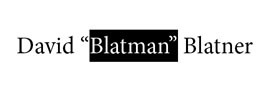
Almost there! You are so close to selecting all the text you can almost taste it!
Keeping the Shift key held down you then press the Left Arrow key to extend the selection in the other direction and select the left quotation mark. But do you get what you want? No! You have just unselected that right quotation mark and you’re right back where you started!

What the...?! After using the Left Arrow key you are right back where you started. You clench your puny fists and raise them to the sky? Khaaaaaaaaaan!
OK, champ, calm down! Calm down! I believe in you. You can do this. Remember: Every time you press down on the Shift key you get to tell InDesign again which side of the selection you want to add to or subtract from.
Let’s start over from the beginning. Double click the word to select it. Next, hold down the Shift key and press the Right Arrow key to select the right quotation mark. Good job! You’re doing it!
Now, before you hit that Left Arrow key, lift up on the Shift key for a second. Now press down on the Shift key again and use your Left Arrow key. And you did it! All of the text is now selected! You rock!

Shift+Right Arrow key extends the selection to the right. Temporarily lift up on the Shift key. Shift+Left Arrow key now lets you extend the selection to the left.
So remember, the trick to extending a text selection in both directions is to temporarily lift up on the Shift key before switching the side of the selection that you want to change.
Shift+arrow left. Shift+arrow right. Mr. Miyagi would be proud of you.
Of course, I am not the first to come across this little bit o’ goodness. You can find an earlier post on this topic by the Blatman himself at https://creativepro.com/selecting-text-doing-the-finger-dance.php

Evil InDesign users everywhere shudder when they hear his name. They call him... The Blatman!
This article was last modified on December 21, 2021
This article was first published on May 9, 2012
Commenting is easier and faster when you're logged in!

Recommended for you

The Mystery of the Vanishing Text Contest Answer and Winner
Solve this InDesign mystery for a chance at winning a great prize.
How to Be a Better Graphic Designer: Sweat the Details
Nigel French reminds us how much the little things matter in design.
Tip of the Week: Creating Automatic Run-in Headings with Numbered Paragraph Styles
This InDesign tip on creating run-in headings with numbered paragraph styles was...