



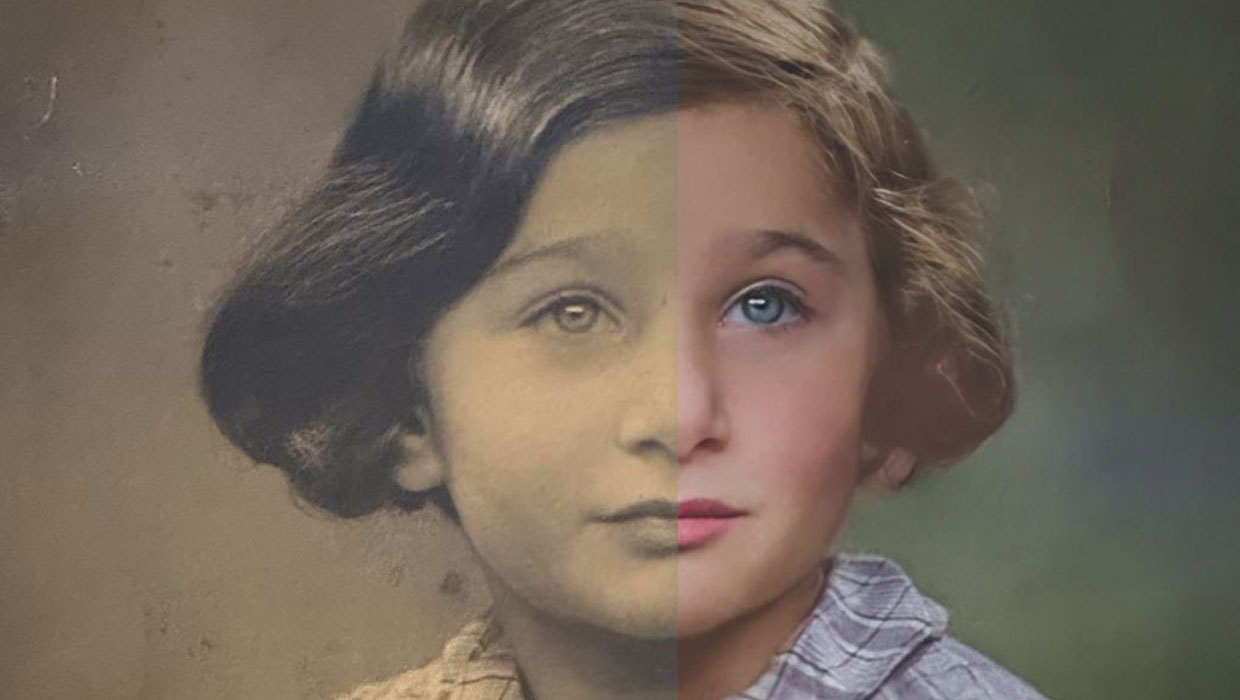
Google “photo restoration” and you’ll see dozens of ads from people who will aim to do the work of you—for a price. Now that there’s a photo restoration tool built into Photoshop’s Neural Filters, is it time for them to hang up their styluses? On current evidence, perhaps not.
Using the Photo Restoration Filter
You’ll find Photo Restoration at the bottom of the list of Neural Filters (choose Filter > Neural Filters).
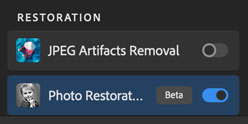
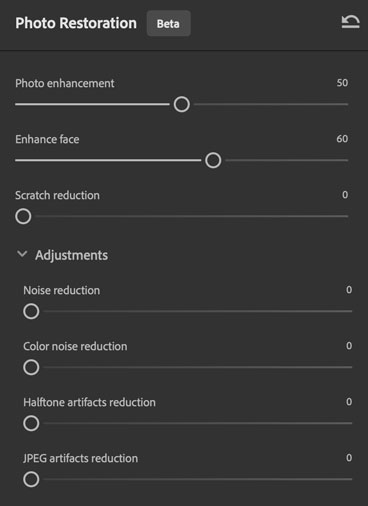
Technically, it’s still a “beta” feature but it’s available in the shipping public version of Photoshop. The first time you use it you’ll need to click the button to enable the filter and download it from the internet. Then you can use the sliders to remove scratches and other damage, enhance facial features, and so on.
Tip: Remember to always work nondestructively, leaving your original image untouched. At the bottom of the dialog is a menu where you can choose to output the results of the filter to a new layer, Smart Filter, or new document.

Simple Enhancement
Photoshop’s Firefly engine is good at enhancing detail in old photos. This photo of my mother is soft focus, and includes some tears and blemishes.

The Photo Restoration filter has done a good job of sharpening the features, enhancing the eyes and hair. But it was unable successfully remove all the tears.
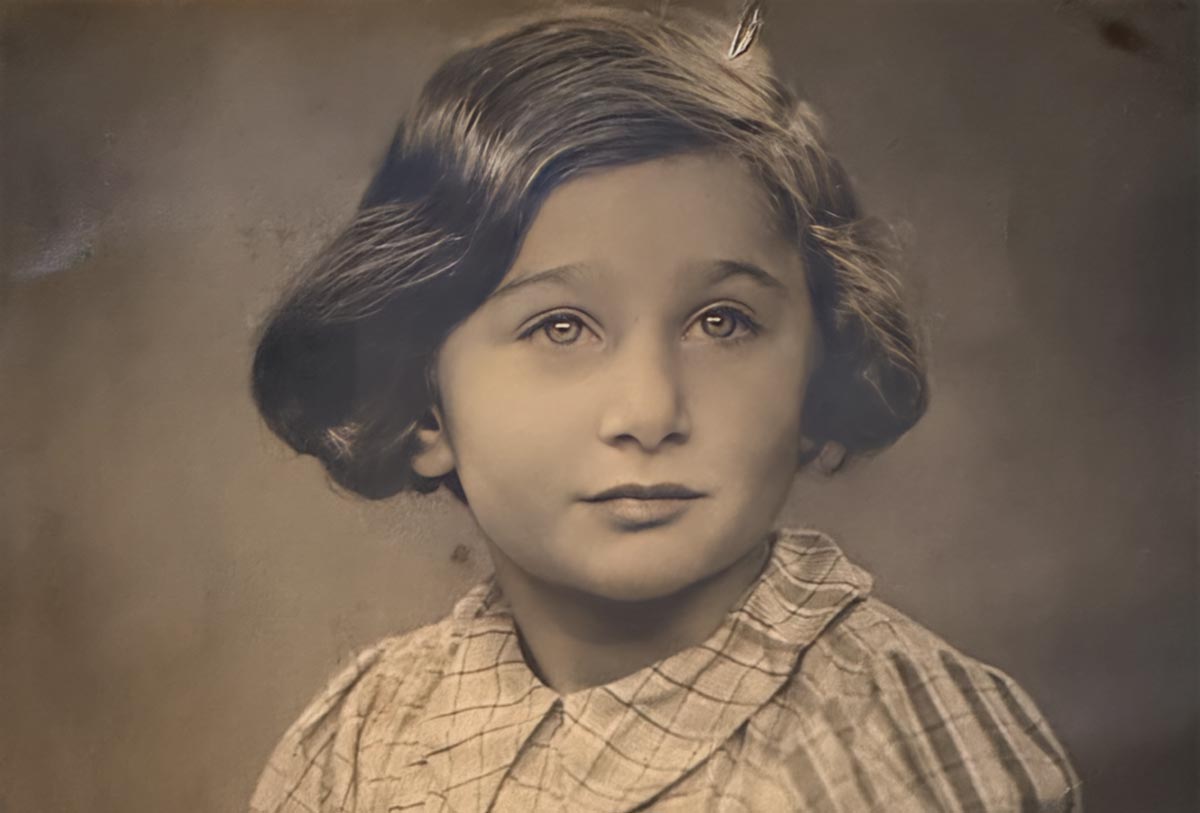
If you’re working with an old black-and-white image and want to take it further, you can experiment with the Colorize Neural filter.

Vary the settings
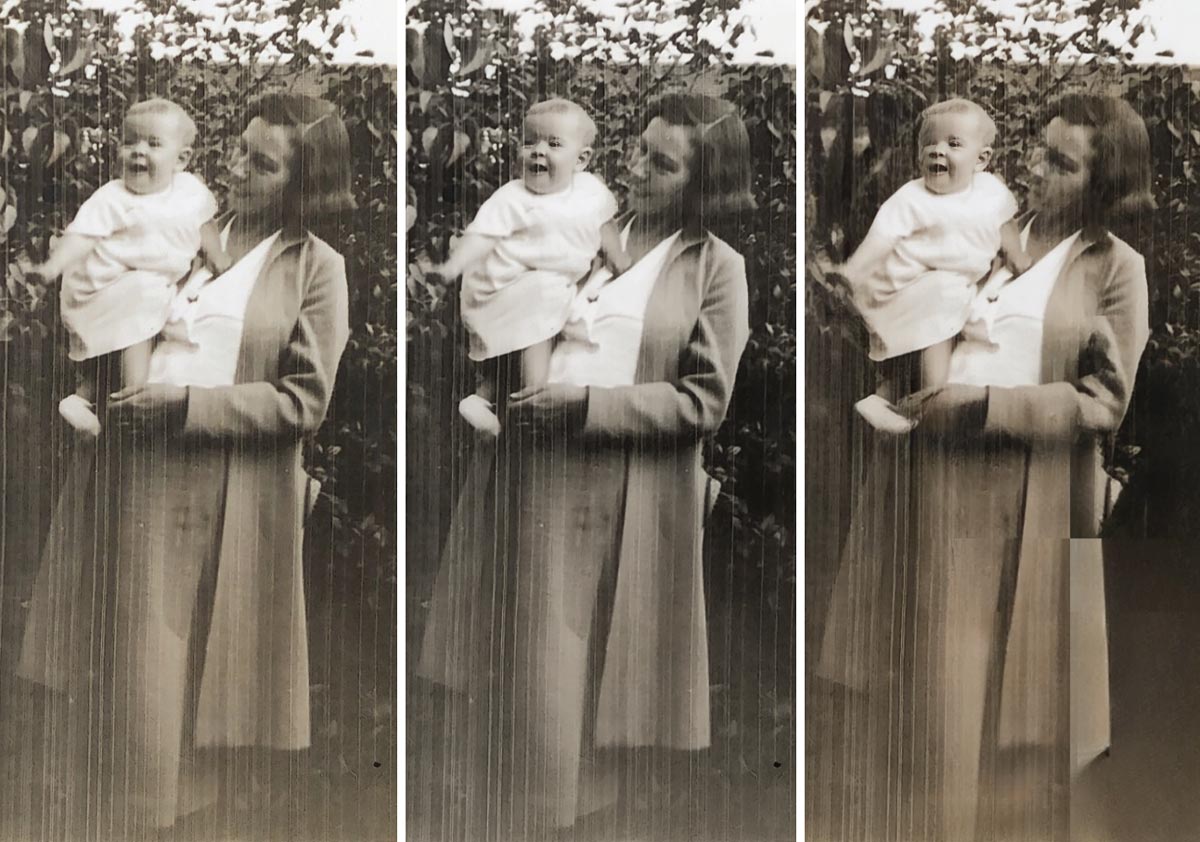
The Photo Restoration filter does allow you to modify settings such as Enhancement, Enhance Face, Scratch Reduction and more. This original image (left) was only slightly improved by the default settings (center). But the I tried increasing the Scratch Reduction setting, the result was mangled faces (right). Photoshop was quite unable to rescue this image.
This article was last modified on November 13, 2025
This article was first published on November 1, 2025
Commenting is easier and faster when you're logged in!

Recommended for you

How to Open Doors in Photoshop
Opening closed doors is a useful Photoshop technique, and you can use it to open...
How to Create a Snow Scene in Photoshop
Too late to get your Christmas cards printed? You can still make an email card a...

Helping Photoshop and InDesign Play Nice
Chad Chelius and David Blatner offer advice on how to make these two software si...