



This InDesign tip on Quick Apply features was sent to Tip of the Week email subscribers on August 23, 2018.

Sign up now and every week you’ll get a new tip, keyboard shortcut, and roundups of new articles, plus exclusive deals sent right to your Inbox!
Just scroll down to the bottom of this page, enter your email address, and click Go! We’ll take care of the rest. Now, on with the tip!
Here are some hidden shortcuts for the Quick Apply feature: Press Command-Return (Mac) or Control-Enter (Windows) to open the Quick Apply feature. Now you can type a few characters of a style name. They don’t have to be the first characters; typing “B2” will find “Bhead2” and “2B or not 2B.” If more than one style appears in the list, you can press the up and down arrow keys on your keyboard to navigate them.
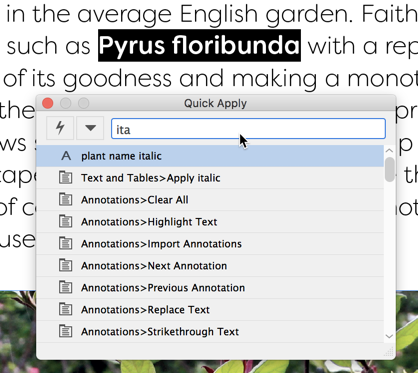
Now, you can press Enter to apply the selected style, Option/Alt-Enter to remove all local overrides and apply the style, or Option/Alt-Shift-Enter to remove all local overrides including character styles before applying the style. If you’re not sure which style you want to apply, press Shift-Enter, which applies the style, but leaves the Quick Apply window open. Or press Esc to cancel the Quick Apply.

This article was last modified on July 7, 2021
This article was first published on August 28, 2018
Commenting is easier and faster when you're logged in!

Recommended for you

5 Tips for Better Tables
Use these 5 quick tips to improve the appearance and usability of your InDesign...

Tip of the Week: Move Text to a New Frame
This tip was sent to Tip of the Week email subscribers on September 25, 2014. Si...

CreativePro Conference Speaker Spotlight: Jesús Ramirez, the YouTube Photoshop King
Welcome to our new series of posts called Speaker Spotlight, designed to highlig...