Forum Replies Created
-
AuthorPosts
-
November 23, 2015 at 10:03 am in reply to: Perfectly align graphics behind single lines in a text #79580
Kelly Vaughn
ParticipantI would use IndyFont Pro to make a font containing a single character (that wide bar that you want to use for the background). Then use that character as a bullet in a paragraph style. All you need to do to add the wide-bar-bullet is to specify that paragraph style, with some sort of white space. To get the subheading to sit directly on top of the wide bar bullets, you can either really tighten up the leading in the SubHeading paragraph style, or you can adjust the wide bar character in your font design to have it sit really low on the baseline.
You may even be able to apply the wide bar bullet to the actual subheading paragraph style itself, although that will take some more fiddling.
ParticipantHavr you tried simply copying and pasting the InDesign vectors into Illustrator? That’s what I do.
You can also export a PDF and open the PDF in illustrator.
ParticipantHi Steve, please email it to me: Kelly at documentgeek dot com
ParticipantHi Gobit,
There doesn’t appear to be a way to permanently enable Overprint Preview. I think the best thing would be to just use the keyboard shortcut: Opt + Shift + Cmd + Y.
ParticipantHow thick are the lines? And what color are they? It may be just a viewing problem in Acrobat. Sometimes, Acrobat displays line weights not quite correctly.
ParticipantHi Steve,
That should be possible. I think a custom anchored object might work better than above line. That will let you use the margin as a reference point. Can you post a screenshot of what you’re trying to achieve? But without anchored objects… just place the objects on the page where you want them. That way I’ll have a better idea of what you’re after and what settings to use.
ParticipantYou need two tab leaders, each with a different “Align On” character.
This is for the DOLLAR SIGN tab leader.
https://4.bp.blogspot.com/-Kr7CogxBaqs/VgmM78L6r7I/AAAAAAAAAP4/eGaCDCXJvIo/s1600/DollarSignTabLeader.pngAnd this one is for the DECIMAL tab leader:
https://3.bp.blogspot.com/-0oqLPOUFf7I/VgmM9ESXt3I/AAAAAAAAAQA/rffNDmqYL6Q/s1600/DecimalTabLeader.pngAnd here is a great article about tab stops in tables. It doesn’t deal with the dollar signs, but it gives a nice explanation about how tab stops and tables work together.
ParticipantI have had a similar experience with custom anchored objects. It seems that the size of the custom anchored object marker is directly related to the leading of the paragraph. So in my case, a paragraph with 15 point leading will have a small anchored object marker. But when I increase the leading to 200 points, the anchor marker gets huge. Maybe try experimenting with the leading and see if that changes anything.
ParticipantHi Bernard,
It looks like that article references a really old version of Acrobat. The newer versions have a menu option called “Show Stamps Palette.” Here is an article that describes how to use it as well as has a pre-made stamp library of editorial marks that you can install. https://www.nikkimgroup.com.au/features/pdf-proofreading-marks/
Give it a whirl. I think you may like it.
–Kelly
ParticipantNo, you cannot create a TOC from a paragraph style. The easiest way to deal with this is to use a table instead of tab leaders. Then create a separate paragraph style for the Product ID. That will let you pull it into the TOC without also pulling in OEM Number, Description, Price, etc.
June 27, 2015 at 7:18 am in reply to: Crazy problem with page number placement in Table of Contents (Indesign CC 2014) #76288ParticipantInjury it is a known issue, though most people don’t encounter it. This is the first time I’ve seen it in 14 years of using InDesign.
You can go select the frame and convert everything in it to live text: “convert variable to text.” Yes, hard coded text instead of a variable. If you encounter other TOC issues, try converting ALL the variables in that paragraph to live text. From what I gather talking with a colleague, text variables in TOC source paragraphs can’t be trusted. :(
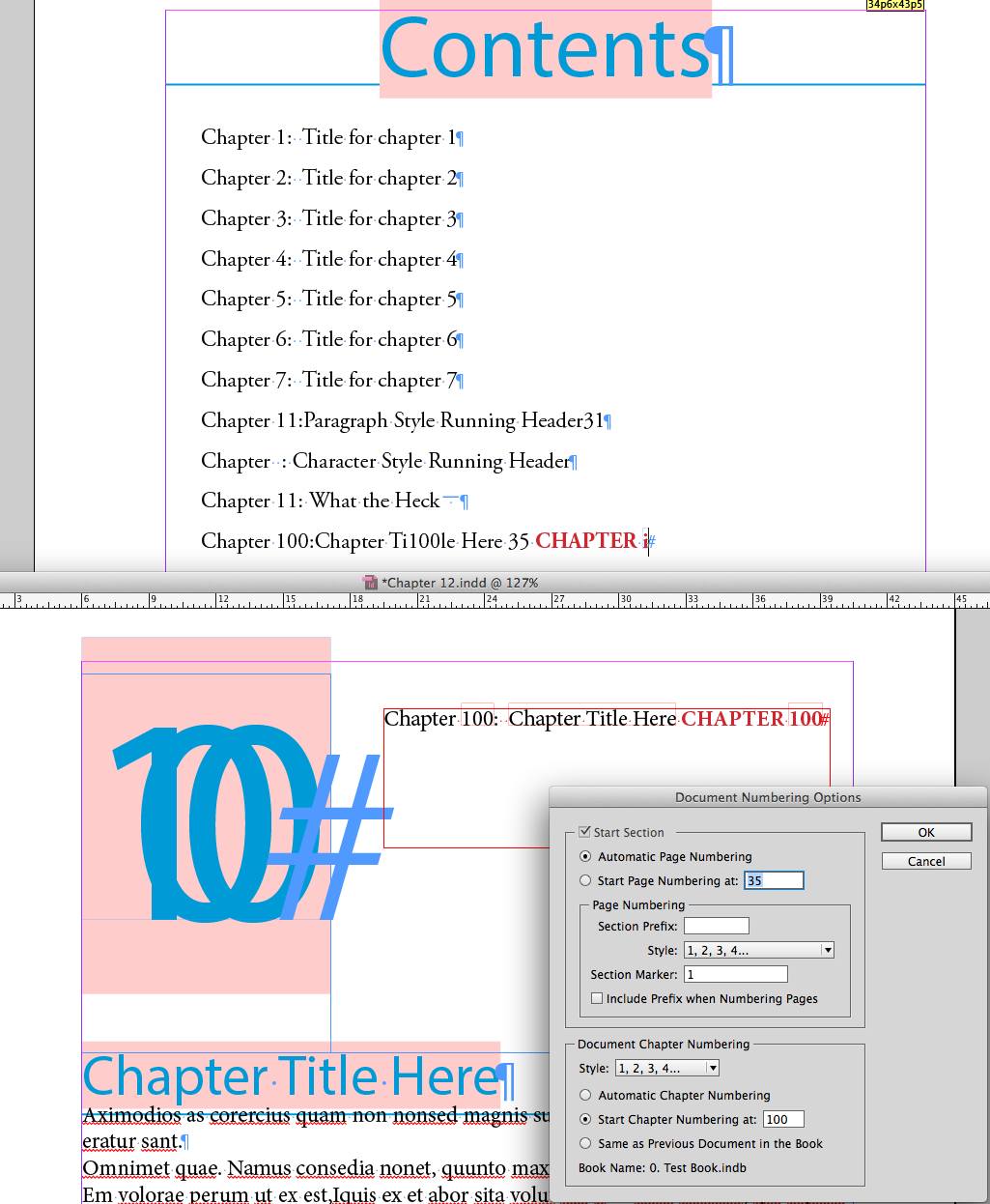
June 26, 2015 at 1:05 pm in reply to: Crazy problem with page number placement in Table of Contents (Indesign CC 2014) #76281ParticipantWow, you are right! It appears that you have found a bug! I was able to replicate it and I figured out the problem. InDesign TOCs, for whatever crazy reason, have a problem pulling in paragraphs containing with text variables. In This case, the paragraph style you reference in your TOC has two different text variables in it: this chapter number, and the Title.
I tried changing the text variable type to a character style running header or a filename,e but the problem persisted. I was able to get those extra page numbers to go away by converting one of those variable to live text, so there is only one variable in that paragraph. The easiest way would be to convert the chapter numbers on that line to live text. That way, you Chapter name variable will still stay live.
Again, as to why this happens only on chapter 10 and up, I have no idea. It’s a very weird bug, indeed. It apparently has something to do with the multiple text variables. I tried having three variables in a paragraph referenced by a TOC, and InDesign started omitting/changing some of the text from the TOC, and pulling in the chapter number of the TOC as a live variable. I changed the chapter numbering style of the TOC so you can see that the TOC is referring the TOC chapter number, and not the actual text from the document. Crazy stuff, I tell ya!
https://4.bp.blogspot.com/-zvvwIty0he0/VY2sP_daAFI/AAAAAAAACOQ/oAVXmufmRIw/s1600/CRAZYTOC.png
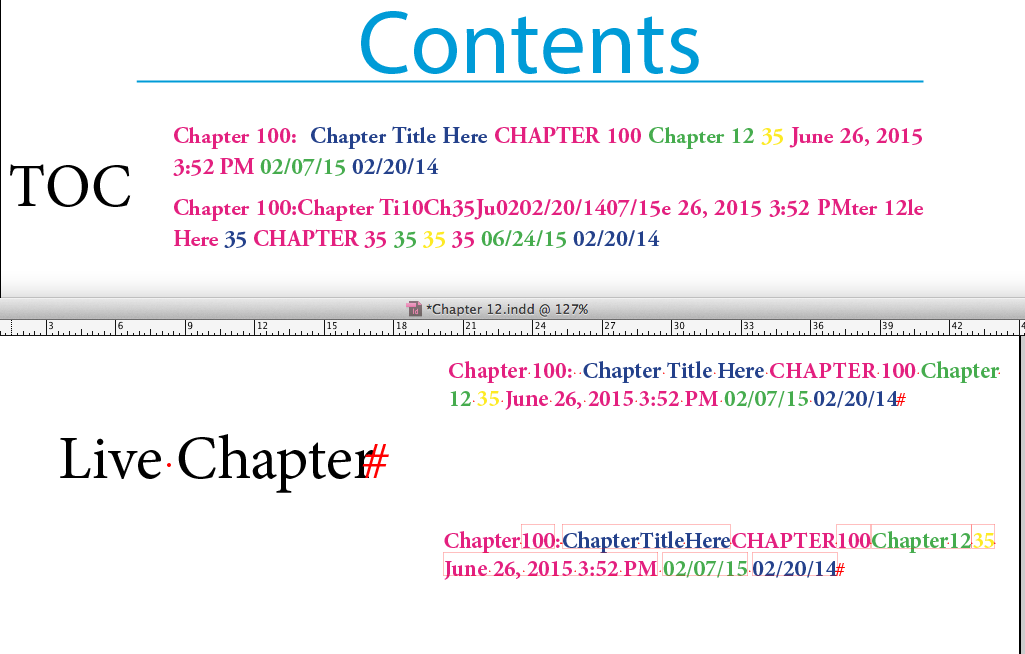
Just for kicks, I made that line have 8 different variables, then duplicated the text variable and converted all the variable in that second frame to live text. Then I updated the TOC again. And insanity ensued! Not only did InDesign mess up most of the variables, it also added that extra page number six times! I colored the different text variable so you can see a bit better how crazy this is.
Wha-What?
https://1.bp.blogspot.com/-CiIt1x975Ds/VY2vzicYG6I/AAAAAAAACOc/0HY6EkYujJw/s1600/CraziestTOCEver.png
I would submit this to the InDesign team as a bug: https://www.adobe.com/cfusion/mmform/index.cfm?name=wishform
So again, the easy fix: make your chapter numbers live text in the “Chap Num + Name” paragraph. That should fix it.
*Shakes head in disbelief…
June 26, 2015 at 4:49 am in reply to: Crazy problem with page number placement in Table of Contents (Indesign CC 2014) #76271ParticipantWould you be willing to send me your InDesign files so I can troubleshoot?
Kelly at document geek dot comJune 25, 2015 at 7:50 pm in reply to: Crazy problem with page number placement in Table of Contents (Indesign CC 2014) #76257ParticipantMy suspicion is that there is a page number variable character after the chapter num + Name paragraph style in chapters 10 and beyond. Can you open chapter ten and take a screen shot of that paragraph? So I can see what the TOC is pulling in?
ParticipantBy chance do some of the paragraphs have “Keep with Next” also applied? If both keep with Previous and Keep with Next are applied, and there is too much text to fit in the frame, InDesign has to make a decision where to break, and it’s usually not where you want.
-
AuthorPosts