


Forum Replies Created
-
AuthorPosts
-
 David BlatnerKeymaster
I do not see any stroke style listed in that dialog box. (I think Stroke Styles are document-specific, so you won’t see them in a new document.)
David BlatnerKeymasterHi Masood, I think perhaps what you are asking for is bigger than you expect. I’m sure you do not expect anyone to write the script for you for free, unless it would take only maybe 10 minutes. Yes, this forum is for people helping each other, but everyone is busy and their time is valuable. For a larger project that takes someone a significant amount of time, I think it is very reasonable to expect people to ask for a consulting fee.
You mentioned in your post that you would like to learn how to script. That is awesome! I would suggest Keith Gilbert’s video title: InDesign Scripting Made Easy
https://www.lynda.com/InDesign-tutorials/Welcome/408237/452552-4.htmlDavid BlatnerKeymasterHi Masood… I’m sorry, but I do not understand what you mean. I do not see any reference to making money in this thread.
I agree that scripters looking for help with a script should not be offered paid consulting help. The scripter community must help each other. :-)
David BlatnerKeymasterI like Vinny’s IndyFont idea. Another option is to use a script that swaps images for text, such as: https://www.rorohiko.com/wordpress/2014/06/24/peoples-choice-indesign-script-pepcon-2014-replace-words-images-vice-versa/
But the easiest method may be just to use find/change:
https://creativepro.com/find-text-change-to-graphic.phpDavid BlatnerKeymasterI also cannot see the screen shot. Strange.
Remember that pink highlighting (“the dreaded pinkness”) means 2 things: either the font doesn’t exist OR the characters that are being called for don’t exist in that particular font.
The best clue is the font or font style fields in the Control panel. If the font or font style has brackets around it, it means the font doesn’t exist. If no brackets, then the font exists, but the character doesn’t (in that font).
David BlatnerKeymasterUnfortunately, that list is created automatically by InDesign based on the fonts you have installed. So if you have a font that has a “Heavy” style, then “Heavy” will appear in the list.
I recommend using a font management utility such as Extensis Fusion or Linotype FontAgent Pro to turn off the fonts you are not currently needing to use.
David BlatnerKeymasterInDesign isn’t really designed to have CS6 and CC running at the same time and have you copy and paste from one into the other.
I would strongly suggest either opening the CS6 file in CC and copying from there, or save items from CS6 as Snippets (file > export) and then place the snippets in CC.
David BlatnerKeymasterHi John, thanks for the very kind words! I see your point about Edit PDF. I rarely used that feature, so I didn’t realize that was a problem. It’s rather ironic, because Adobe has made a big deal about Acrobat DC being so much better at editing text. Hm. That is a bummer! (That said, when I upgraded to DC, I heard from a number of friends that it was not all going to be better. Sandee Cohen, on Twitter, told me: “Acrobat DC is like coming home from a family dinner and finding that interior decorators broke into the house and rearranged furniture, re-painted rooms, and hidden your important papers. You’ll spend hours trying to find things you know have to be there.”
On the font problem: I have no doubt that you’re running into some kind of bug. I’m just saying that it sounds mysterious and may be difficult to pin down.
As for the guides: Oh, the ruler along the side of the page gets grayed out?! That is weird. That would be frustrating. Maybe need to rebuild your preferences? Strange problem.
Quoin! Yes, I was inquiring about that. No, nothing really came of it. I agree that QX and ID should be able to do much better at creating auto-spaced tables.
March 11, 2018 at 10:43 am in reply to: Centred paragraph style for a heading with rules/lines #102321David BlatnerKeymasterI’m so glad, Ann! I’ll write this up as a blog post, too, so we don’t forget it in the future.
A pint would be lovely. I recently had something called a “snakebite”: a pint with half-Guinness and half-apple cider… wow! :-)
David BlatnerKeymasterYes, there is no doubt that Adobe does not (and can not) fix every bug and shortfall in their software. They try, but there are definitely bugs from many years ago that are still unfixed. Don’t take it personally; it happens with all software companies, as far as I can tell.
John: I just this week switched from Acrobat XI to DC, and it does show me font family information, both in the Properties dialog box and in the Output Preview (object inspector).
Your fonts problem sounds to me like it may either be your fonts or the InDesign template you’re using… or perhaps even Word. This is an excellent example of a “bug” that is extremely difficult for Adobe to “fix,” because: a) it doesn’t happen to most users, and b) it’s unclear what is causing it. As for the vertical guide problem: It sounds like when you drag out a guide, somehow the guide is becoming deselected after you let go of the mouse button. Perhaps you’re accidentally clicking again somewhere? Here, again, it sounds like its intermittent. I’ve seen it happen, but it’s rare for me.
Robert: If ID says there’s overset text, then something might be wrong with the document. I suggest exporting as IDML and opening the IDML file to clean up any file corruption. Also, check the Preflight Panel for details of overset text and other issues.
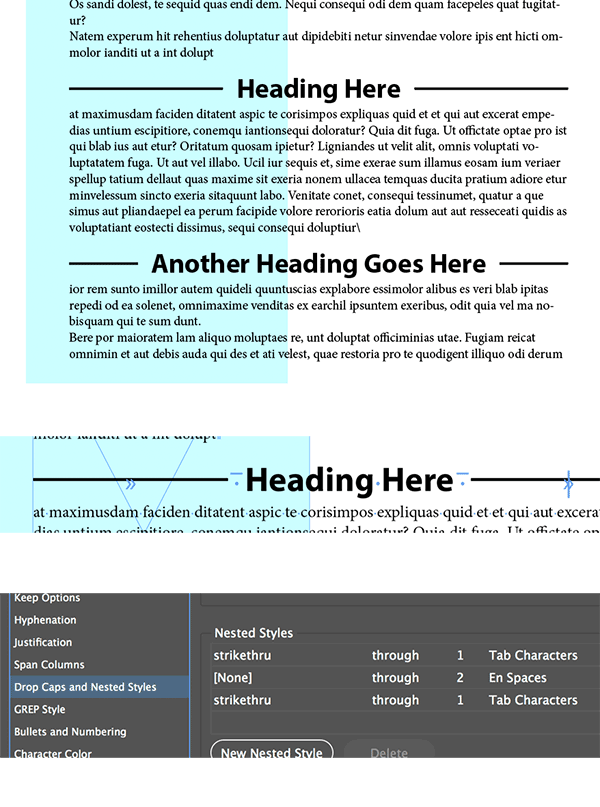
March 10, 2018 at 7:02 pm in reply to: Centred paragraph style for a heading with rules/lines #102302David BlatnerKeymasterI’m not sure about the em space thing, but your comment made a lightbulb go off in my head… if you’re willing to add some spaces around the heading, you can automate this pretty easily!
For example: search for all the text in the Heading paragraph style and put a tab and en space before the heading, and then an en space and a right-align tab after it. (This is possible with the GREP tab of the Find/Change dialog box.)
Then set the heading paragraph style to be Left Aligned, and give it a Center tab stop in the middle of the column. That way, the heading is automatically centered.
And, here’s the fun part: add a nested style that applies a strikethrough to the two tabs!
In the image below, you can see the finished result (top), the finished result with hidden characters visible (middle), and the nested style I applied (bottom)
 March 9, 2018 at 5:29 pm in reply to: Centred paragraph style for a heading with rules/lines #102291David BlatnerKeymaster
Are you talking about the solution shown by Vinny? Wow, that is CRAZY. That would be horrible to do in a real project (like a book or magazine), but it is interesting that it works!
So you have a script that places anchored lines? And then it can replace them if the text changes (by re-running the script)?
March 9, 2018 at 4:53 pm in reply to: Centred paragraph style for a heading with rules/lines #102289David BlatnerKeymasterMichel: WOW! I see it, so I believe it! But… do I understand it? No!
Underline? Strikethrough? Something with Line Styles? Hm…
David BlatnerKeymasterIt seems like it should be pretty easy, doesn’t it? But unfortunately, this is a difficult problem. See the discussion here: https://forums.adobe.com/thread/1678844
Maybe it would be easier if all the images are the same size, so you don’t have to worry about scaling? Not sure.
-
AuthorPosts