


Forum Replies Created
-
AuthorPosts
-
April 17, 2019 at 4:38 pm in reply to: Adding anchored text to pictures AFTER they have been imported #116159
 David BlatnerKeymaster
You may be able to accomplish this entirely with Live Captions. There’s a little bit on this topic here:
https://creativepro.com/live-captions-text-variables.phpDavid BlatnerKeymasterIt is a vestige of DPS. I don’t know of any reason to use it.
David BlatnerKeymasterThere may be a script that would let you build the TOC more elegantly, but I think the sortparagraphs script is a good workaround.
You might check this script to see if it can help any: https://www.id-extras.com/products/livetoc/
David BlatnerKeymasterI think you’re probably going to have to connect with Em Software about this.
April 14, 2019 at 7:06 am in reply to: Rollover Buttons just work for one time (viewed with Adobe Acrobat Reader) #116058David BlatnerKeymasterBoth objects are buttons? Are you using the HIde/Show Buttons action with the Rollover event?
Does it work in the EPUB Interactivity Preview panel? (That is sometimes a good testing place.)April 12, 2019 at 7:49 am in reply to: Converting a Texts from SHREE-DEVXE-0708 font to Unicode Font #116043David BlatnerKeymasterThis is a difficult problem, I believe. I asked Indic-script expert Apurva Ashar, and he replied:
Yes, this is something on which I have done extensive work. I thinks InDesign can be a great life-changer for jobs like this. I have number of scripts (basically its is multiple search-replace—combination of some text and some GREP searches executed in batch) ready for the purpose.
The basic problem is: we in India have been using non-Unicode/non-standard fonts for Indic publishing till now. Indic character Glyphs were placed on normal English fonts and keyboard mapper software were used for data input. There are several hundred variations in these fonts and they does not exist any standard. I am attaching two small videos, though the commentary is in Gujarati, you will understand most of it by the visuals. This script works for mixed languages, mixed fonts etc.
This in fact is the biggest problem/opportunity in Indic publishing. at this moment of time in India. Lot of old data in various proprietary fonts and in Pagemaker to be converted to Unicode and InDesign, keeping formatting intact. There are also problems of Unicode fonts, InDesign training, eBooks in Indic fonts…
David BlatnerKeymasterIt’s a tricky problem… Anne-Marie wrote about it here (see also the comments section):
https://creativepro.com/fixing-toc-levels-that-refuse-to-behave.phpApril 12, 2019 at 7:41 am in reply to: how to flip a % symbol without flipping the original digits? #116040David BlatnerKeymasterAh! Thank you, Chris. That is a much more elegant solution. :-)
April 11, 2019 at 3:16 pm in reply to: Using text variables to input a page number in a diagram #116026David BlatnerKeymasterNot sure if this will help, but here are couple of links:
https://creativepro.com/arranging-numbered-lists-separate-frames.php
and check out these two movies (if you have a Lynda.com or LinkedIn Learning subscription)
https://www.linkedin.com/learning/indesign-secrets/342-numbering-items-in-a-diagram
and
https://www.linkedin.com/learning/indesign-secrets/356-numbering-items-in-a-diagramDavid BlatnerKeymasterYeah, the only way to do that on this forum is to post it to an image sharing site, such as Imgur and then post the link here.
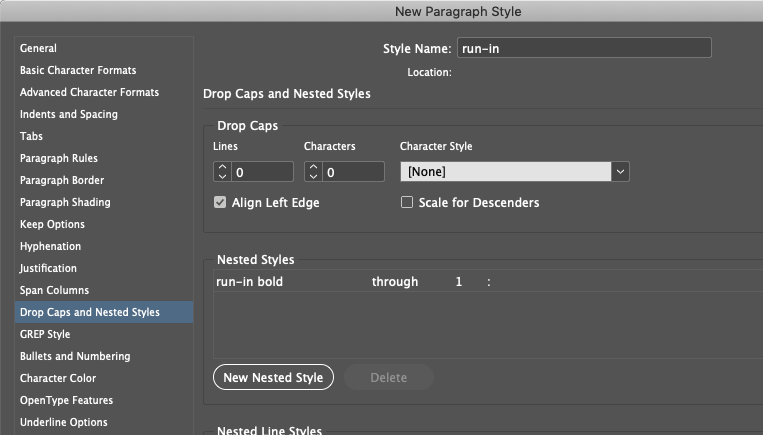
David BlatnerKeymasterUsually, the best way to handle “run-in” headers like this is with a nested style. You can assign a character style to all the words that lead up to a colon. Replace the word “Words” with the colon character, like this:
 David BlatnerKeymaster
Are you in CC 2019? There was a GREP problem that limited the scope of GREP searches.
https://helpx.adobe.com/indesign/kb/search-issue-in-long-documents.htmlApril 11, 2019 at 7:25 am in reply to: how to flip a % symbol without flipping the original digits? #116010David BlatnerKeymasterIn the English version, I would use a GREP expression to do this. For example, in the GREP tab of the Find/Change dialog box, you could search for
(\d+?\.?\d*)%and then replace it with%$1
That would switch the position of the % symbol. (This will find 6%, 6.1%, 65.1%, or 123.694%) -
AuthorPosts