




This InDesign tip on using RGB PDFs to avoid packaging errors was sent to Tip of the Week email subscribers on April 13, 2017.

Sign up now and every week you’ll get a new tip, keyboard shortcut, and roundups of new articles, plus exclusive deals sent right to your Inbox!
Just scroll down to the bottom of this page, enter your email address, and click Go! We’ll take care of the rest. Now, on with the tip!
I take a lot of screenshots which I need to place into InDesign documents.
Because most of that work will be output as PDF for onscreen viewing, I leave the screen shots as RGB. But this causes InDesign to display an alert when I package my file: all the RGB images are flagged as a possible problem.
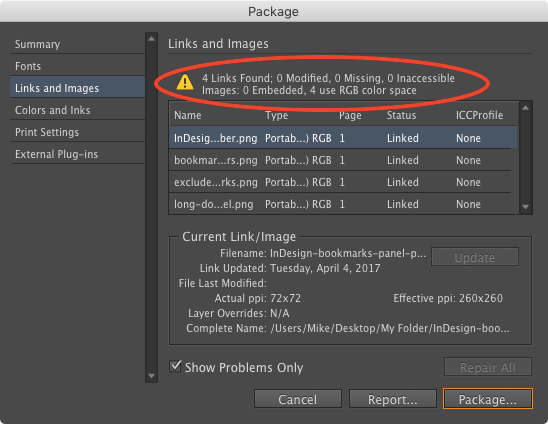
I finally figured out how to avoid the flagged problems. Instead of saving my screenshots as PSD or TIFF, I save them as PDF.
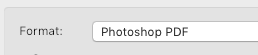
InDesign doesn’t see an RGB PDF as an RGB document! If you place an RGB file saved as Photoshop PSD, it will not show up as using the RGB color space. Instead, the type of file is simply listed as PDF.
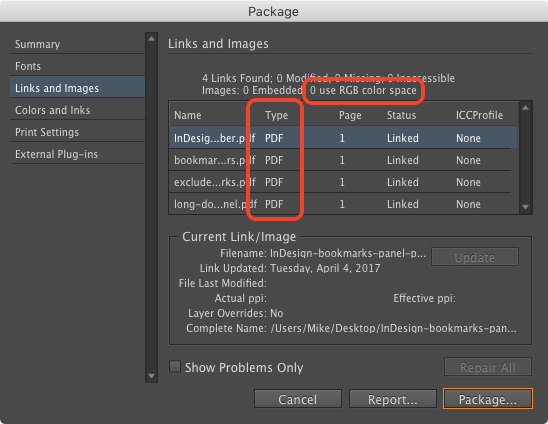
This has become a terrific way for me to avoid unwanted RGB “problems” being flagged in the Package process. It is also something important to remember if you do want to flag RGB files. In those cases, remember that Photoshop PDF documents won’t get flagged during Packaging, but they will be flagged by the Preflight feature when you use a profile that doesn’t allow RGB.

This article was last modified on July 20, 2021
This article was first published on April 18, 2017
Commenting is easier and faster when you're logged in!

Recommended for you
What’s the difference between RGB and CMYK printing?
Artists and designers are taught the conventional wisdom that design for digital...

Why You Can’t Trust Acrobat’s Separation Preview
Here’s the problem: When you open a PDF in Acrobat, then click on Output Preview...

How to Find Overset Text in InDesign Fast
InDesign tells you that you have some overset text, but sometimes it's hard to f...