




Adobe keeps fine-tuning the Creative Cloud app. One recent change that you may have overlooked is the addition of a small gear icon when you hover over a single app in the Apps section of the panel.
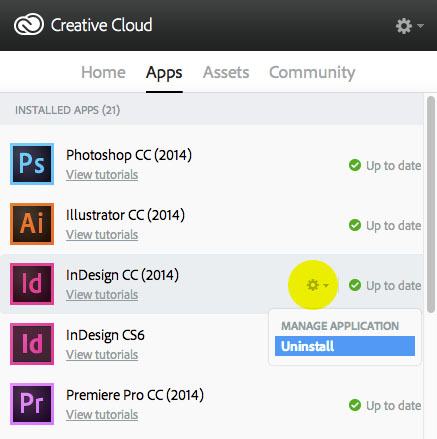
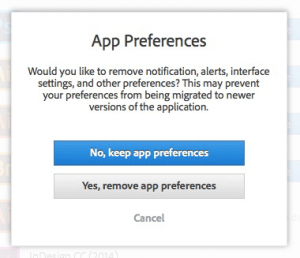
When you click on the gear, a drop-down menu appears that provides the option to Uninstall the application. From there, you can choose to keep or remove the app’s preferences.
If you aren’t running the Creative Cloud app, you can uninstall InDesign CC manually. On a Mac, go to the Applications folder, locate the Adobe InDesign CC 2014 folder, and double-clicking on the “Uninstall Adobe InDesign CC 2014” file. On a Windows computer, go to Control Panel > Programs to uninstall InDesign.

Once you’ve uninstalled an app, the app icon will appear in the “Find New Apps” section at the bottom of the Apps list in the Creative Cloud app.
BONUS TIP: You can launch any program in Creative Cloud by clicking on its icon in the list of apps in the Creative Cloud app.
This article was last modified on July 25, 2019
This article was first published on January 5, 2015
Commenting is easier and faster when you're logged in!

Recommended for you

Let The Good Times Flow
Gridiron Flow is a slick, powerful visual workflow management tool that shows th...
Make Edit Original Use the Right Program
When you Option/Alt-double click an image, or do its menu equivalent – sel...
How to add automatic “jump” lines
Want to create automatic "continued on page xx" or "continued from page xx" text...