



In August of last year, I posted about a new feature available to Adobe Creative Cloud subscribers which lets them download Typekit fonts for the desktop. Refer to that posting for an overview of this exciting new feature.
Adobe has now added some features for InDesign CC with the 9.2 update release on January 15. Among the new features are some important enhancements to the way Typekit fonts work in InDesign.
It’s also important to note that the Typekit feature should now be available to all Adobe Creative Cloud subscribers. At the time I wrote the first post, Adobe was rolling it out slowly. It turned out that was a good idea because there were some glitches in the Creative Cloud Desktop application which is required to handle the downloading and management of Typekit fonts.
My experience the past few months with the Typekit font feature has been solid enough that I can trust that the fonts should be available when I need them.
In my first write-up, my main complaint was that there needed to be enhancements to make installing or re-installing fonts easier. Many of these issues have now been fixed with the 9.2 update.
Now when you view Typekit fonts they are easily identified in the Control panel or Character panel font menu with a unique icon. Even better, you can filter your font list to view your Typekit fonts, just like you can do with Favorite fonts as shown below.

Filter to Show Typekit Fonts
Typekit fonts are not allowed to be packaged as I detailed in the previous posting. In the early version that I discussed in August, there was an inconsistency about how packaging was handled between platforms. Now it’s made very clear when you’re packaging that these are “synced” and “protected” fonts, and they will definitely not be included when packaging as you can see the dialog below:
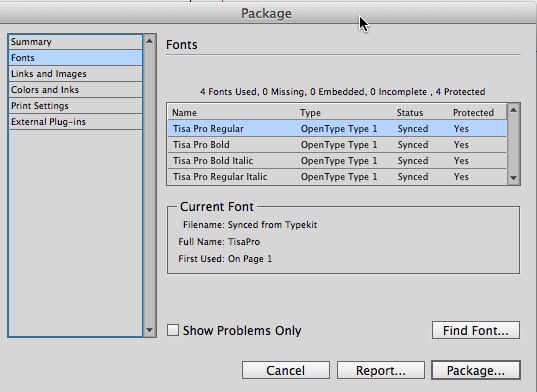
Packaging Typekit Fonts
In InDesign CC 9.2, if you create a preflight profile which includes TEXT > Font Types Not Allowed, Protected Fonts will be checked, and as protected fonts, Typekit fonts will produce preflight errors, allowing you to add that to your preflight checklist.
In the version of the Typekit font feature I wrote about in August, the Reveal in Finder/Explorer feature of the Find Font dialog worked in that it hinted at where the Typekit fonts were hidden. That clue is taken away as you can see below when a Typekit font is selected. Reveal in Finder is now grayed out, and the path shows Synced from Typekit.

Typekit Font in Find Font
The other enhancement is how InDesign handles the situation when a Typekit font is missing. This could easily happen because you control when fonts are synced to your computer. You can do this in the Creative Cloud Desktop application (shown below). Click on the Fonts tab and you’ll see a list of the fonts currently being synced to your computer, as well as buttons to add more fonts or to manage fonts.
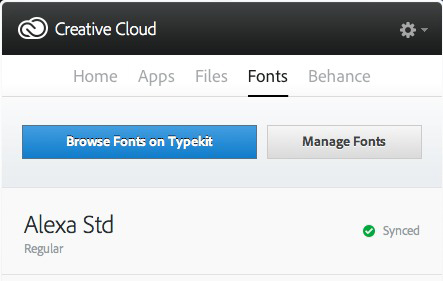
Creative Cloud Desktop App
When you click on the Manage Fonts button, you’re taking to the Typekit website to view a page where you can control which fonts are synced.
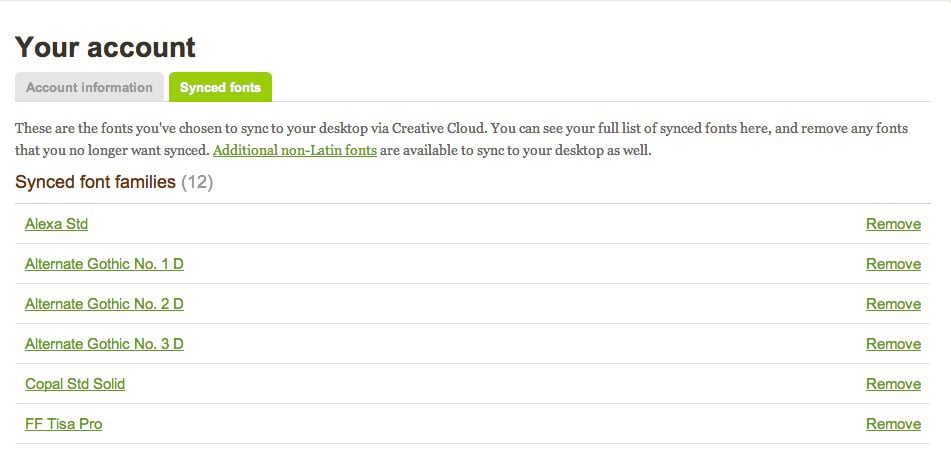
Managing Typekit Fonts
Perhaps you thought you were through with a project so turned off the syncing of a particular font. Later, it turns out that you need that font. Or, maybe someone sent you a file which requiring a Typekit fonts you don’t have. When you open up an InDesign file missing that Typekit font, if you’re running InDesign CC 9.2, this is what you now see:

Missing Typekit Fonts
Now, you can just click the Sync Fonts button, and this is what you see:

Syncing Typekit Fonts
When the syncing is complete, it will be loaded. What a convenience!
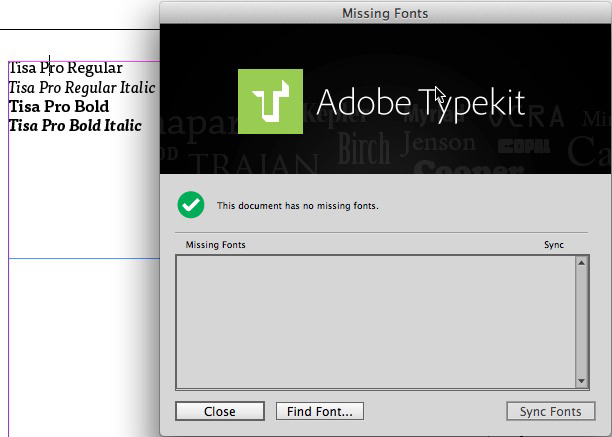
Fonts Synced
The biggest issue I still have with using Typekit fonts is that there’s no way to turn off the fonts from within InDesign. You have to go to the Typekit website to do that.
Nevertheless, I’m looking forward to using this feature more and more in InDesign CC when sharing files with others who have access to the Adobe Creative Cloud.
This article was last modified on December 30, 2021
This article was first published on January 15, 2014
Commenting is easier and faster when you're logged in!

Recommended for you

Deep Discount on Zevrix Output Factory
Press release Toronto (ON), Canada – Zevrix Solutions today is pleased to...

This Week in InDesign Articles, Number 18
A new year and a bunch of new articles, videos, and fun InDesign links!
Inventive Releases iClip 3.7 for Mac OS X with New "Dock-like" UI
Inventive today announced the release of iClip 3.7, a major update of its award-...