



When it comes to selecting objects on complex pages, the Layers panel is invaluable. In this post, I’ll show you the basics, as well as a few obscure tips and tricks that I’ve discovered as I use this method almost daily.
“But I never use layers in my InDesign layouts” you say! Did you know that since CS5, InDesign has automatically included every page object as an entry in the Layers panel? Open any InDesign file, go to the Layers panel (F7), and click the triangle to the left of “Layer 1” and you’ll see every object on the current page listed. Now let’s see why this is useful.
To begin, select an object on your page, and you’ll see that a small colored square to the right of one of the rows in the layers panel appears. This tells you which entry in the Layers panel corresponds to the selected objects.

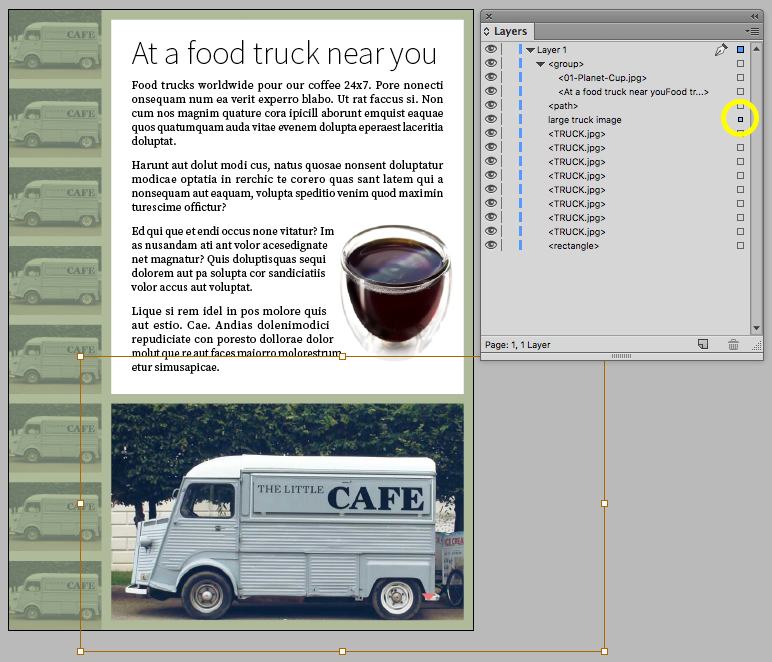
Conversely, click on a hollow square to the right of an object in the Layers panel, and the corresponding object on the page is selected. The key to the Layers panel is to understand that you select items in the Layers panel by clicking on the item name, but you select objects on the page by clicking on the square to the right of the name. So, if you want to grab an item in the panel and drag it up or down to rearrange the stacking order, or move it to a different layer, you click on the item name and drag it up or down. But to select an object on the page so that you can change its fill and stroke, or move, rotate, or manipulate the object in other ways, you click on the square to the right of the name.
This is where all the power lies. On complex, richly-layered pages, or when working with interactive multi-state objects, groups, or objects pasted inside other objects, this is often the easiest way to select the object you need.
You can click twice on an object name in the Layers panel to change the name of the object. Naming objects intelligently makes them easy to locate in the Layers panel later on.
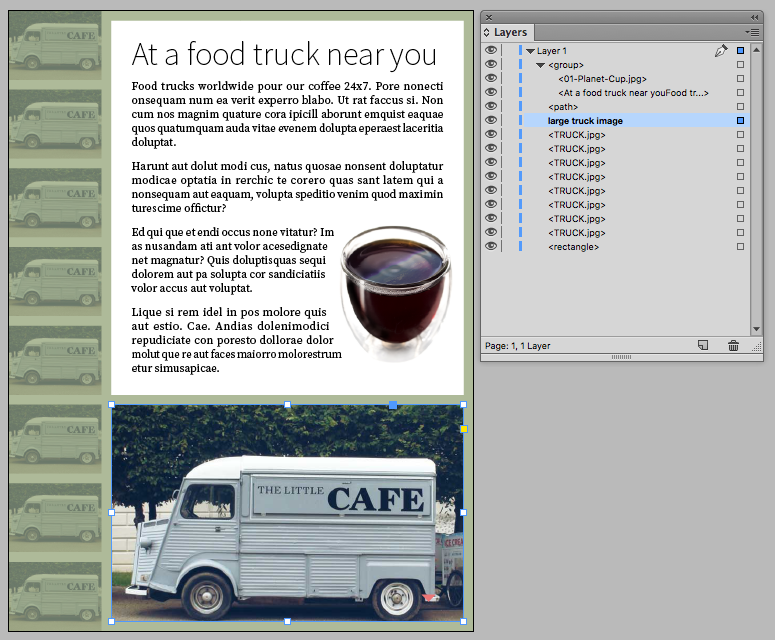
To select multiple objects on the page, you can click on the square corresponding to the first object you want selected, and then shift-click on additional squares.
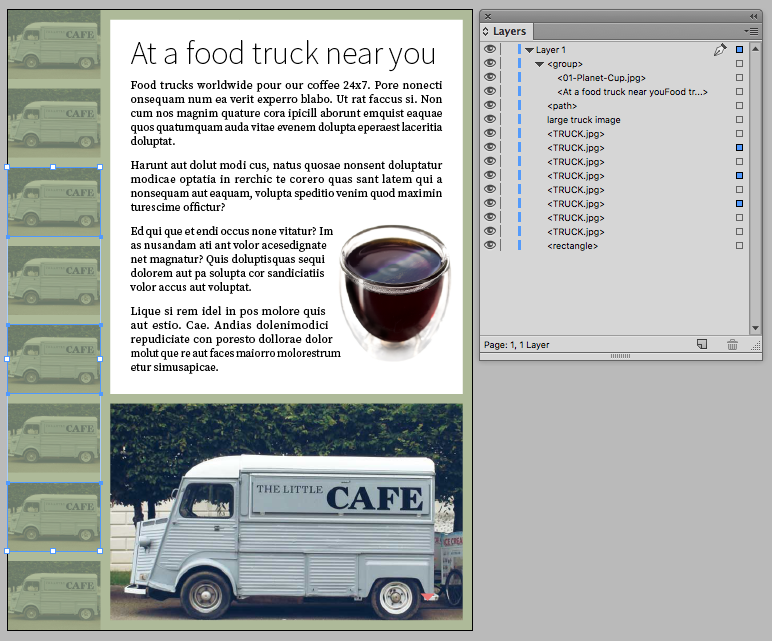
Or, you can shift-click or command/ctrl-click on the object names in the Layers panel to select multiple entries, and then right-click and choose Select Item(s) to select multiple objects on the page.

If you are having trouble finding an object on a page, right-click on a single entry in the Layers panel, and choose Select and Fit Item. This will not only select the object on the page, but also zoom and center the object on your screen for better visibility.

Option/Alt-clicking on a square next to a placed image will select the contents of the image, instead of the image frame.
Spend some time getting used to how the Layers panel works with page objects, and I’m sure you’ll find it a valuable way to select certain types of objects in many different layout situations.
This article was last modified on July 25, 2019
This article was first published on January 7, 2016
Commenting is easier and faster when you're logged in!

Recommended for you

How to Make Layer Comps in Photoshop
Learn how to create combinations of layers and items in Photoshop called Layer C...

InDesign Tip: Pick Up Where You Left Off
To activate the last-used field in the last-used panel, press Command+Option+~/C...
Tip of the Week: Print Dialog Box Previews
This tip was sent to Tip of the Week email subscribers on February 26, 2015. Sig...