



When you’re editing text in InDesign the ability to drag and drop text, i.e. to select a piece of text and then drag it to a different point in the story can be really handy…or it can be a real pain in the butt if you accidentally drag text when you don’t mean to. That’s why the default preference is for drag and drop text to be disabled in the Layout View.
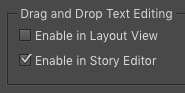
So normally if you want to use Drag and Drop in the Layout View, you have to open preferences, figure out which of the 19 sections of preferences Drag and Drop is in, select it, and close the dialog box. And then reverse the process when you want to turn Drag and Drop off again. It’s great if you’re paid by the hour, otherwise it’s a nuisance.
I had just accepted this as The Way Things Are until Anne-Marie Concepción taught me an awesome trick: use Quick Apply to toggle Drag and Drop Text Editing on and off.
I am a charter member of the Quick Apply Fan Club so I’m embarrassed that I never though of this on my own. (OK, technically, I’m the only member. But if you want to join, it’s free and I’ll make you a nifty membership card. Just email me.)
Here’s what you do. With your cursor in a text frame, press Command+Return/Ctrl+Enter to invoke Quick Apply.
Immediately start typing the word drag and when you see the option to toggle the Drag and Drop Text Preference highlighted, press Return/Enter.

Boom! Now you can drag and drop text in the Layout View.
Want to turn it off? Just press Command+Return/Ctrl+Enter again, type drag, and hit enter. Even better: if you haven’t used Quick Apply for anything else in the meantime, drag will still be there and you can just hit Enter.
Until Adobe invents a version of InDesign that reads your brainwaves, there’s no faster way to change preferences.
Bonus tip: Try the same idea for other commands and preferences that are deeply buried in dialog boxes, and you just might be joining the Quick Apply Fan Club too.
This article was last modified on January 12, 2026
This article was first published on December 29, 2015
Commenting is easier and faster when you're logged in!

Recommended for you

A Photoshop Script to Delete Empty Layers
As a Photoshop user, one of the kindest things you can do for anyone who has to...

Tip of the Week: Right-click to Reveal
This tip was sent to Tip of the Week email subscribers on June 26, 2015. Sign up...

InDesign Tip: Customize the Pages Panel
Learn how to customize InDesign's Pages panel with descriptive prefixes and colo...