



This tip was sent to Tip of the Week email subscribers on August 21, 2014.

Sign up now and every week you’ll get a new InDesign Tip of the Week and Keyboard Shortcut of the Week, along with roundups of new articles at InDesignSecrets and CreativePro, plus exclusive deals sent right to your Inbox!
Just scroll all the way down to the bottom of this page, enter your email address, and click Go! We’ll take care of the rest. Now, on with the tip!
Want a lightning fast way to edit a style? Just remember which InDesign feature has a lightning bolt symbol on it: Quick Apply!
To launch Quick Apply, press Command+Return (Mac) or Ctrl+Enter (Windows). It doesn’t matter what other panels you have open, where you are in your document, or even if you have text selected or not.
Start typing the name of the style you wish to edit. As soon as it is highlighted in Quick Apply, stop typing and press Command+Return or Ctrl+Enter again. The Style Options dialog box opens, ready for you to make your changes. 
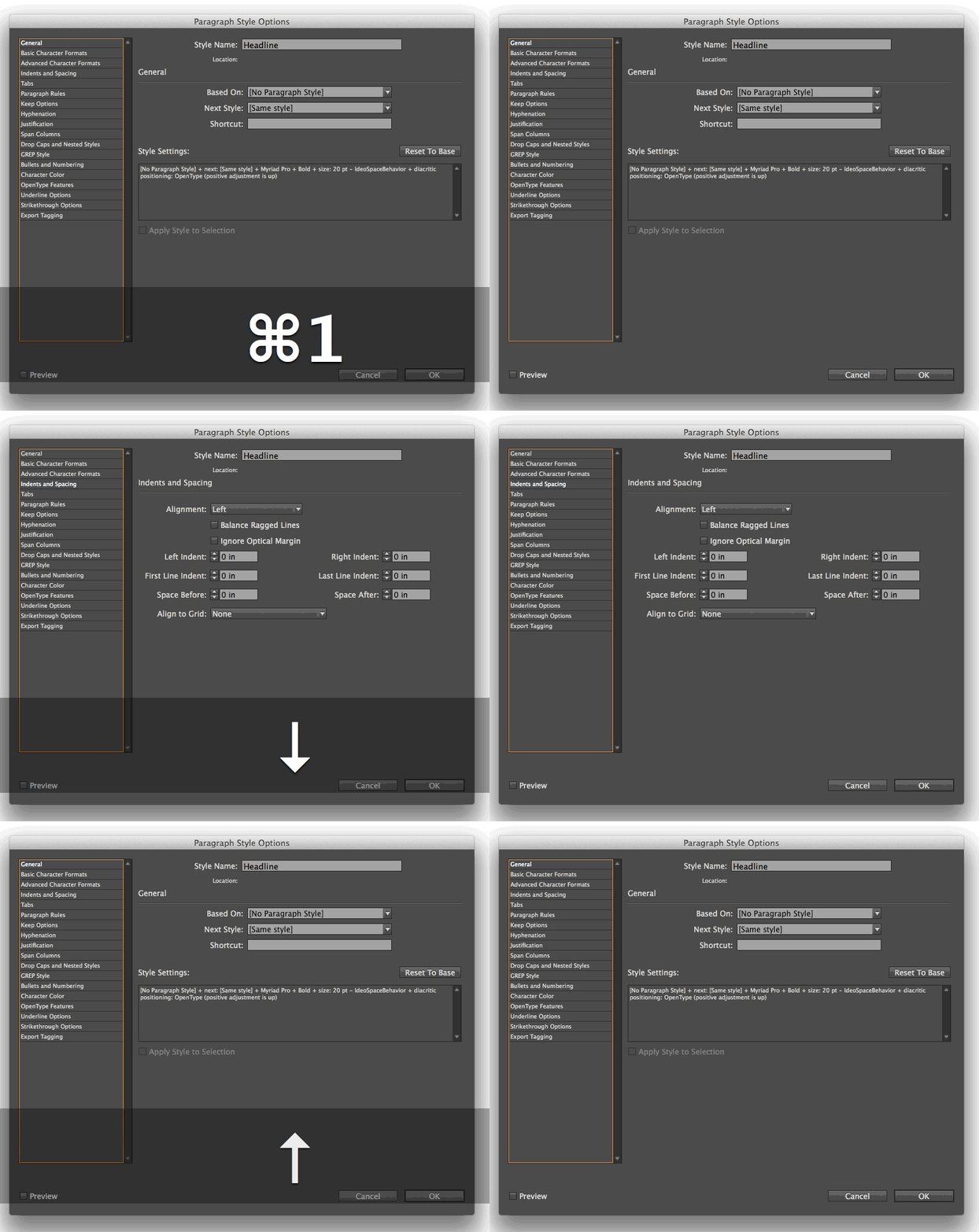
Also, with the Style Options open, you can press Command+1 (Mac) or Ctrl+1 (Windows) to put the focus on the list of options on the left side of the dialog box. Then just use the down and up arrow keys on your keyboard to jump to the different sets of options.
This article was last modified on July 8, 2021
This article was first published on August 26, 2014
Commenting is easier and faster when you're logged in!

Recommended for you

Using Edit Original and Edit With in InDesign
Sign up for the InDesign tip of the week to get a new tip, roundups of new artic...
Photoshop Tip: Auto-Select a Layer
When you’re working in a Photoshop document containing multiple layers, it...
New Contest! The Mystery of the Phantom Fill and Stroke
Solve this InDesign mystery for a chance at winning a great prize.