



Did you know that InDesign allows you to specify a starting page number when you create a new document? It’s a small but handy feature that saves a trip to the Pages panel after you’ve created the document.
In the New Document dialog box, just enter the value you want in the Start Page # field.
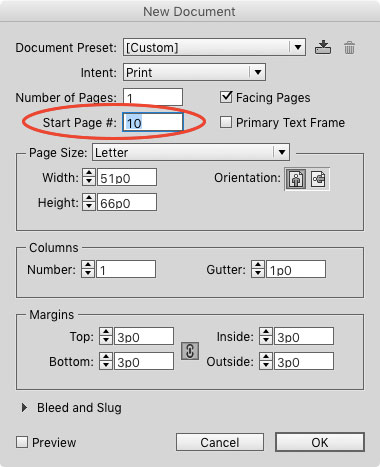
Entering an even value is a simple way to start a facing pages document on a left-hand page.
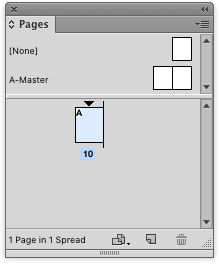
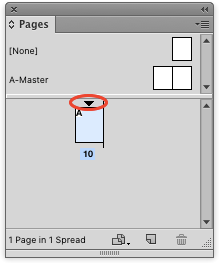
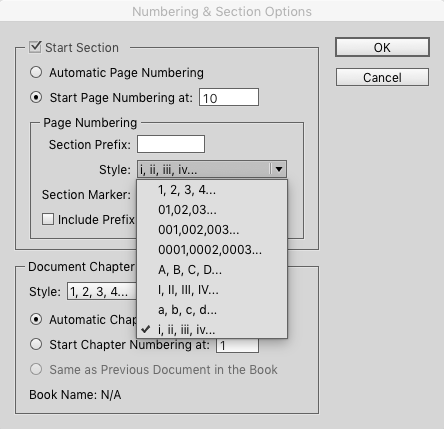
One thing that you still can’t set in the New Document dialog box is the numbering style. So if you need roman numerals or letters, you’ll have to set them after the document has been created. The easiest way to do that is to double-click on the small black triangle over the first page in the Pages panel.
This opens the Numbering & Section Options dialog box where you can choose a style, prefix, etc.
This article was last modified on January 12, 2026
This article was first published on December 8, 2015
Commenting is easier and faster when you're logged in!

Recommended for you

Tip of the Week: Locking Items
This tip was sent to Tip of the Week email subscribers on December 11, 2014. Sig...
Tip of the Week: Editing Subpaths in a Compound Path
This tip was sent to Tip of the Week email subscribers on October 29, 2015. Sign...
20 Tips From CreativePro Week 2020
Erica Gamet shares her favorite tips from an unprecedented online event.