



This tip was sent to Tip of the Week email subscribers on October 1, 2015.

Sign up now and every week you’ll get a new InDesign Tip of the Week and Keyboard Shortcut of the Week, along with roundups of new articles at InDesignSecrets and CreativePro, plus exclusive deals sent right to your Inbox!
Just scroll all the way down to the bottom of this page, enter your email address, and click Go! We’ll take care of the rest. Now, on with the tip!
Looking for a different way to present images besides the usual rectangular or elliptical frames? You can use a compound path as an image frame too. To make a compound path, select more than one path,
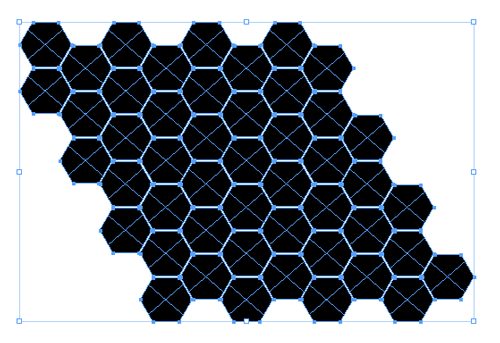
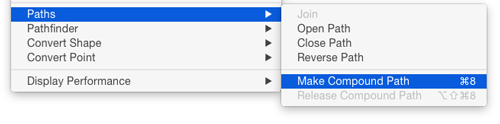
and choose Object > Paths > Make Compound Path.
Then just place your image into the compound path just as you would a regular path.

This article was last modified on July 25, 2019
This article was first published on October 6, 2015
Commenting is easier and faster when you're logged in!

Recommended for you

Tip of the Week: Reveal Silhouetted Images with the Document Grid
There are three new Links panel icons in InDesign CC that you'll see when workin...
InDesign Tip: Understanding Table Spacing
Even though they don’t give you the power to control all aspects of table...
Turning Off Recent Fonts in InDesign
InDesign’s Recent Fonts feature has been around since CS6, allowing you to quick...