




Hidden inside the Control panel — arguably the most important panel in InDesign — is a secret feature that lets you duplicate objects precisely. It’s amazing to me how few InDesign users know how to do this, because it’s so helpful and I use it almost daily.
For example, maybe you want to copy a frame and place the duplicate at exactly 10cm from the left edge of the page. Easy: Set the reference point at the left edge of the Control panel to the upper-left corner, change the X: field to 10cm, and then — here’s the trick! — press Option/Alt-Enter.
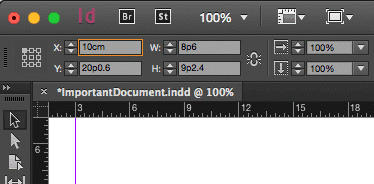
Holding down the Option or Alt key before you press Return/Enter tells InDesign to make this change to a duplicate of the current object.
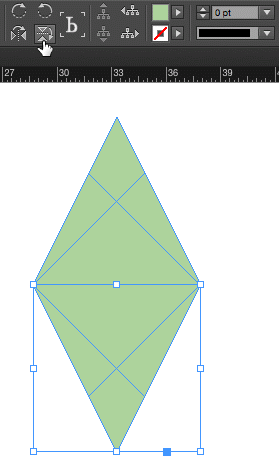
Even better, this works for every field on the left side of the Control panel. So you can duplicate-and-rotate, or duplicate-and-scale. In fact, it also works on the rotate and flip buttons, so you can duplicate-and-flip if you want to! For example, in the image below, I selected the top triangle, set the reference point to the middle-lower point, and then Option/Alt-clicked the flip button:
Duplicating objects precisely is a core feature in almost any InDesign layout. Now you now how to do it fast!
This article was last modified on May 2, 2023
This article was first published on January 5, 2016
Commenting is easier and faster when you're logged in!

Recommended for you

CreativePro Tip of the Week: Transforming Type Shapes in Illustrator
This CreativePro Tip of the Week for transforming type shapes in Illustrator was...

Tip of the Week: Fast Edit Original
The fastest way to open a placed image in another application for the purpose of...

Tip of the Week: Easy Type on a Curve
Sign up for the InDesign tip of the week to get a new tip, roundups of new artic...