




This CreativePro Tip of the Week for transforming type shapes in Illustrator was sent to CreativeProse email subscribers on May 10, 2017.
Sign up now and every week you’ll get a new tip, plus roundups of new articles, and exclusive deals sent right to your Inbox!
Just scroll down to the bottom of this page, enter your email address, and click Submit! We’ll take care of the rest. Now, on with the tip!
In Adobe illustrator, it’s easy enough to fill a shape with type. Just take the Type tool and click on closed path. Then paste in your text or start typing. But what if you want to transform just the shape after you put the text in it?
The trick is to select just the shape and not the text. To do that, take the Direct Selection tool then hold the Option/Alt key and click on the path. This selects all the points on the path.

You can now apply rotation, scaling, skewing, etc and it will only affect the object, not the text.
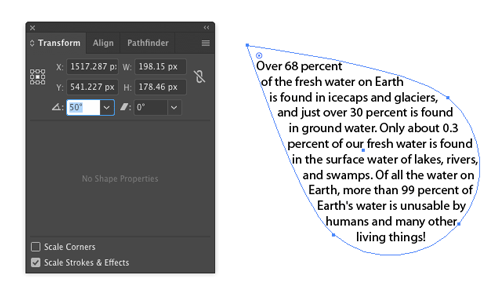
By the way, this trick works exactly the same way in InDesign.
This article was last modified on May 15, 2017
This article was first published on May 15, 2017
Commenting is easier and faster when you're logged in!

Recommended for you

Tip of the Week: Peek-a-Boo Panels
This tip was sent to Tip of the Week email subscribers on March 19, 2015. Sign u...

How to Apply Custom Graph Marker Designs in Illustrator
Adding attractive (and legible) custom markers to graphs in Illustrator isn’t ha...
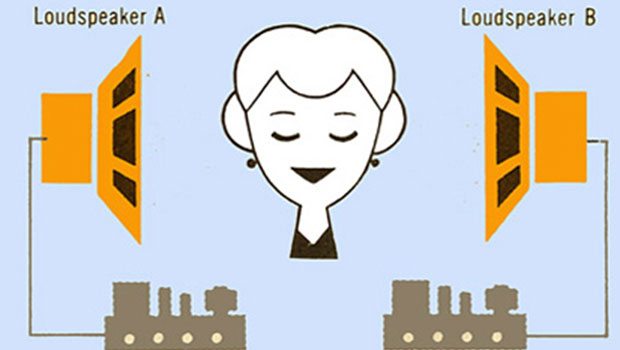
Scanning Around With Gene: Listening to Music with Both Ears
I recently splurged and used ten years’ worth of American Express points o...