



This tip was sent to Tip of the Week email subscribers on October 15, 2015.

Sign up now and every week you’ll get a new InDesign Tip of the Week and Keyboard Shortcut of the Week, along with roundups of new articles at InDesignSecrets and CreativePro, plus exclusive deals sent right to your Inbox!
Just scroll all the way down to the bottom of this page, enter your email address, and click Go! We’ll take care of the rest. Now, on with the tip!
Even if you’re a big fan of using keyboard shortcuts (and I hope you are), you might still have trouble remembering certain ones. For whatever reason, some shortcuts just don’t find a comfortable place in our long term/muscle memory.

Personally, I have trouble remembering the shortcut to show/hide baseline grids in InDesign. It’s Command+Option+’ (Mac) or Ctrl+Alt+’ (Windows).
Of course I could take the time to add a custom shortcut that was more memorable. Or I could skip shortcuts altogether and drill down into View > Grids & Guides > Show Baseline Grid.
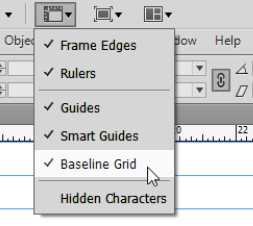
Fortunately, there is an even easier way to toggle the visibility of baseline grids and it’s right in front of your eyes—if you have the Application Bar showing. In the Application Bar, there’s a button for View Options. Click it and you can instantly show or hide frame edges, rulers, guides, smart guides, hidden characters, and yes, baseline grids.
This article was last modified on July 25, 2019
This article was first published on October 20, 2015
Commenting is easier and faster when you're logged in!

Recommended for you

Tip of the Week: Peek-a-Boo Panels
This tip was sent to Tip of the Week email subscribers on March 19, 2015. Sign u...
Tip of the Week: Fast Editing of Styles Via Quick Apply
Sign up for the InDesign tip of the week to get a new tip, roundups of new artic...

Top 20 Command/Control Clicks
Mike's favorite tricks using the Command key on the Mac or the Control key on Wi...