



Did you ever have a problem where text wrapped around an object just didn’t look right? Even though the boundary of the text wrap is centered on the object, the wrap seems to be off-center, drifting and drooping to the left and below.
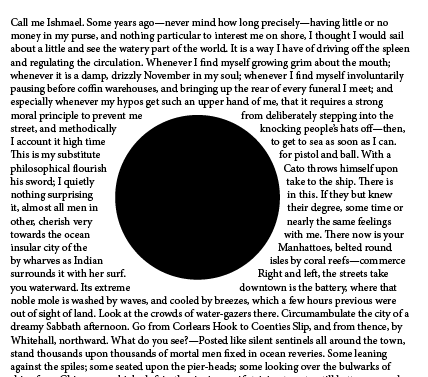
Normally, it’s kind of a pain to fix this. You could edit the wrap shape manually using the Direct Selection and Pen tools. Or use a separate no stroke/no fill object with text wrap that you can freely position. But here’s a better way. Just use the WrapNudger script from Dave Saunders. This script has been around for ages, but it still works just fine in InDesign CC 2015. It allows you to nudge either the wrap or the object independently of each other.
You can download the script here. Unzip and install in your User scripts folder. NOTE: When you run it, the script will look for a folder called PDSNudger (which contains various required files) at the same level in the Scripts folder, and won’t run without it. You can download PDSNudger.zip here. Unzip the file and put the whole folder in your User scripts folder too.
Once it’s all installed, select the object with text wrap. Run the WrapNudger script. You’ll get a small dialog box where you can choose whether to nudge the object or the wrap, and buttons to nudge in any direction.

There are also options for setting how far things move when you nudge, and for expanding or tightening the wrap overall. With these controls, you can easily craft more pleasing text wraps.
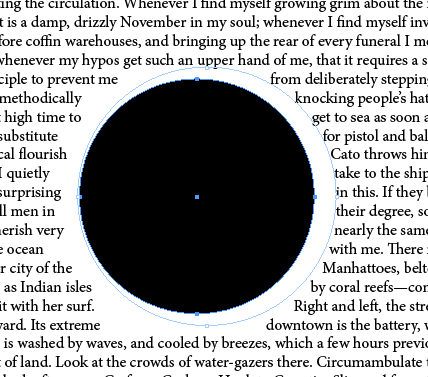

In fact, once you can control text wrap like this, you’ll wonder how you ever got along without it!
You can read more about the script in Dave’s own words, here.
This article was last modified on May 18, 2025
This article was first published on May 31, 2016
Commenting is easier and faster when you're logged in!

Recommended for you

Faster Print and PDF Output
If you use print or PDF presets, it can be tedious to have to click through dial...

Pattern diversions
How to make some interesting and fun "sunburst" style patterns with a few clicks...

Mastering Metadata
Learn how to wield the descriptive data embedded in your files to work more effi...