




Following up on Anne-Marie’s post about wrap placement, we’d like to pass on a short and wonderful little article written by our friend and colleague Dave Saunders. He wrote:
One of InDesign’s long-standing problems has been the way it handles text wraps around circular objects. As Figure 1 shows, the text droops below the circular wrap in an ungainly fashion. When working with left-aligned/ragged-right text, there is the further issue that the circle also is too far to the right, but this latter is hardly InDesign’s fault.
Figure 1: Circular Image with uniform text wrap

Why does this happen?
When InDesign composes text in the vicinity of a text wrap, it assumes that each character of the text is sitting in a box the width of the character and as tall as the leading, with the baseline of the character at the bottom of its box — this means that descenders actually extrude out of the box.
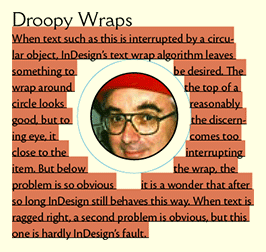
To show the impact of this algorithm, I created figure 2. It’s the same text as figure 1 with the same wrap in effect, but I’ve added a 12 point colored underline (the leading of the text being 12 points) and a half point strikethru sitting on the baseline (the black line). Also, I’ve drawn a circle where the wrap is. Now we can see what’s happening. Where the character boxes collide with the wrap, the composer makes a hole in the text. And because the text is so low in the box, there’s a top-to-bottom displacement of the arc, clearly visible around the right-side of the image.
Figure 2: Same text and image with text boxes made visible.
How do you solve this?
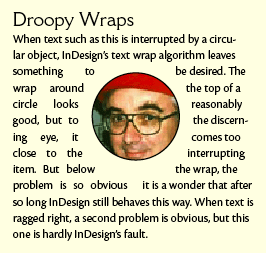
Well, InDesign could do better. PageMaker did. PageMaker used the same technique, but its text sat inside the leading box, with a third of the box below the baseline. That four-point shift (for 12-point leading) is just what’s needed to deal with the problem to the right of the image. But what about the left side? Actually, InDesign does have an attempted solution for the left side in the form of a Composition preference. You can turn on Justify Text Next to an Object. But this has two problems: it’s a document-wide preference, so it’s all or nothing, and it tends to result in unacceptable word and/or letter spacing because the “column” of text to the left of the image can be so narrow. See figure 3.
Figure 3: Same text with Justify Text Next to an Object
Scripting has an answer
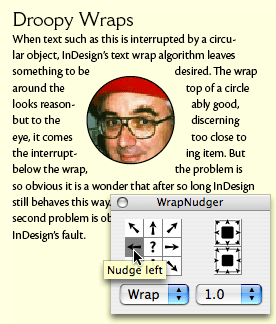
For years, I’ve been solving this problem with scripts. My solution is to move the graphic without moving the wrap. The graphic needs to come down about four points and move left about six points. Prior to InDesign CS3, I had to keep those scripts loose in a folder and I had to use artificial means to tell the script just what I wanted it to do. But InDesign CS3 has JavaScript support for ScriptUI, a technology first introduced with Bridge that allows a script to present the user with a palette that can drive the process. Figure 4 shows my new Wrap Nudger script in action. I first made the wrap just a tad smaller so the line of text under the image was no longer affected, then I nudged the image five times towards the bottom left and twice to the left. The size of the nudge depends on the zoom value for the window and the multiplier at bottom right of the palette, so this is a feature for people who want to use their eyes and aesthetic judgment.
Figure 4: Moving the Image using WrapNudger
How does it work?
WrapNudger presents you with a palette that allows you to do three things that were previously somewhere between impossible and extremely tedious:
- You can change the size of a User-Modified text wrap (using the two buttons on the right which expand or tighten the wrap).
- You can move a text-wrapped item without moving the wrap, so that when you have the text just the way you want it, you can nudge the item into the optimum position.
- Conversely, you can nudge a User-Modified wrap without moving the item it wraps around.
Previously, the only way to do these things was to manually move each point on the text wrap path using the direct select tool.
Where can you get WrapNudger?
It’s available for download from PDSASSOC.COM. It’s “donationware.”
This article was last modified on December 18, 2021
This article was first published on January 29, 2008
Commenting is easier and faster when you're logged in!

Recommended for you

New Contest! The Inconsistent Illustrator Image
Solve this InDesign mystery for a chance at winning a great prize.

Stamps.com Announces Winners of the 'PhotoStamps of the Year' Contest
Stamps.com® (NASDAQ:STMP), the leading provider of Internet-based postage servic...

How to Center Capitalized Text Vertically in a Frame
Unthreaded text frames, filled with a colour and a single line of capitalized te...