




This InDesign tip on how to reset tracking and kerning was sent to Tip of the Week email subscribers on October 26, 2017.

Sign up now and every week you’ll get a new tip, keyboard shortcut, and roundups of new articles, plus exclusive deals sent right to your Inbox!
Just scroll down to the bottom of this page, enter your email address, and click Go! We’ll take care of the rest. Now, on with the tip!
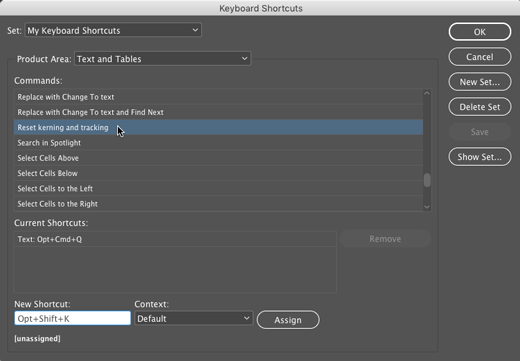
Need to reset the kerning and tracking for a range of selected text? Press Ctrl+Alt+Q on Windows. On the Mac side, things are a little more complicated since macOS uses Command+Option+Q as the default keyboard shortcut for Quit and Keep Windows, which overrides InDesign. So you need to assign a different shortcut to the command.

You’ll find the command to reset kerning and tracking in the Keyboard Shortcuts dialog box in Product Area: Text and Tables
This article was last modified on July 25, 2019
This article was first published on October 31, 2017
Commenting is easier and faster when you're logged in!

Recommended for you

The 5 Rules of Efficiency for InDesign
You'll rake in the efficiency jackpot every time with these five basic rules.
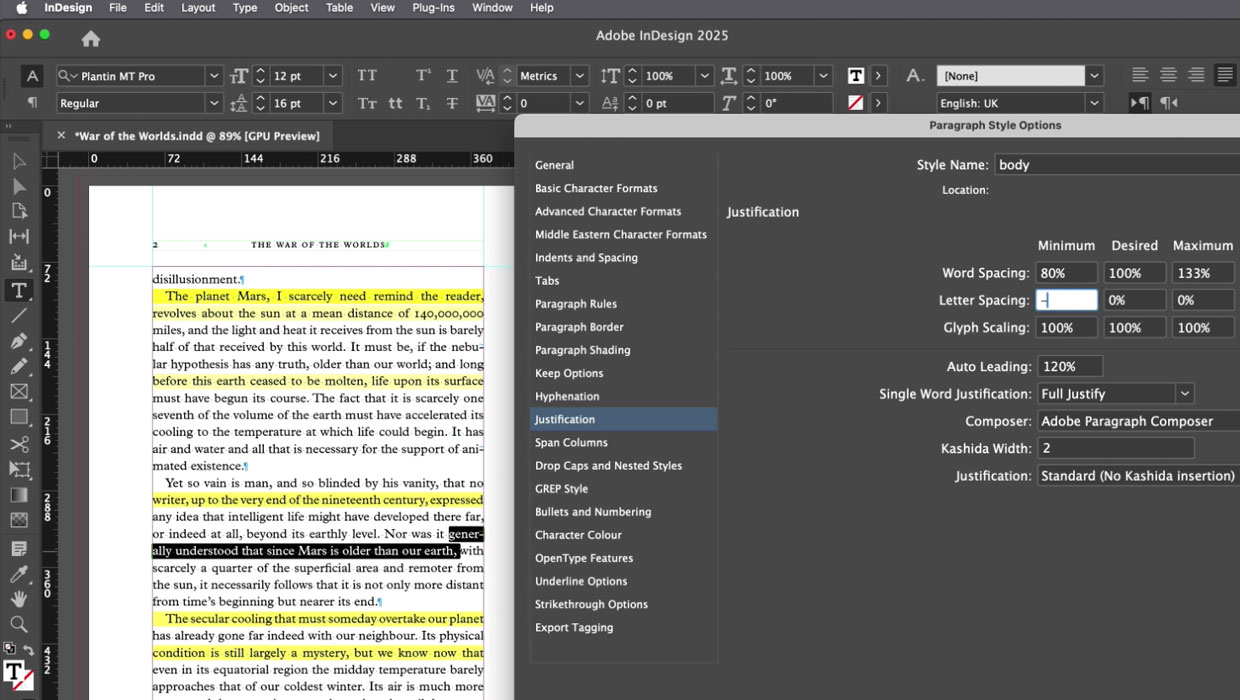
Members-Only Video: How to Set Great-Looking Body Text in InDesign
Learn all the essential tips and techniques for setting great-looking type in lo...

10 Terrific Time Savers for InDesign
Life is busy. Work is hard. Use these tips to get more done faster.