




October is here, and if seasonal graphics play any role in your work, it’s likely you’re working on some Halloween-themed stuff. Of course, there are mountains of stock graphics of pumpkins, monsters, witches, and the like. But don’t forget you can place vector graphics into InDesign and customize them with different fills, strokes, and effects.
For example, to “light” a jack-o-lantern, just select the facial elements and apply a gradient fill with warm colors. Something that goes from yellow to red-orange ought to do the trick.
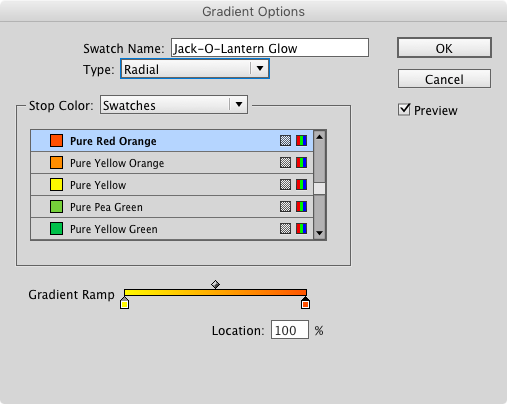
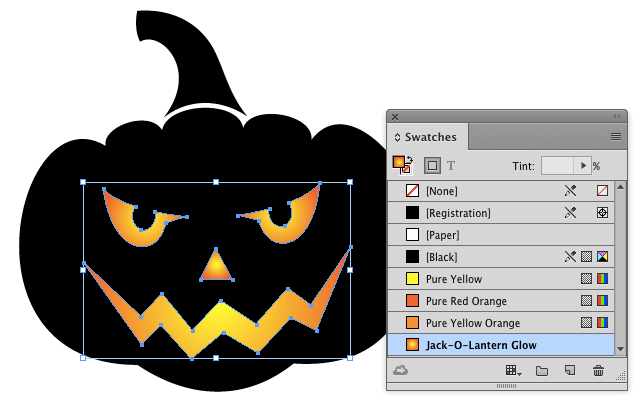
Then drag with the Gradient tool to set the position, angle, and length of the gradient.
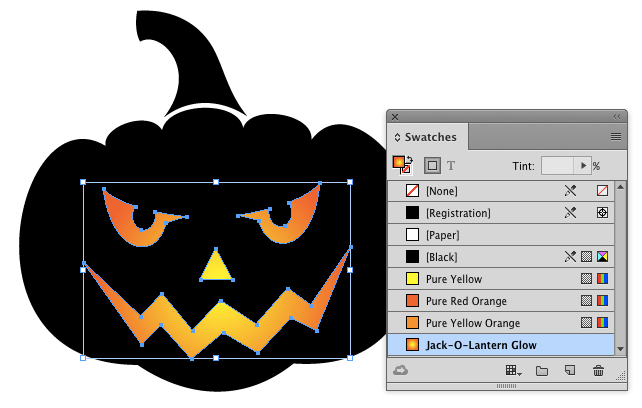
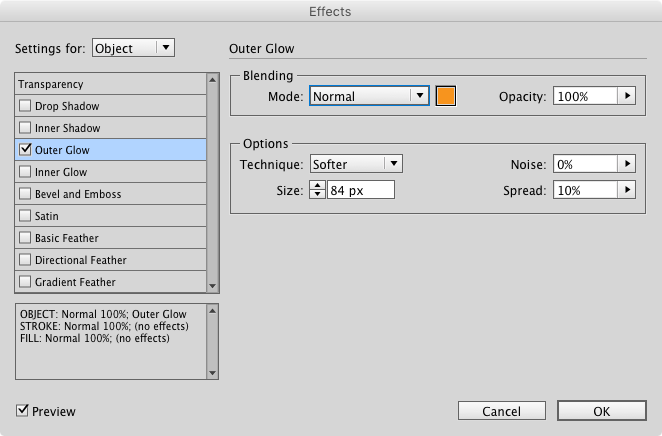
You can also do lots of cool stuff with glow effects. To add a simple yet eerie glow, select the object, then use the Effects panel to apply an Outer Glow. Experiment with the options in the Effects dialog box to get the look you want. In this example, I’m using a large (84 px) orange glow with a 10% spread. The Spread value indicates how much of the gradient area is at the full opacity value. So in this case, 10% of the gradient area is 100% opaque orange.

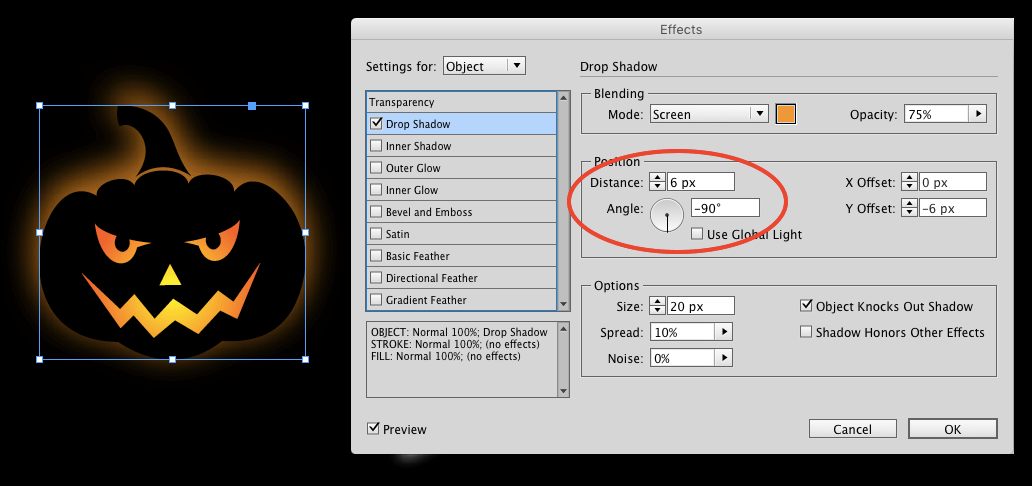
And if you’d like to position the glow off-center (so it’s not placed exactly behind the object), use a drop shadow instead. That way, you can apply a distance and angle. Use the same color and blend mode you’d use for a glow.
This article was last modified on October 25, 2022
This article was first published on October 11, 2016
Commenting is easier and faster when you're logged in!

Recommended for you

How to Create and Manipulate Drop Shadows in Photoshop
Learn how easy it is to create drop shadows in Photoshop and then make adjustmen...

Spiderweb FX
Just in time for Halloween: here’s a web that’s easy to weave, with the help of...

Holiday Text FX, part 2: Wrapping Text in Lights
Festive lights are one the treats of the holiday season, so why not add some to...