


The Mac Authority: Making the Most of Acrobat




In late 1992, Adobe quietly introduced an application that allows a user to save a file that can be distributed to and read by virtually anyone–no matter the computer platform the receiver uses. And while the product quickly became a popular utility, it’s only been within the last couple of years that it’s potential has been realized. We are of course speaking about the Rodney Dangerfield of the software world–Adobe Acrobat. This software, which today is found on nearly as many computers as that boring solitaire game, is the most powerful ally in the job of sharing documents across platforms, yet you rarely read about it.
At first, you might think that’s because of the application’s one-trick-pony-type of function. But if you look a little deeper you’ll find that Acrobat contains a number of functional features that can make your life easier (and even more fun). From presentations to data collection to archiving your files, you’ll be amazed at all that you can do with Acrobat. And given its plug-in architecture, the program is completely extensible, should you find a feature not available in the core application.
Since we can’t provide you with an exhaustive review of all of Acrobat’s features in such a short time, we’ll start by concentrating on one of its newest features–its annotation tools. Then in coming months, we’ll look at some of the other features available within Acrobat. To begin, let’s first take a quick look at what a PDF file is and how you create one. Then we’ll jump right into our look at the annotation tools.
Beginning Your Balancing Act
Normally, there’s more to a document than simple ASCII text. You have formatted text, various fonts, graphics in a variety of formats, and the overall layout of the page. In most situations, to share this document with another user, he too would need everything you have on your computer–the fonts, the graphics, and the application you used to create the file. Otherwise all he might see is the text.
To address this situation, Acrobat converts the file to PostScript and then embeds all the information needed to reliably display the document in a PDF file that can be read using the free Adobe Reader. That way, you’re always certain that your document is being faithfully re-created–no matter what platform the viewer chooses to use.
Over the past few years, Adobe has made it insanely easy to create a PDF. For instance, you can just choose the Acrobat PDFWriter from the list of printers in the Chooser, as shown in Figure A.
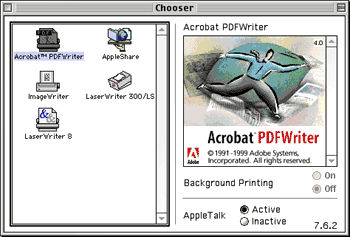
Figure A: The Acrobat PDFWriter allows you to create a PDF of any file you can print.
Once you do, you then simply choose the application’s File > Page Setup command and set the preferences for the PDF, as shown in Figure B. Then, whenever you choose the Print command, Acrobat automatically creates a PDF of the file.

Figure B: In order to control print quality and file size, you should first set the preferences for the Acrobat PDFWriter.
Another method is to launch the Adobe Distiller, the basic PDF converter included with Acrobat. Once you launch this application, you then locate the file you wish to convert in the same manner that you would open a file and then save the file as a PDF. The program then takes it from there, downsizing the graphics, embedding the fonts, and compressing the file. For maximum flexibility, you can optimize the PDF for the Web, for normal printing, or for pre-press through the preferences.
If you have a scanner, you can quickly create a PDF of the scanned document. To do so, just launch Acrobat and then choose File > Import > Scan. In the dialog box that appears, choose the appropriate scanner, format, and destination for the scan. Keep in mind this method creates an image-only type of PDF. That means you won’t be able to search through the text–although you can read it.
Acrobat 4.0 also allows you to save a Web page (or even a full Web site) as a PDF. To do so, simply launch Acrobat and choose File > Open Web Page. When you do, the dialog box shown in Figure C appears, allowing you to define what the PDF includes and how the page is converted.
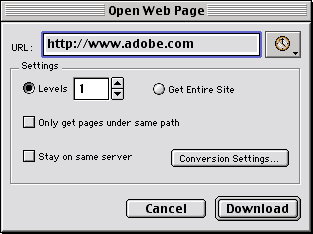
Figure C: The newest version of Acrobat allows you to convert an entire Web site into a PDF.
Assuming you’ve set up Acrobat to recognize your browser, the external links from a Web-created PDF are active–that is, clicking on one launches your browser and takes you to that page. Or, you can go in and add links within Acrobat itself.
Speaking of the Web, if you want to create a quick PDF, but don’t want to spend the money on the Acrobat software, you can visit https://createpdf.adobe.com. This online service allows you to convert an unlimited number of documents into PDFs for a small fee of $9.99 a month (or $99.99 a year) which is a substantial savings over the $249 that Adobe charges for Acrobat.
Finally, there are a number of third-party applications that allow you to create PDFs. For a full listing of these applications, along with an extensive list of plug-ins and related tools, visit the Acrobat and PDFZone at www.pdfzone.com. You’ll find this site is also an excellent resource for maximizing your use of Acrobat and PDFs in general.
From Creation to Annotation
Now that we’ve reviewed the PDF basics and the various methods used to create them, let’s turn our attention to annotating them. Keep in mind that the annotation functions are available only in the most current version of the Acrobat software (4.0 at press time). Also, don’t mistake the full-featured commercial version of Acrobat with the free limited-version Acrobat Reader. To display Acrobat’s annotation tools, you must first choose Window > Show Tool Bar. When you do, a toolbar appears along the left side of the Acrobat window. The annotation tools are in the middle of the toolbar, as shown in Figure D.
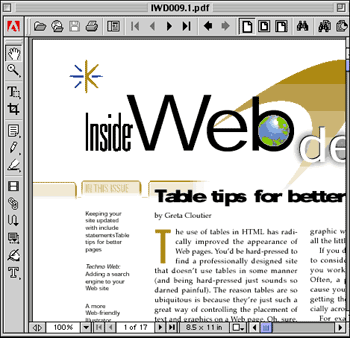
Figure D: The annotation tools are along the left side of the Acrobat window.
To use the tools, simply click the appropriate button. When you do, the mouse pointer changes into that tool and you can then click anywhere on the PDF to add that type of annotation. To get an idea of the function of each, let’s review the various tools separately.
Notes Tool
The first and most obvious annotation tool is the Notes tool. When you select this tool and click anywhere within the PDF, a window appears where you can enter a note. Once you’ve finished the note, you simply click the Close box. A small yellow note icon then appears on the PDF. To review the comment, all the viewer has to do is double-click on the icon to expand it, as shown in Figure E. Notice that Acrobat also includes the name of the person who created the note. This helpful feature is true of all of the annotation and markup tools.

Figure E: The Notes tool is analogous to attaching a Post-it Note to your printout.
Text Annotation Tool
To use the Text Annotation tool, select the tool and then drag to define the region where you wish the text to appear. Then just type directly on top of the PDF. To make the text stand out, you can always change the text color, size, and font style.
Audio Annotation Tool
In case you just don’t feel like typing, or you want to add embarrassing noises to the PDF, you can click on the Audio Annotation tool and then click on the PDF. In the dialog box that appears, you then click the Record button and speak your comments into the microphone (or make the noises). Once you’ve completed your recording click Save. The Speaker icon then appears on the page. To hear the sound, the viewer again simply double-clicks on the icon.
Stamp Tool
In case you’re the type of person that likes to put your rubber stamp of approval on a document, Adobe includes a Stamp tool that allows you to add a graphical stamp to the page. To use it, choose the Stamp tool button and then click anywhere on the page. By default, Acrobat inserts the last stamp you used. If that’s not the one you want, all you have to do is select the stamp, and choose Edit > Properties. From there you just choose the stamp from the dialog box. Acrobat includes a number of useful and whimsical stamps from which to choose.
File Annotation Tool
At times, a few words or a neat little stamp isn’t enough–sometimes you need a lot of room for your comments or changes. In this case, you can use the File Annotation tool. When you click this button and click on the page, a dialog box appears asking you to locate the file you wish to attach to the PDF. Once you select the file, another dialog box appears where you can customize the icon to use for the annotation (things like a thumb tack, a tag, a graph, or a paper clip).
Hey, Look at This
Sometime words just can’t convey the meaning you’re trying to get across. So for those of you who are a bit more visual, Acrobat includes a simple drawing tool you can use to get your point across. For instance, instead of inserting a note that says something like “insert the fourth paragraph after the second,” you could simply use the Pencil tool to draw a line just as you would on paper. And if a few words are in order, you can always click on the line you just drew to display a small pop-up note for your thoughts. Acrobat also includes the Rectangle, Ellipse, and Line tools to make markup easier.
Bringing Out the Text
The final portion of the annotation and markup tools allows you to highlight specific lines of text. Yep, that’s right–just like you would with a highlighter or pen. For example, let’s say you want to bring out a few sentences within a paragraph for emphasis. To do so, just select the Highlight Text tool and drag it across the text. When you do, Acrobat highlights the text, as shown in Figure F.
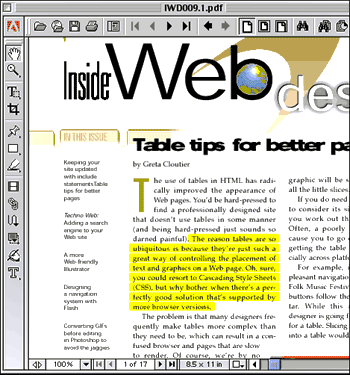
Figure F: The highlighting tools might remind you of those late-night college study sessions.
And as always, you can double-click on the highlighted area to add a small note to it. If you prefer, you can also underline or strike through lines of text at the same time using the, well, Underline Text tool or the Strikethrough Text tool.
Making Use of it All
Adding annotations isn’t very helpful if you have to go through each PDF and click on each of the notes and highlights to read them. Therefore, Adobe includes two very nice features in Acrobat to help you out. The first is an Annotation pane in the PDF itself. To display this, choose Window > Show Annotations. When you do, a new pane of the PDF appears with each of the annotations listed, as shown in Figure G. The other option is to choose Tools > Annotations > Summarize Annotations to create a separate PDF document that includes each annotation, the type, the creator, and any comments included.
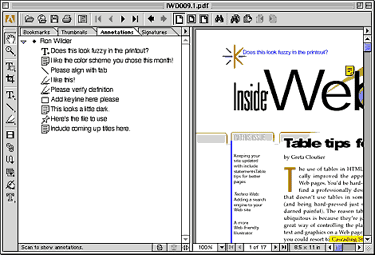
Figure G: Each comment is listed in the Annotations pane.
Conclusion
Acrobat has come a long way over the last few years–from a simple document reader to a powerful, full-featured editing and pre-press tool. In this article, we’ve highlighted the annotation features included in the most recent version of Acrobat. Over the next few months, we’ll show off some of Acrobat’s other labor-saving and collaboration features.

Copyright © 2000, Element K Content LLC. All rights reserved. Reproduction in whole or in part in any form or medium without express written permission of Element K Content LLC is prohibited. Element K is a service mark of Element K LLC.
This article was last modified on March 12, 2022
This article was first published on November 7, 2000
Commenting is easier and faster when you're logged in!

Recommended for you

Creative Fuel: Death of a Hero
Jef Raskin, a gifted technology designer, artist, educator, musician, and pionee...

Photoshop and Illustrator: June 2020 updates
The June 2020 releases of Adobe Photoshop and Illustrator bring some small but s...

InDesign Magazine Issue 85: Color Management
We’re happy to announce that InDesign Magazine Issue 85 (May, 2016) is now avail...