



InDesign is jam packed with features and because of that many of them are overlooked. I’d like to call your attention to two of my favorites, Snippets and Mini Bridge. Mini Bridge, for those of you unaware ,was added to InDesign CS5 and as the name implies, is a compact version of Adobe Bridge.
Snippets are, quite simply, little pieces of an InDesign layout that can be saved for use over and over again. Think about a logo, a button, or even a text block. Anything that can sit on an InDesign page can be saved as a snippet. There are two ways to create them. The first is to just select the item(s) and drag to the desktop. There are two drawbacks to this method.
- InDesign will assign a file name that begins with the word snippet but is hardly very descriptive.
- The file will be sitting on your desktop. Hardly what I’d call efficient in the long run.
The second, and my preferred method, is to select the item(s) and use the File > Export command to export the snippet. This will bring up a dialog box allowing you to choose where to save the snippet and what to name it.
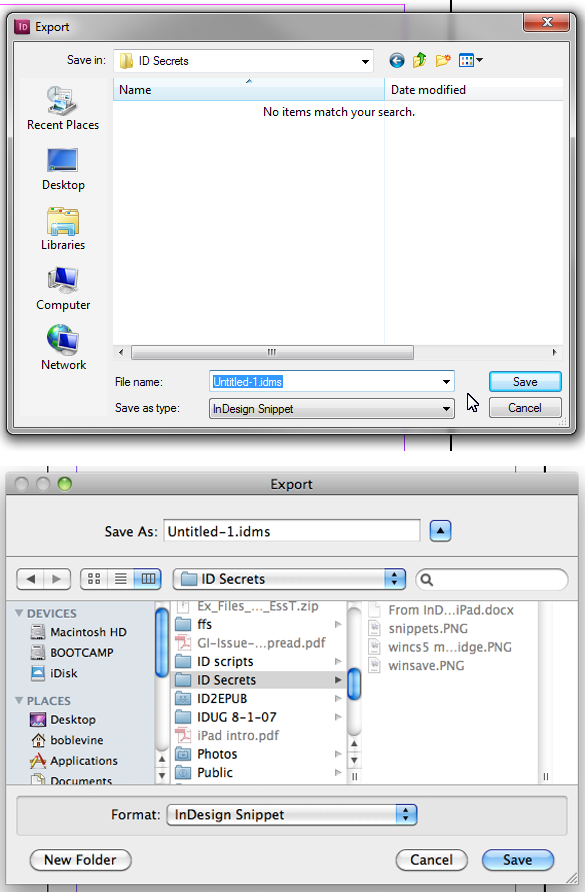
Windows and Mac snippet export dialogs
Once you’ve exported all of your items you can use Minibridge to manage them easily:
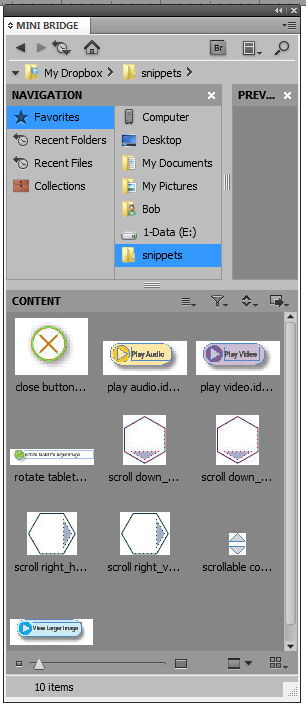
Mini Bridge displays a folder of snippets
I know what your thinking. I can just use a library for that, but (you had to know there was but coming) the combination of Mini Bridge and snippets hold several advantages over libraries that have convinced me to never use libraries again.
- Mini Bridge offers the ability to view the previews at any comfortable size.
- Folders of snippets don’t leave remnants in your recent files list.
- Folders can be shared and managed by multiple users.
The last item is key for me especially since I’ve been involved in a number of collaborative projects lately. In the screenshot above you may notice that the folder of snippets is being saved in a Dropbox folder. I can share that folder of snippets with anyone with a internet connection and he/she can add snippets to it for both of us to use. That won’t work with a library since only one person can have the file open AND manage it.
Finally, if you haven’t used Dropbox, you’re missing out on one of the great collaborative tools available. Anyone can get a free account that provides two gigabytes of storage by signing up here. 50 gigabytes of storage is available for as little as $9.99/month.
This article was last modified on December 21, 2021
This article was first published on May 25, 2011
Commenting is easier and faster when you're logged in!

Recommended for you

Taking Another Look at the Content Grabber
Not everyone is a fan of the content grabber, but it does have a hidden feature...

Tip of the Week: Customizing Smart Guide Options
This tip was sent to Tip of the Week email subscribers on September 24, 2015. Si...

Free InDesign and InCopy CS3 Trials Available
Adobe just made free trials available for all their web and design Creative Suit...