




How do you fix a typo when you don’t have the correct font?
After my beloved studio group lost its lease last year, a batch of us were able to form a new studio for 12 otherwise displaced artists. One of my new studio-mates, Laurie Wigham, inherited the role of resident designer for the studio. Before departing for a weeklong “off the grid” watercolor retreat in the Sierra mountains, she designed the studio’s ads for the ArtSpan Open Studios guide, and left the files in our group Dropbox folders for me to upload.
As I was preparing to upload the files I noticed that a typo that we thought we’d corrected, had somehow snuck back into the file. Gremlins I’m sure had a hand, but in any case, I had to correct the spelling of the last name of one of our artists. Isa Amelee’s name was misspelled as “Amelie.” I assumed that Laurie had stuck with our previous fonts, so I opened the Illustrator file only to discover that she’d chosen a font I didn’t have. No problem, I thought, I have access to Typekit.
Nope. The fonts used in the document were not included in Typekit font collections! No problem, I thought, I’ll just place the file in InDesign as a PDF and overlay the correct letters on top. It turns out, InDesign’s handling of placed files in high resolution preview is sluggish and imprecise. I couldn’t zoom in close enough to get the job done.
I’m an artist and a crack at production in Illustrator, Photoshop, and InDesign (having produced 14 editions of The Adobe Illustrator WOW! Books), but I am not a designer, and I am not comfortable messing with other people’s design decisions. So swapping in a different font wasn’t an option.
The deadline demanded that we couldn’t wait for Laurie’s return, so after a few failed attempts, I found a way to “fake” the type replacements. It turns out that InDesign, which I thought would be the easiest way to make the fix, was not the correct tool. Instead, I was able to repair both the Illustrator print file, and the Photoshop web banner with just a little bit of patience and care. It helped me a lot that the document I was using already contained the 2 pairs of characters I would need to effect a perfect repair: To change “Amelie” to “Amelee” I needed both an “le” pair, and an “ee” pair. If you don’t have the repairing pairs of text that you need, you can still come close with similar pairs (“aligning with “ce” instead of “ee” for instance), or, at worst case, you can kern carefully by eye. To use this bit of trickery you will, however, at minimum you will need to have within your document the letters forms in the correct font and size to replace the ones that are wrong.
Frankly I was surprised that this small patching task was so difficult in InDesign. Fortunately, in both Illustrator and Photoshop I could easily 1) zoom in super up-close on the placed objects, 2) move around the patching objects with exacting precision, 3) apply masks to reveal only the desired portions of the patched text, 4) align the fixed text with guides.
Assuming that you have enough characters within the document to patch the text with the correct characters, the key to patching text in both Illustrator and Photoshop is Placed the file as a PDF. To patch the text, duplicate the layer with the placed text, move the patching characters into correct position, then use clipping mask in Illustrator and layer mask in Photoshop to control what you do/don’t want to see of the patched text. As soon as you try and crop or edit the linked file, it will convert to either pixels or live text with the fonts missing, in both cases leaving you unable to perfectly patch the text.
Here are some key screenshots of the patching process in Illustrator:
To correct “Amelie” I would need “le” (from Glenn) and “ee” (from Hee).
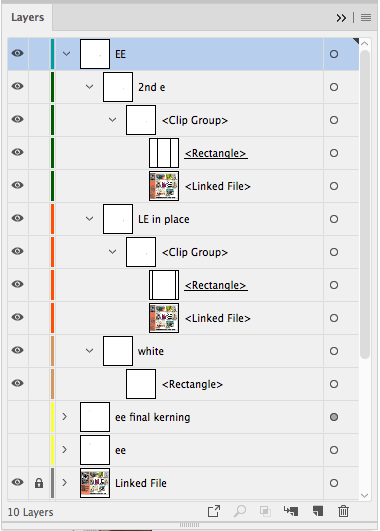
The final layers for the masked “ee” in place.
Although exactly, properly patched, a PDF might appear wrong in Preview.


Patched and in place.
And here are some key screenshots of the patching process in Photoshop:
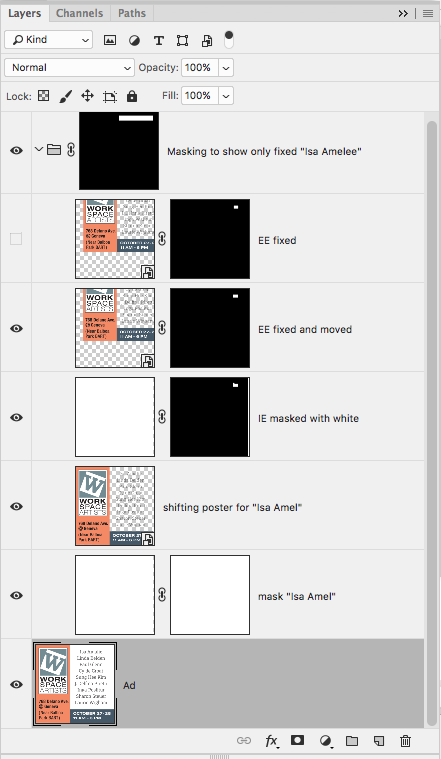
The final patching layers.
This article was last modified on June 15, 2021
This article was first published on October 31, 2018
Commenting is easier and faster when you're logged in!

Recommended for you
Heavy Metal Madness: The Agony of Defeat
[Editor’s note: Though this is the final installment of “Heavy Metal...
CreativePro Video: How to Use Camera Raw in Photoshop
In the following CreativePro video, Michael Ninness shows us how to use Camera R...

Halloween Photoshop Techniques
Looking to whip up some quick Halloween fun in Photoshop? Over at the lynda...