




The Easy Way Out
I’m not sure when it was established or became accepted that in order to accomplish a complicated process on a computer its user interface must also be complicated. I mean, isn’t the computer meant to handle complicated processes at the whim of a user? Having dialog boxes that allow you to tweak every bit of magenta out of midtones may be necessary for many professionals, but what about the folks out there who just want to make an image look better and don’t really care too much of how it gets done? One of Elements’ great accomplishments is a simplified design that it presents users with simple-to-understand commands with clean interfaces and behaviors that include only the fundamental controls (see figure 6).
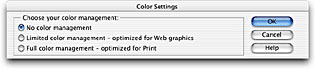 Figure 6: Simple as it gets. This is the Color Settings dialog in Photoshop Elements. The daunting dialog box in Photoshop is reduced to three simple options.
Color correcting and enhancing a photo can be a rather challenging and daunting task to first-time users of an imaging application. Elements 2.0 adds a handful of new commands (and improves upon some others) that takes the guesswork out of fixing photos — and makes it almost fun, or at the very least easy to do so. The AutoFix command does a great job at consolidating all the available adjustment commands into one, uncomplicated dialog box (see figure 7.0). Simply choose an adjustment category, select an adjustment, and apply any settings. Numbered steps are minimal, making it obvious what to do next. Dialog tips change depending on the options selected and multiple adjustments can be applied and undone without leaving the AutoFix dialog box.
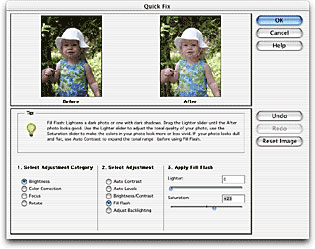 Figure 7: The Quick Fix dialog doles out all the enhancements controls in one comprehensible format.
The Color Variations command offers an intuitive method to interactively choose from a series of thumbnails until you reach the right levels of color and brightness (see figure 8). This dialog box also includes dialog tips and the ability to undo multiple decisions.
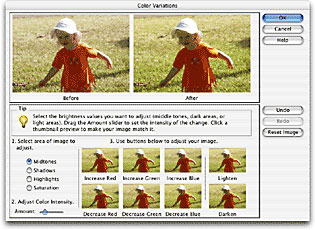 Figure 8: Color Variations now includes proxy thumbnails of each adjustment.
There are also compelling tools and commands exclusive to Photoshop Elements 2.0, some of which I wouldn’t mind if they found their way into the next release of Photoshop. For example, the Red Eye Brush makes it possible to paint out those annoying red eyes of your friends and family that usually end up ruining a good photo (see figure 9) — and yes, it works on the green eyes of your pets, too. This tool seems to require some experimenting to yield favorable results but offers a nice amount of control and flexibility.
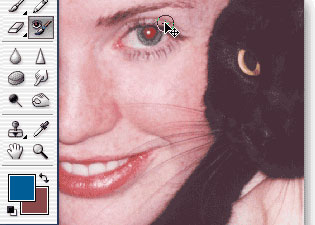 Figure 9: The Red Eye brush works as advertised (with some tweaking).
Another feature that should be in Photoshop is Elements’ new Selection Brush that adds an intuitive way for users to easily paint in a selection or switch to mask mode to paint a selection mask (see figure 10). It’s a new take on the sometimes-puzzling Quick Mask mode found in Photoshop.
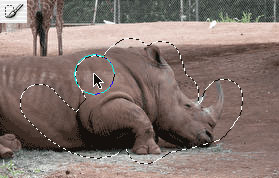 Figure 10: It’s a little weird to paint a selection with the Selection brush but I imagine it makes it easy for new users to grasp the concept behind masking.
The Photomerge command does an amazing job of combining photos into one seamless panorama. Now including a finer set of controls, Photomerge allows for larger file sizes and arranging of the images (see figure 10). With the Auto Straighten/Auto Crop commands, Elements takes care of leveling out crooked scans. Although these kinds of complicated tasks can be accomplished in Photoshop 7.0, it’s by no means as easy.
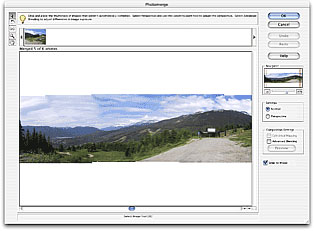 Figure 11: The Photomerge command works incredibly well. I was truly surprised at the results.
The impressive set of image enhancement controls and tools offered in Photoshop Elements 2.0 makes it perfect companion software to your digital camera or scanner. Whatever goof-ups you end up capturing, rest assured that Elements can probably help you fix it. For many hobbyist and aspiring digital photographers alike, this imaging product may be all they ever will need.
This article was last modified on January 18, 2023
This article was first published on August 27, 2002
Commenting is easier and faster when you're logged in!

Recommended for you

What You'll Find in Lightroom 4
Photographers, take note! You can try out a major update to Adobe’s Lightr...

How to Choose the Right Image File Format for Print
Excerpted from Real World Print Production with Adobe Creative Cloud b...

Adobe Introduces the Photoshop Photography Program
In a move that acknowledged the need for a cheaper, focused alternative to its e...