LiveMotion 2.0 has been a long time in coming. It’s been nearly two years since Adobe introduced version 1.0 as a Web-animation application to compete with Macromedia Flash. Was it worth the wait? LiveMotion’s new features are impressive, to be sure, but the long gap between versions only means that Flash has had plenty of time to cement its lead.
Before we get into specifics of version 2.0, let’s review. If you’ve wondered what happened to LiveMotion, or in case you’ve never heard if it (not unlikely), it’s time to catch up.
Years Flash By
A couple years back the only true solution designers had for creating Flash animations (SWF files) for the Web was Macromedia Flash itself. Many found, and still do find, Flash difficult to master and strange in its manner of going about even the simplest tasks. Adobe realized it had an opening: Its particular spin on vector animation might just win over disgruntled Flash users and gain new customers who were put off by Flash all together. So in May 2000, Adobe entered into the Flash fray with LiveMotion 1.0.
The web animation tool borrowed much of its user interface and toolset from its software siblings: a pared-down version of After Effects’ object-based timeline along with tools that resembled and behaved for the most part like those in Illustrator and Photoshop. LiveMotion 1.0 gained a modest following because of its ease-of-use and integration with other Adobe products, but it failed to truly catch on partly because of Flash’s dominance in a field it more or less created.
For designers and less-technical types, LiveMotion delivered on many counts — being intuitive and accessible, among them. But LiveMotion’s major weakness was its lack of scripting. Its limited behavior set was nothing close to the robustness of Flash 5’s ActionScript. As a result, LiveMotion languished as Flash 5 maintained its foothold as the vector-animation tool of choice. Essentially, LiveMotion 1.0 had features on par with Flash 3, yet while going up against the extensive capabilities found in Flash 5. Designers may have appreciated LiveMotion, but existing Flash users wouldn’t have anything to do with it.
More than two years later, Adobe is attempting to appease designers and coders alike with the release of LiveMotion 2.0. This major upgrade brings support for ActionScript and JavaScript, adds several feature enhancements and up-to-date integration with Adobe’s other products, and makes the application compatible with Mac OS X and Windows XP. Has Adobe sufficiently narrowed the gap between LiveMotion and Macromedia Flash so that long-time Flash users will consider switching over? And will existing LiveMotion users and newcomers find something compelling with this release? For the most part I would say yes, but read on for the details.
Alternate Timelines
When working on an involved animation you often find yourself mired deep within layers within layers of the timeline window. Having a way to move layers and attributes out of the way so you can concentrate on others is not only critical to getting your work done but essential for keeping your sanity. Fortunately, LiveMotion 2.0 offers a slew of new features directly targeted at managing the unruliest of timelines. New controls make it possible to manage layers as you see fit while keyboard shortcuts allow you to call up or isolate particular attributes of a layer (see figure 1). Once you discover the time-stretching and movie-clip-scrubbing capabilities, you’ll wonder how you got on without them. It’s worth noting that all of these features are a straight transfer from After Effects’ timeline. If you’re an After Effects user, you’ll feel at home with LiveMotion 2.0’s timeline controls.
LiveMotion’s new locking, hiding and shying features are helpful additions for managing layers. Locking and hiding layers is pretty straightforward but "shying" may be new to those of you not familiar with After Effects. Shying allows you to hide layers in the timeline while leaving their corresponding objects visible in the composition window. This feature is a godsend when you temporarily want to get layers out of your way (see figure 2).
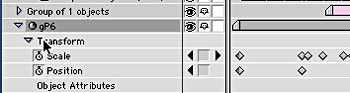
Figure 1: Key commands make it possible to isolate often used layer attributes. Here I’ve brought up the scale and position attributes just by keying "S" and then "Shift-P."

Figure 2: Shying particular layers in the timeline gets them out your way to concentrate on others.
Two other features that work with the timeline — time stretching and movie-clip scrubbing — help with the process of building your animation. Time stretching eliminates the need to manually redistribute keyframes after you decide to extend or reduce a layer’s timeline. With a touch of a modifier key, you can have LiveMotion automatically distribute its keyframes to accommodate the new timing (see figure 3). Even though the inline preview mode is much improved, stopping your work to preview an entire composition can disrupt the creative process, especially when all you really want to preview is the bit you’re currently working on. This is where movie-clip scrubbing comes in. Dragging the time marker with the Option/Alt key down invokes movie-clip scrubbing and allows you to interactively preview parts of the animation including any nested movie clips. All these features help bring a new level to timeline management and are sure to become natural extensions of your LiveMotion production.

Figure 3: Time stretching makes quick work of redistributing keyframes.
This article was last modified on January 18, 2023
This article was first published on May 14, 2002
Commenting is easier and faster when you're logged in!