




Adobe GoLive would likely seem a favorite with designers, given its ease of use and Adobe’s trademark user interface. Yet, even die-hard GoLive fans (and there are some) have probably considered jumping ship. Users have become all too familiar with GoLive’s tendency to corrupt site files and generate bloated JavaScript code that is next to impossible for humans to decipher and tweak. Add in its less-than-stellar performance and GoLive has been losing the little ground it had to the likes of Dreamweaver MX 2004.
Adobe appears to be trying to reverse this trend with GoLive CS by adding innovative features, improving on existing ones, and offering tighter integration with other Adobe products than ever before. Packaging GoLive CS along with the Premium version of Adobe Creative Suite makes the application available to a new set of Adobe customers who might have shied away from Web site design before but may consider it now (after all, it’s cheap when purchased with the other programs).
So let’s see what new and improved features Adobe has been working up with GoLive CS and whether it all adds up for you to opt for the new version.
Smarter Objects, Guides, and Rollovers
Introduced in GoLive 5, Smart Objects allows you to create a dynamic link between other Adobe application’s native formats with which GoLive generates a Web-friendly file. Whenever you perform a change such as sizing of the Smart Object or edits to the source file itself, GoLive goes back to the original source file and regenerates the Web optimized file. GoLive CS improves upon this already remarkable feature in variety of ways.
It’s now possible to resize a Smart Object image while maintaining its original proportions (see Figure 1). You can also crop a Smart Object, which works very much as it does in Photoshop, except only the optimized file is cropped, thereby leaving the source file intact. The new cropping feature also lends itself to the Tracing Image tool that allows you to use a ghosted background image as a design template. When cropping out a section of a Tracing Image, a new Smart Object is created. And to keep things manageable, all the Smart Objects used in your site now show up in their own folder in the Extras tab of the Site window and in the Library palette for easy access.
 Figure 1: Smart Objects now include better controls for proportional scaling and cropping.
Although you can’t drag guides out from the rulers as you can in every other Adobe application, GoLive CS includes Smart Guides that assist in lining up elements within a layout. Relevant guides appear when you drag an element near to another element and the element snaps into place when you release it (see Figure 2). This feature behaves similarly to Smart Guides found in Illustrator.
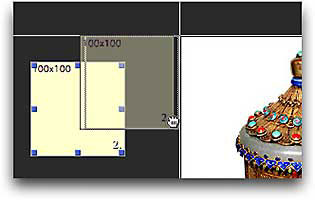 Figure 2: Smart Guides appear whenever you drag an element close to another element’s shared axis.
Rollovers get a nice shot in the arm in GoLive CS. Not only do Photoshop CS, ImageReady CS, and GoLive CS generate the same reasonably lean, human-decipherable rollover code, it’s interchangeable as you jump back and forth between these applications. The newly combined Rollovers & Actions palette makes it possible to produce self- and remote-rollovers that aren’t limited to trigger events on images. GoLive can now even detect rollovers by looking for common suffixes to filenames such as “-out, -over, -down” as you add the main graphic (see Figure 3). It then automatically builds a tidy, working rollover for you, allowing you to concentrate on more pressing matters than fussing over rollover code and preloader scripts. All these features add up to a tremendous amount of flexibility and power to be creative as you design and build your Web sites.
 Figure 3: No more fussing with simple rollovers. GoLive can now detect a rollover setup and hook up all the code for you.
Code Complete
Although GoLive’s strong suit has always been its familiar (dare I say, WYSIWYG?) manner of laying out your Web pages, the coding features and tools found in this release make it just as easy to write code from scratch. To strengthen GoLive’s coding muscles, Adobe has added code completion, an updated JavaScript editor, and a new JavaScript debugger along with an organized interface to create, edit, manage, and preview your Cascading Style Sheets (CSS) all in one place (see Figure 4).
 Figure 4: The newly revamped CSS editor is now one window for creating, editing, managing, and previewing your styles.
Whether you feel right at home completely coding your pages or like to switch between layout and source code mode, code completion will certainly help you along the way. As you begin to type a tag, property, or any other valid bit of code, GoLive CS searches for appropriate choices to complete the statement and offers them in a popup menu beside the text you’re typing (see Figure 5). Dreamweaver has had this for a while now and it’s nice to see GoLive follow suit. However, GoLive’s code-completion feature does not offer up available CSS classes in your working document as Dreamweaver’s does. Nevertheless, code completion is an essential aide for anyone comfortable working with code.
 Figure 5: Code completion is a feature that finally finds it way into GoLive’s code views.
Over the past few years, CSS has earned acceptance as modern, capable browsers began to support the language’s powerful presentational capabilities. Almost gone are the days of using tables and spacer GIFs to impose your Web design out of HTML. CSS allows for exact positioning and formatting of HTML elements yet coding and applying it correctly is a daunting task that shouldn’t be taken lightly.
Fortunately, GoLive has had an excellent visually oriented CSS editor for some time, adding a code view in a recent release. In GoLive CS, Adobe has consolidated the CSS editor into one manageable window that provides both a graphical and code view along with preview pane that allows you to see what your style definition will look like before ever applying it (see Figure 6). You can even call up a mini-preview of the CSS class you are about to apply to a selected element in this context. All these improvements to the CSS editor go a long way toward making it easier to work with CSS — something we should all find ourselves doing more of, if we haven’t already.
 Figure 6: Before you apply a style you can hover over its name and preview it.
For GoLive CS, Adobe has licensed the rather capable Opera rendering engine just as Macromedia has done for their Web design applications. By using this engine, Mac users are offered a true-to-life rendition of what the final layout with look like on modern browsers, since the rendering engine is based on one. The Windows version still uses Internet Explorer’s built-in rendering engine.
If you became disenchanted with GoLive in the past because of the large amounts of nefarious code it has been known to generate, you’ll be happy to know that the Adobe developers have gone to great lengths to make the code generated by GoLive CS as compact as possible while keeping it easy enough to go in and tweak — something that was next to impossible to do in previous releases. If you’re just getting into coding yourself, the product comes packed with a bunch of ready-to-go snippets of code to get you off and running. XHTML support found its way in GoLive 6 and the validation feature still holds its ground with Macromedia Dreamweaver MX 2004’s browser-checking feature. All these code-related features and more, make GoLive CS a formidable coding tool hiding behind a versatile Web layout tool.
This article was last modified on January 18, 2023
This article was first published on December 23, 2003
Commenting is easier and faster when you're logged in!

Recommended for you

How to Tell Which Files Use Type 1 PostScript Fonts
These techniques can help you detect which documents may cause problems when Ado...

Insert a Character by Unicode or GID
As you know, you can insert any character from a font by double-clicking it in t...

Corbis Reinvents Accessibility to Celebrity Photography With Launch of OutlineLive
Corbis today announced the launch of OutlineLive, a contemporary and fresh colle...