


The Case for QR Codes
Sandee Cohen looks at the many uses for QR Codes, as well as how to create and edit them.

This article appears in Issue 55 of InDesign Magazine.
One handy feature in InDesign is the ability to generate QR (quick response) codes within an InDesign document. QR codes are a special kind of barcode in the form of a square mosaic pattern—you’ve probably seen them increasingly appearing on posters, advertising, and packaging. But what made the InDesign team decide to add them to their software? Believe it or not, the development of this feature started with the Senior Product Manager, Chris Kitchener, working in his backyard, putting together a trampoline for his kids. Somewhere in the middle of the project, Chris realized he was totally lost. Fortunately, there was a QR code in the printed instructions. Chris used his smartphone to scan the code, which opened a video that demonstrated all the steps necessary to finish the job. This personal experience showed Chris the importance of QR codes on printed material and how adding them to InDesign could benefit users.
Where QR Codes Came From and Why They’re So Ugly
QR codes didn’t start out as a means for watching trampoline videos on a smartphone. They were created in 1994 by Denso Wave, a subsidiary of Toyota. The information in the codes was used to help track the thousands of parts necessary to assemble cars. QR codes were an improvement from the standard barcodes that are applied to packaging and books. Those codes are considered one-dimensional, as their information is read only across the code. But bar codes require quite a bit of space to be read correctly and are limited to providing only 20 digits of information. Denso Wave needed a way to put more information into a smaller area. Their solution was to create a two-dimensional mosaic pattern that is read both horizontally and vertically. This allows the QR code to represent up
to 7,089 numbers or 4,296 alphanumeric characters—way more than a plain barcode—in less space (Figure 1).

Figure 1: A barcode is read in only one dimension. But QR codes can store more data encoded in two dimensions.
Types of QR Code Data
There are nine different types of data that QR codes can contain (Figure 2). However, currently InDesign can only create five of them.

Figure 2: Types of QR Code Data
How Much Are They Used?
According to an article by Marketing Charts, while not yet a mainstream activity, the use of QR codes is growing. They are especially popular in China (30% of smart phone users have used them) and South Korea (38%), with the US running a close third at 24%. They are also popular in Turkey, India, and Brazil (Figure 3). These numbers indicate that there is a use for QR code marketing in all sorts of media.

Figure 3: The Percentage of smartphone users scanning QR codes.
The Possibilities of QR Codes
It doesn’t take much effort to see how QR codes can help any marketing plan. Many advertisers now include a code on their print ads and posters. Sadly, most of these codes only take the reader to the product’s website. But codes can do so much more! In 2011, Macy’s unveiled their “Backstage Pass” campaign, which uses QR codes located in the stores. Customers scan the codes to open videos from Macy’s celebrity partners such as Tommy Hilfiger, Jennifer Lopez, P. Diddy, and Martha Stewart (Figure 4).

Figure 4: As shown on their website, Macy’s spells out the entire QR code process in ads and web pages.

Figure 5: Commuters in South Korea can shop for groceries while they wait for a bus or train by scanning QR codes.

Figure 6a: A QR code is printed on bar napkins at Max’s Wine Dive in Austin, Texas.

Figure 6b: When the QR code on Max’s napkins is scanned, the customer is taken to a website with discounts.
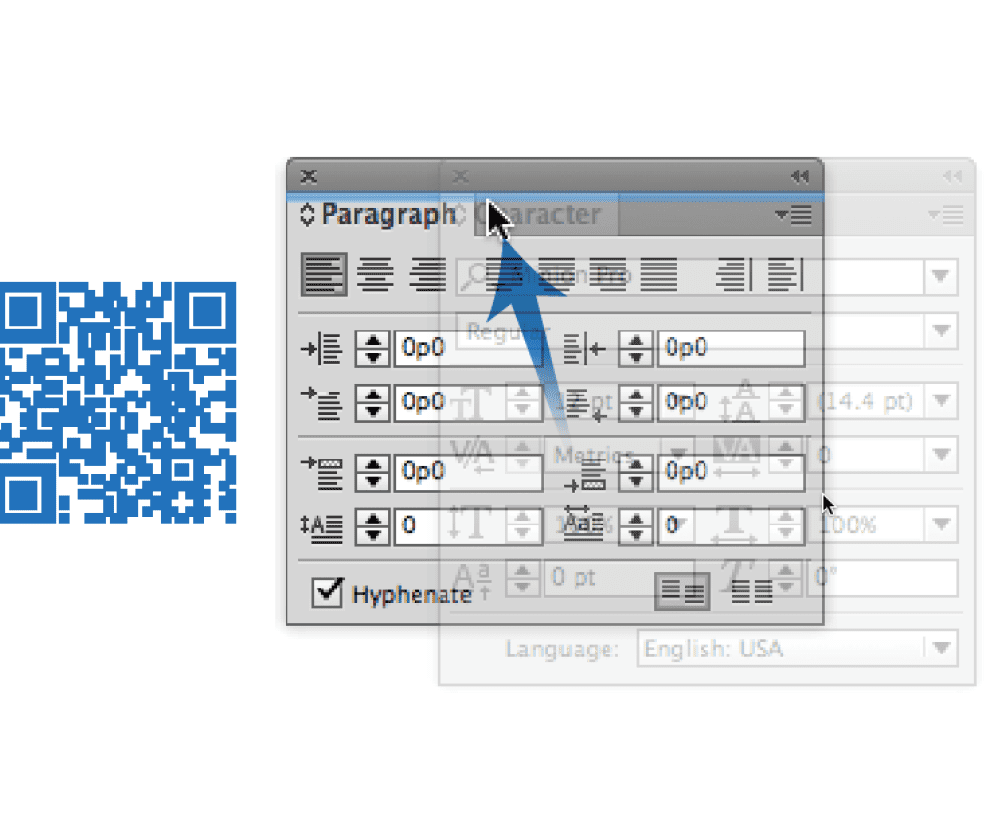
Figure 7: The static print images in a book can be augmented by QR codes that link to video demonstrations.


Figure 8: A QR code on a downtown building in Boulder, Colorado provides a link to the website for the developer of the building.
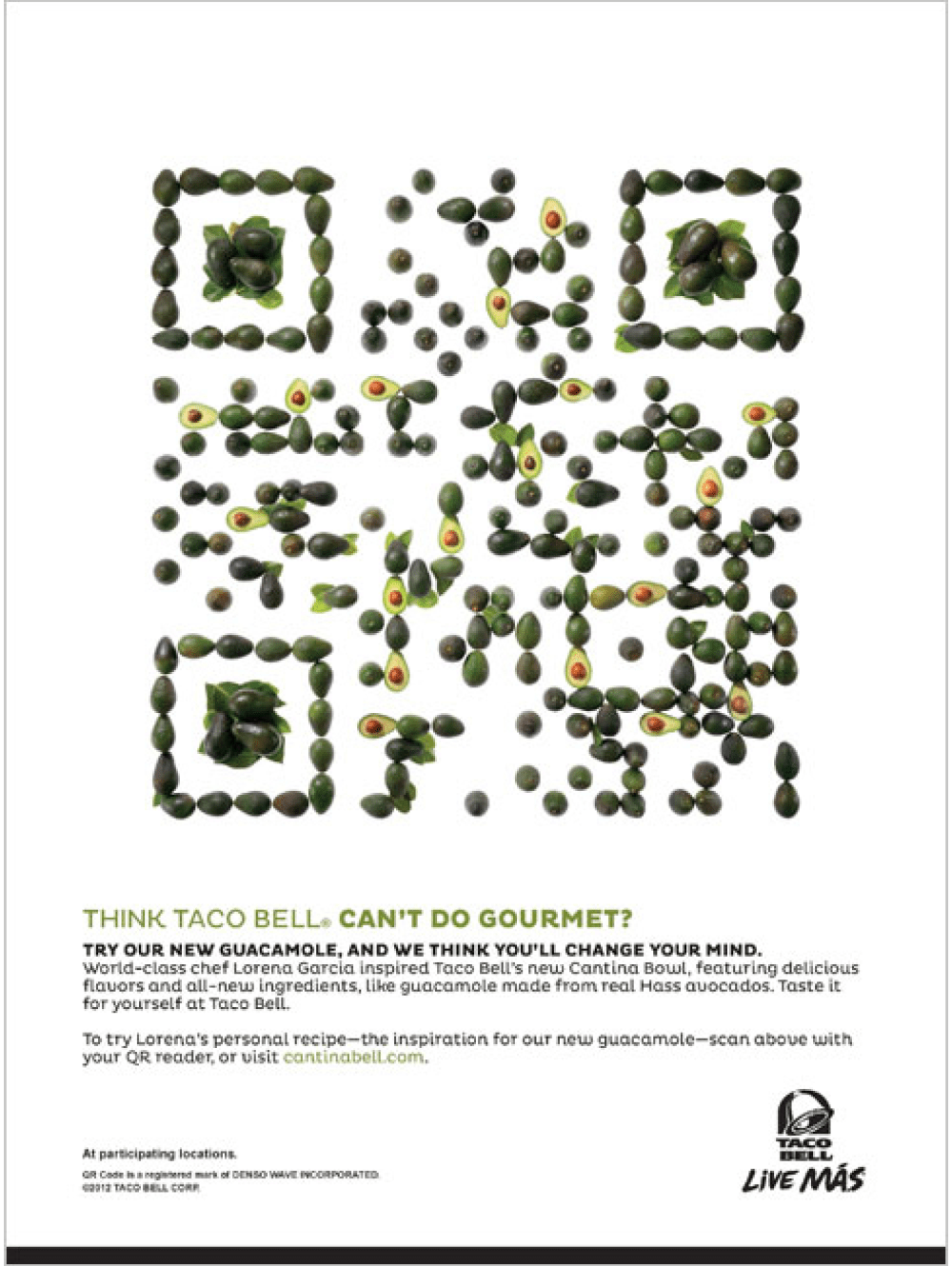

Figure 9: These two “fruity” Taco Bell ads contain actual QR codes that take readers to websites with special recipes.
Tell Your Viewers What To Expect
Not too long ago, it was necessary to put instructions next to QR codes explaining how to download the software that reads them and what to do with it on your smartphone. Then, you might not have needed instructions for how to use them, but you might have wanted to suggest where your customers could download the software. Today, most QR codes appear without any instructions at all. Still, you should probably tell your viewers what they can expect if they scan the QR code. For example, a QR code on a package of vegetables might have a label explaining that the code will provide recipes for using those vegetables. A QR code in an ad might explain that you can use it to send an email requesting more information about the product. Some companies also alert their viewers that there may be data charges for accessing the code information. Other uses are self-explanatory; you don’t need to explain the QR code on a business card.
Creating and Modifying QR Codes
It’s very simple to create a QR code in InDesign. Choose Object > Generate QR Code. The Generate QR Code dialog box appears. Use the Type menu to choose one of the five types of QR codes. Then fill in the appropriate fields for that type of code (Figure 10).
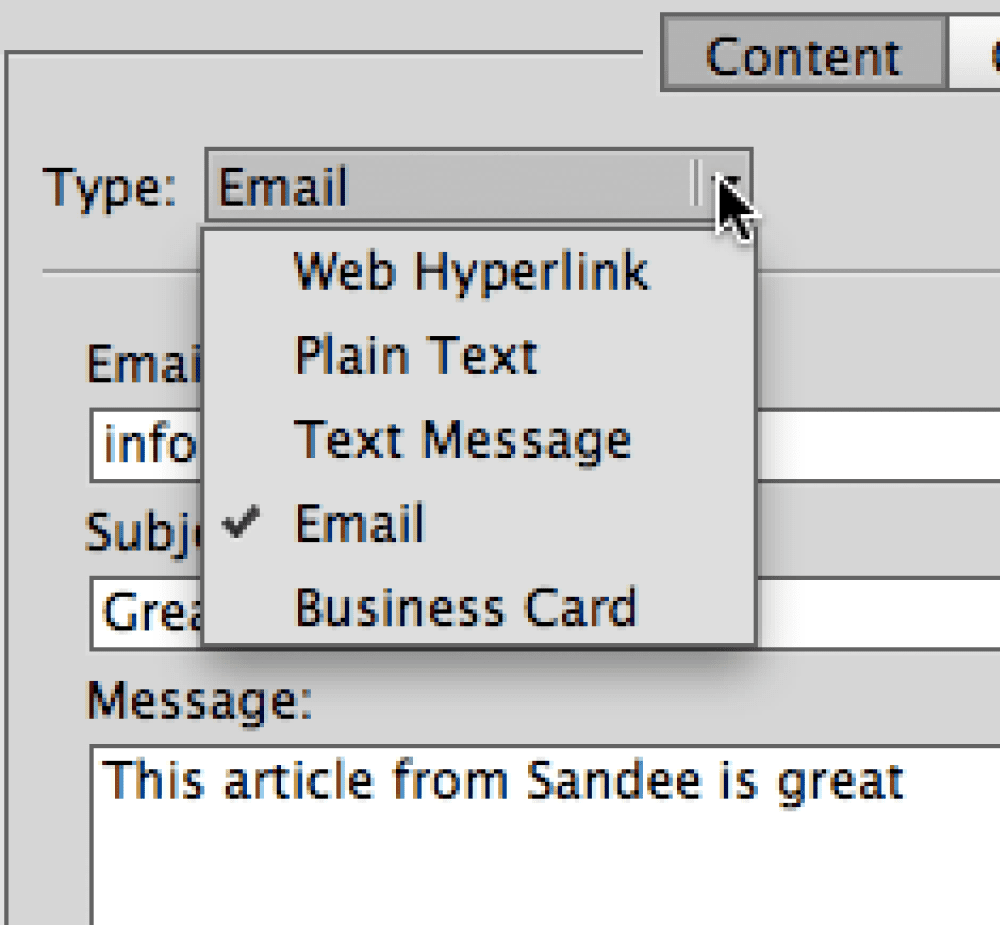
Figure 10a: Use the Type menu to choose which kind of QR code you want to create.
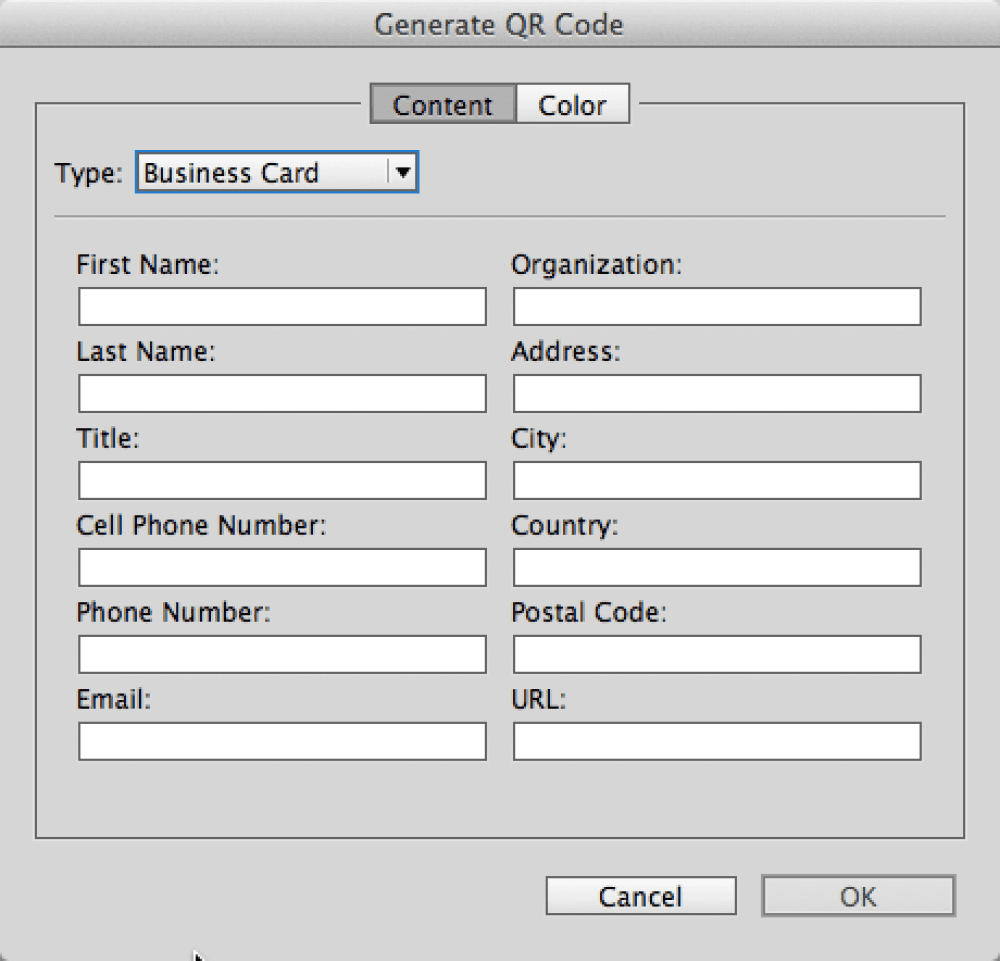
Figure 10b: The fields for a business card QR code
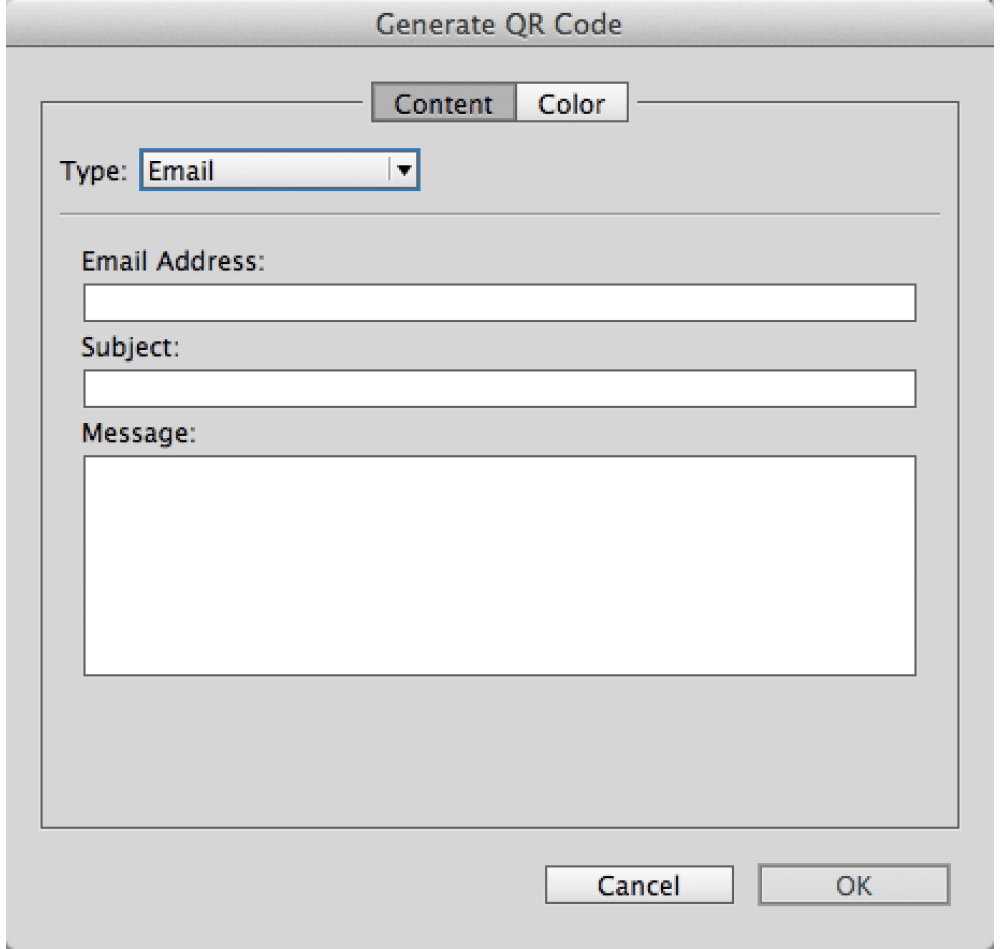
Figure 10c: The fields for an email QR code

Figure 10d: The fields for a text QR code
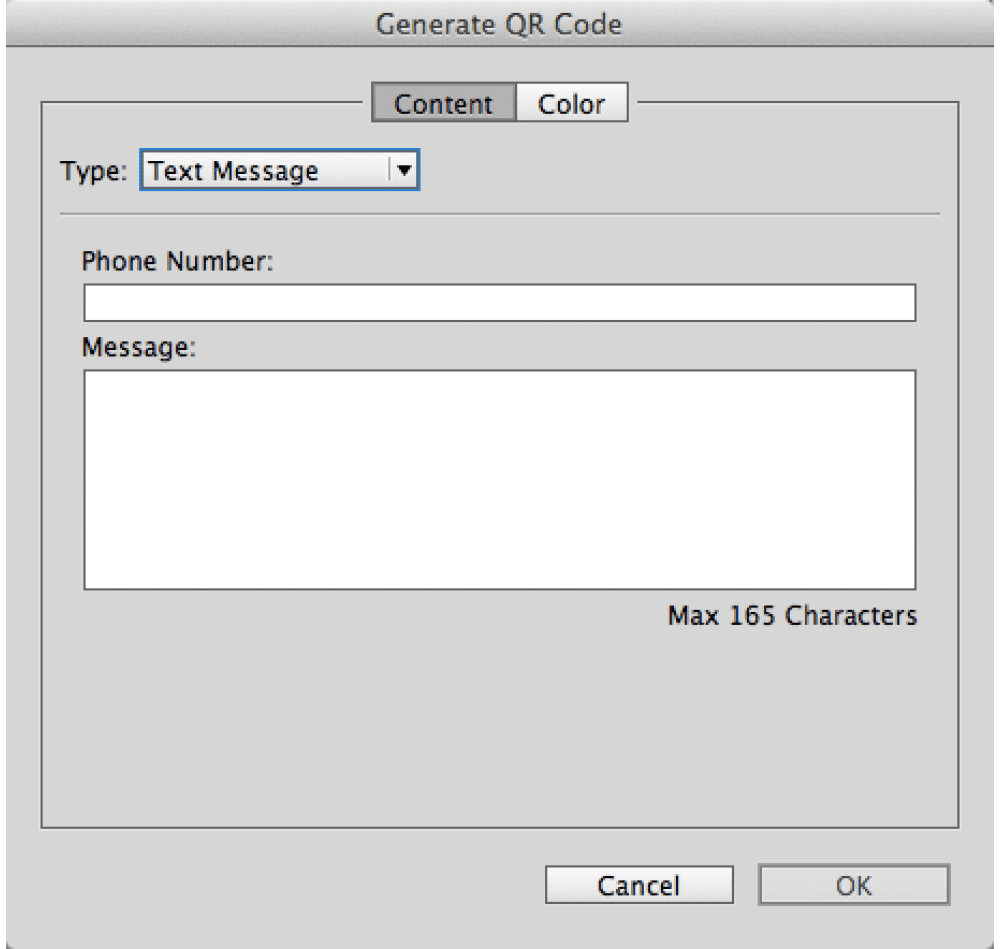
Figure 10e: The fields for an SMS text message
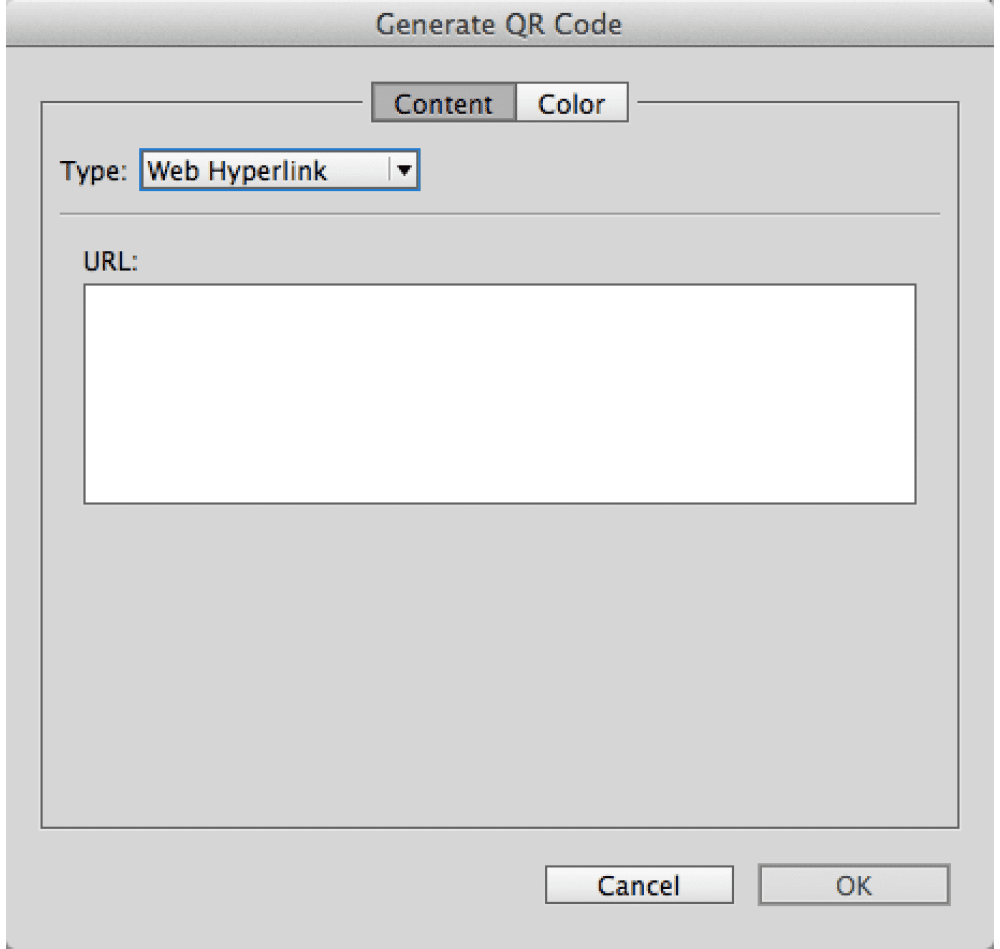
Figure 10f: The fields for a website URL QR code
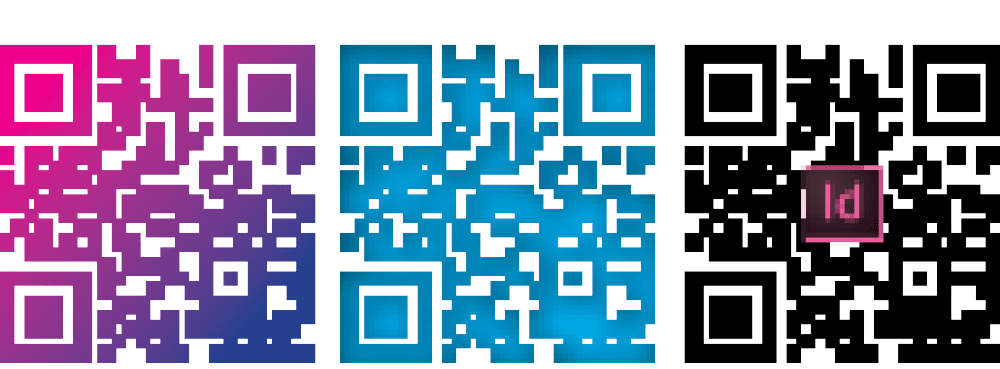
Figure 11: Despite the manipulations, all these codes are valid when scanned.
Editing in Illustrator
InDesign’s QR code objects are embedded PDF files, but they don’t appear in the Links panel. This means you can’t manipulate the objects directly in InDesign. But you can use Adobe Illustrator to modify the code in many ways. Double-click with the Selection tool, or use the Content Grabber to select the embedded PDF object within the frame. Copy and paste it into an Illustrator file. You now have native Illustrator objects that can be modified using Illustrator tools or pasted back into InDesign for manipulation. (See the sidebar for information about a product that does this for you within InDesign.) But be sure to test codes that have been modified, and for best results, use them at a rather large size. Also note that you may get different results with different mobile devices. Devices with higher resolution cameras can scan more QR codes accurately.
Software for Reading QR Codes
There are many QR code reader apps for Android phones available at the Google Play store. Even better, the Galaxy S IV and some Sony and Nokia models come out of the box with a QR scanner already installed. This trend may extend to future Android devices. Of course, the best feature for a smart phone would be pattern recognition that would automatically open a QR code reader if the code pattern appeared in the camera lens. While Apple doesn’t include built-in QR scanners in its mobile devices, there are easily over 250 readers in the App store. Some code readers work better than others. I have had great luck with the NeoReader and Bakodo for the iOS.
Pushing the Envelope
There are countless ways to enhance print content with QR codes. Couple that with the fact that it’s almost trivially easy now to create these codes with InDesign CC, and you can’t help but get excited. If you’re like me, you’ll probably start spotting great places and uses for QR codes everywhere you go. In the meantime, here are just a few more ideas to get you thinking.
- A cookbook can include QR codes to show videos to demonstrate the tricky parts of recipes.
- Magazines can use QR codes to bring audio and video content to print versions.
- Restaurants can post QR codes at every table so diners can access a list of daily specials.
- With a QR code on a movie poster you could view a trailer, and even buy tickets.
- Household appliances can have QR codes linked to the owner’s manuals, or the manufacturer’s customer service number or email address.
And to think, all of this (and more) is possible to create with InDesign, partly because of one man’s struggle to assemble a kids’ trampoline. After reading this article, I bet you can tell how I feel about QR codes. But just in case it’s not totally clear, scan this illustration for the answer. 
Commenting is easier and faster when you're logged in!

Recommended for you

All-Time Favorite InDesign Tips
Mike Rankin and David Blatner team up to share two dozen of the most useful InDe...

Barcodes in InDesign
Everyone needs to make a barcode sooner or later! Here are some tools to make th...

Top 10 Things You Must Do Immediately After Installing InDesign
When you first install InDesign, don't just dive in! First, make these ten chang...