




Adding keywords through the Metadata panel
You can add almost any metadata directly into the Metadata panel. Type one or multiple keywords in the IPTC Core field. Keywords added here don’t have to be in your list. Bridge applies all the words when you click the Apply icon, although it can take a long time. Use this method to add new keywords to your list; once they’re in the Other category, drag them into the list to make them permanent.
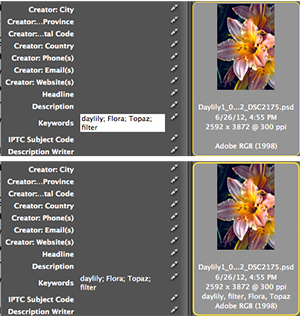
Typing several words in the Keywords field adds all of them in one pass to the selected file(s), and adds new words to the Other category.
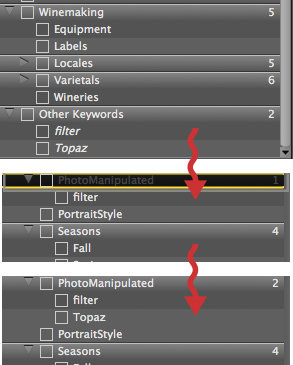
You can make new keywords permanent additions to your list by dragging them out of the Other category into a category you’ve created.
A disadvantage with this method is that you have to know exactly how keywords were spelled in your list. “Wine,” “wine,” “wines,” and “vino” may be all the same to you, but not to a computer. It’s easy to inadvertently create new keywords simply by misspelling old ones.
Another disadvantage is that you have to apply the same keywords to all selected files. For instance, add Australia and Shiraz to selected files, then “bottle” to some and “cask” to others, and select them all again to add “wine.” “(Multiple Values)” appears in the keywords field, and adding new keywords now replaces existing keywords.
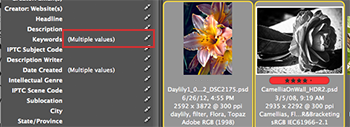
If the Keywords field in the Metadata panel displays “(Multiple Values),” any words you now type into this field will replace the existing keywords.
Adding keywords through the Info dialog
Choose File > File Info (Cmd/Ctrl-I) to batch add metadata, including keywords, to selected files. The same rules that apply to adding keywords through the Metadata panel apply here as well. However, if you’re going to use a template to add some of the metadata to a large group of files, such as job related information and keywords that apply to a photo shoot in Napa, you can organize your work to al
so add more specific keywords to files within the group. Select related files within the group, then both apply the template and type in specific keywords to process that subset of files in one pass.
With a little thought and organization, you might be able to get most of the work done with just a few trips to the File Info dialog. Once you reach the point where selecting multiple files to add a new keyword results in the (Multiple Values) notation, you’ll have to switch to the Keywords panel to add additional keywords individually.
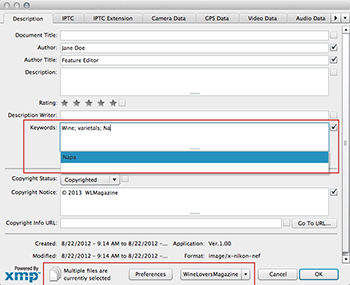
Use the Info dialog to add both multiple keywords and important information from a template.
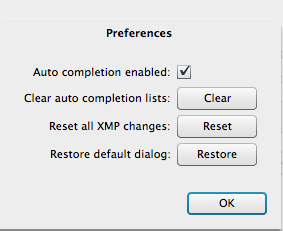
If you’ve added keywords in the Info dialog before, auto-complete (shown above with a blue highlight) will help you accurately spell keywords you’ve already typed. The panel’s Preferences manages the auto-complete list.
This article was last modified on December 14, 2022
This article was first published on October 30, 2013
Commenting is easier and faster when you're logged in!

Recommended for you

Mastering Photoshop Smart Objects: Blending Layers Without Masking
When it comes to mastering the art of blending layers (or any of Photoshop...

Using Color Fonts in Photoshop with Fontself
Color fonts have been touted as the Next Big Thing. They aren’t universall...

Remove.bg: A Worthy Alternative to Photoshop’s Select and Mask
Get to know this web-based app that performs instant photo cutouts with a remark...