




When you place an INDD or PDF file into an InDesign layout, you get a chance to choose which page(s) of the file you want to import, as long as you visit the Show Import Options dialog box while you’re placing it:
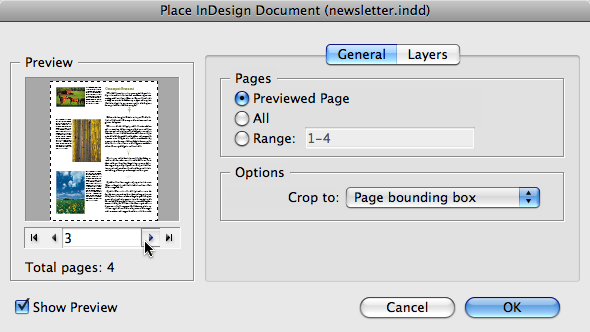
When I tell InDesign to bring in the Previewed Page, and I navigate to page 3 in the Preview area of Show Import Options, I end up with page 3 in my layout, nice and simple.

But what if I change my mind. Hey, it happens! How can you switch to a different page for this one instance? I really wish I could use Object > Object Layer Options for this, but alas, it only has controls for a placed file’s layers (or Layer Comps, in the case of PSD files), and not its pages.
By the way, did you realize that you can hide/show layers in a placed INDD file? Now you do … here’s the dialog box for the newsletter page I placed:

It would be great if Adobe would beef up its features and rename the dialog box to something like “Object Attribute Options” or even just “Object Options.” You’d have one dialog box where you could control not just layers, but also the previewed page of an INDD or PDF file, or even spreadsheets in a linked Excel file.
While we wait for that to happen, we have to do it the hard way. Most users select the image, go to File > Place, turn on Replace Selected Object and Show Import Options, and then choose another page from the same file.
I accomplish the same end by different means, and while I’m not sure it’s any faster, it might be new and perhaps useful to some people.
In the layout, select the placed INDD or PDF file, and then click the Relink button at the bottom of the Links panel. If the Links panel isn’t right there in front of your face, don’t bother opening it, just right-click on the image and choose Graphics > Link Information from the contextual menu . (Yes, the menu is missing a Graphics > Relink command, but the Link Information dialog box has a handy Relink button at the bottom.)
Whichever way you get to the Relink dialog box, note that it automatically brings you to the folder containing the file (nice) and that there’s a Show Import Options checkbox there as well:
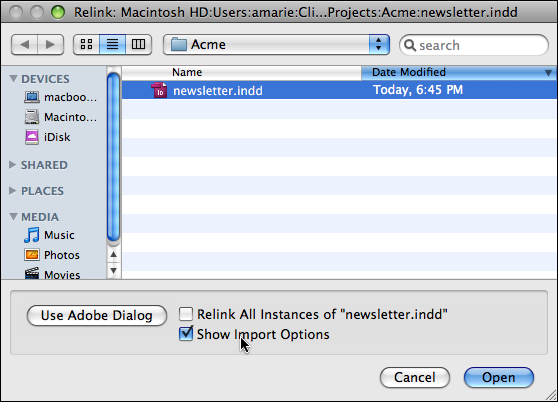
So you just select the same file and click the Open button. You’ll get the same Import Options dialog box I showed you up above, where you can flip around to a different previewed page. Click the Done button, and the new page replaces the old one in the selected image.

That’s all – just a little “heads up!” that you can show import options when you’re relinking, and not just when you’re placing.
This article was last modified on December 19, 2021
This article was first published on August 11, 2008
Commenting is easier and faster when you're logged in!

Recommended for you

Before&After Design Tip: Good Design Must Have a Focal Point
Learn how to create a focal point that will give your design holding power.
Create Fonts in Illustrator CC With Fontself
Fontself Maker, the result of a 2015 Kickstarter campaign, is an Illustrator plu...

Indesign Basics: Numbering Pages
InDesign can number your pages, but a little bit of setup goes a long way, as Er...