



In my recent InDesignSecrets: Beyond Print seminar in Los Angeles, an attendee (hi Lucy!) pointed out that an EPUB file is much like an MS Word file. I think that’s very apt: You should definitely not expect EPUB to be any fancier than a Word doc, and you should expect to be just as frustrated creating EPUBs as you would trying to “lay out” something with Word (if not moreso). EPUB is a linear flow — it’s meant to be reflowable based on screen size, reader choices for fonts and size, and so on. It’s a lot like HTML because it actually is HTML inside that little .epub package.
But many InDesign files are not linear — you can put stuff all over the page! So how do you turn non-linear into linear. Cari Jansen wrote up a great little overview of managing order in EPUB docs on her blog recently, and she points to the two basic methods available: Page Layout and XML Structure (new in CS5). These are options in the Export for Digital Editions dialog box. (Note that someday they’ll take “digital editions” out of the dialog box name. Sigh.)
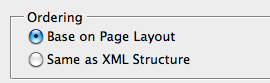
That said, I have a bone to pick with the XML Structure option. Actually, two bones. Both of these relate to how to insert images (which often have captions alongside them) into the flow.
The Problem of Groups
First of all, as I’ve noted earlier, I like grouping my figures and captions and then applying an object style to them. But if you anchor a group in a story (to tell InDesign where you want it to appear in the EPUB export), you can no longer tag the story:
- If you try to use Add Untagged Items, it fails with an error, saying “The frame or frame content is not taggable.”
- If you use Map Styles to Tags, you can tag the text, but not the anchored objects, because they’re inside a group. So the captions and images don’t appear in the EPUB.
- If you tag the caption and image frames, then group them… you cannot paste it into the frame (Paste is grayed out).
So, the inability to have groups inside a structure is a huge problem with the Structure pane workflow.
Of course, you can give up the idea of using groups at all, and just use multiple anchored objects in a row (for example, anchor the graphic frame, then anchor the caption text frame, and assign the proper object style to each of them). But it’s an unfortunate limitation.
The Problem of Positioning
Another option is to do away with using inline/anchored objects at all. After all, if you’re using the Structure pane, you don’t really need to anchor anything in the text. The trick here is to tag all your objects (text frames and graphic frames, perhaps with the Add Untagged Items feature; AND tag all your paragraphs (usually using Map Styles to Tags feature).
After everything is tagged, all your paragraphs and images appear in the Structure pane. Then you can drag the elements around in the Structure pane until you get the order right. There are a few problems with this:
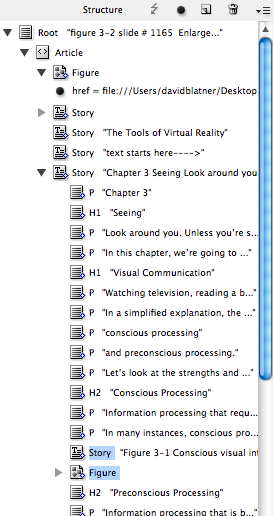
- It’s a pain in the neck to figure out where the captions should go in the structure — that is, where to drag the images and captions. You can make this a little easier by choosing Show Text Snippets from the Structure pane menu. (These “snippets” have nothing to do with the other kind of InDesign snippets; these snippets just display the first few words of each paragraph in the Structure pane.) Also, note that when you select a frame or paragraph on the page, it becomes underlined in the Structure pane. So look for those little underlines! Here’s a picture of a caption and figure element dragged between a paragraph and a heading:
- If you have long stories (like a chapter in a book), it’s a major pain to find and select the figure and caption in the Structure pane, then drag those elements where you want them, and so on. You can do it, but you will quickly find yourself in a really bad mood.
- It’s also problematic if the text is going to be edited. It’s easy for the XML tags to get messed up if people are editing the text inside InDesign. So if you’re going this route, make sure the tagging and positioning are done at the end of the production process.
- And lastly, if your document is actually built with XML (that is, if you actually do have an XML workflow), then you really, really don’t want to mess around with the elements in the Structure pane. That is, the EPUB feature ties in to this XML feature, but it’s not really designed for people who are actually using XML!
So while the Structure panel method is a good one in theory, I’m not finding it as useful in practice. I think of it more of a short-term “hack” that can work in certain situations, but fails in many others.
What do you think? Do you like the Structure pane method or the Page Layout method? Both have pros and cons, obviously. Or do you just throw up your hands, export an EPUB and rearrange it all in some other program, such as Sigil or Oxygen?
This article was last modified on December 20, 2021
This article was first published on October 24, 2010

Recommended for you

Applying Transparency to Text
When it comes to applying transparency to live text, Quark gives you finer contr...

This Week in InDesign Articles, Number 20
The tablet is... almost here? here? Whatever the case, you need to check out the...

The CreativePro Accessibility SuperGuide
A compendium of essential knowledge, tools, and techniques for producing accessi...
Comments are closed.