



While digging for something else entirely, I ran across Ann-Marie’s comprehensive post about the Autocorrect feature…and this got me thinking. I’ve always wondered if there is any way to make Autocorrect add special characters like em dashes, trademarks, or even tabs?
If you try to enter a special character into the Autocorrect dialog box, you’ll get an “Entry contains invalid character” message.
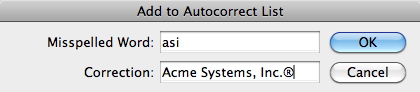

I took this into the Gilbert Consulting labs today, and came up with a solution. You can tweak the XML file that contains the Autocorrect list to contain virtually any characters you can imagine. I’ve only tested this in InDesign CS5, but I suspect it would work at least back to CS3 also. Here’s how:
1. Choose Preferences > Autocorrect, and add at least one autocorrect entry to the list entries that appear there. This will cause InDesign to create a copy of the XML file that contains autocorrect entries. This is the copy that we’re going to edit.
2. To locate the correct autocorrect xml file, find your Scripts panel in InDesign. In the panel you’ll see a “User” folder. Right-click or Control-click on this folder, and choose Reveal in Finder/Reveal in Explorer.
3. In the folder that appears, navigate up the folder tree 2 levels. You should see a folder named after your locale (mine is named “en_US”, as in English, United States). In this folder you’ll see a folder named Autocorrect, and in this folder is the XML file we need to edit, named something like “English USA.xml”.
4. Open this xml file in a text editor. Any text editor that can save a file as plain text will do. I use the Oxygen XML Editor, which makes the file easy to read, but any text editor will do.

5. Add whatever “word pair” entries that you wish to the file. Carefully follow the syntax of the existing entries. Notice that all the entries are alphabetic in the file. This isn’t important. You can put all your entries at the top of the file.
6. The “special characters” that we’re concerned about need to be entered as xml “entities”. These appear as an &# followed by a code and then a semicolon. But how do you know the code that needs to be entered for each special character?
Here are a few:
tab x9
em dash x2014
en dash x2013
trademark x2122
To locate other special characters, you can type the character in InDesign, select it, choose File > Export, choose Adobe InDesign Tagged Text, then Verbose and ASCII for the options. Open the text file that results, and you’ll see a code such as <0x00AE> right after the typeface name. You would then enter this code in the xml file as ® (this is the entity for a registered trademark, by the way).
7. Once you’ve made your entries in the xml file, save it as a plain text file. If InDesign is running, you’ll need to quit it and restart it. You may also need to go to Preferences > Autocorrect, and deselect and reselect the “Enable Autocorrect” option.
Now you should be able to use your new Autocorrect entries complete with the special characters you need! If you accidentally screw things up and butcher your .xml file, you can throw it away, and all that you’ll lose will be your custom entries. The word pairs built into InDesign live in a separate file.
This article was last modified on December 20, 2021
This article was first published on September 21, 2010
Commenting is easier and faster when you're logged in!

Recommended for you

Use Notes to Hide Text in InDesign
Keith shows how to use the Notes feature to quickly hide text instead of deletin...

Quick Tips for Better Composites and Adjustments in Photoshop
Learn tricks to color correct an image in Photoshop using curves by redefining t...
