



With InDesign, as it is with Illustrator, you can add type to any path, regardless of whether you created it with one of the Shape or Frame tools, the Pen toolset, or Pencil tool. If you’re feeling extra creative, you can use the Type On A Path tool skew option to create type that twists and turns around the contour of any freeform drawn path. To do so, try creating a curved path with the Pencil tool, then place some text on the path and apply the skew option.
You can create some really interesting curved paths using the Pencil tool, especially if you draw them using higher Fidelity and Smoothness preference settings. To access these settings, double click the Pencil tool icon in the Tools panel. To get even better curves as you draw, try using a graphics pen and tablet. Before you add text to your curved path, you can use the Direct Selection tool and Pen toolset to fine-tune it. Or, if you have the Edit Selected Paths option enabled in Pencil Tool Preferences, you can edit the path by simply drawing over a line segment with the Pencil tool.
One your path is complete, add some text to it using the Type on a Path tool. Note that after you insert the Type On A Path tool cursor, you can type along the path or place text directly on the path from an external source file (such as a Word or .TXT doc) by applying the Place command (File > Place).
After you format the text the way you like, double-click the Type On A Path tool icon in the Tools panel to display the Type On A Path Options dialog box. These are the exact same Type On A Path options that are available in Illustrator. Choose Skew from the Effect pop-up menu and Center from the Align pop-up menu.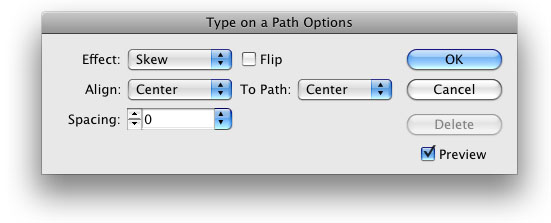
Click OK to close the dialog. Your text should look something like this.
This is just one of the many vector-style text effects that you can create directly in InDesign, without even having to launch Illustrator.
This article was last modified on July 11, 2023
This article was first published on November 14, 2008
Commenting is easier and faster when you're logged in!

Recommended for you
How to Make Quick Silhouettes with the Pencil Tool in InDesign
Learn a fast and easy way to silhouette part of a placed photo in InDesign using...

Creating a Cut Out Graphic
Ever need to create a graphic that shows where to cut something out of paper, li...

Tip of the Week: Easy Type on a Curve
Sign up for the InDesign tip of the week to get a new tip, roundups of new artic...