




There’s just no way around it: Sometimes you have to edit a table of contents that you’ve generated (using Layout > Table of Contents)… and sometimes you have to edit it a lot. For example, perhaps you want some special order to the paragraphs that is different than the way it appears in the document pages. Or you want to edit the text a lot. Or you want to remove a bunch of shift-returns that snuck in.
But once you edit the TOC, your changes are in danger of being wiped out. It just takes someone choosing Layout > Update Table of Contents and all your work is gone. Gah. So how can you sever the connection to the table of contents, so that the Update feature (and the Replace Existing Table of Contents feature) doesn’t work anymore?
The answer is surprisingly simple: Select all the text in the table of contents story, cut it to the clipboard (Cmd+X), delete the text frame, then paste the TOC into a new text frame. It’s the frame, not the story, that is linked! So getting rid of that frame (or even just the first frame, if it’s a multi-page, threaded TOC) will sever it.
This article was last modified on December 30, 2021
This article was first published on February 4, 2014
Commenting is easier and faster when you're logged in!

Recommended for you
Applying Gradients to Dot Leaders in InDesign
Give your next table of contents a unique look.

InDesign Tip: Multiple Tables of Contents in One Document
InDesign lets you create multiple Tables of Contents within a book or a doc...
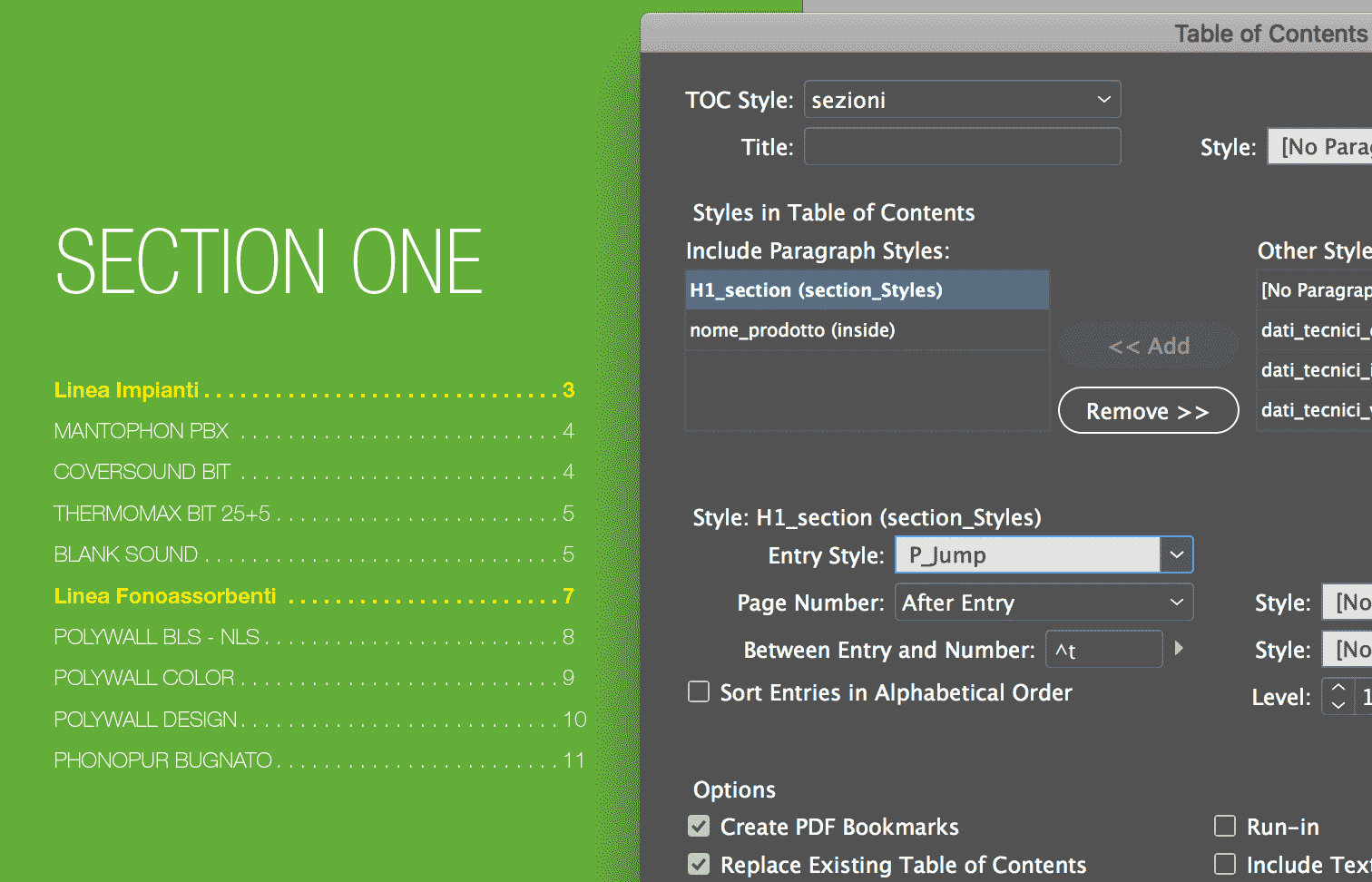
Creating a Table of Contents for a Subsection of a Long Document
I work with a lot of long documents, and here’s a question I often get fro...