



Did you ever wish you could print a set of pages from an InDesign document according to which master page they were based on? Something like that might come in very handy with certain long documents when you just need to print a specific subset of pages. For example, say you wanted to print out all the chapter opener spreads in a book to compare them. The script saves you the trouble of finding the chapter openers and remembering their page numbers to enter in the Print dialog box.

The script was written by Jongware, in response to a request on the InDesign Scripting forums, and you can find it here. It works with InDesign CS4-CC 2014.
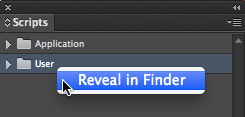
To use the script, copy the full text of it from the forums and paste it into a plain text document, then save it with the extension .jsx and place it into your InDesign User scripts folder. How do you find your InDesign User scripts folder? Just right-click on it in the scripts panel and choose Reveal in Finder/Explorer.
When you run the script, you get a simple dialog box asking which master has been applied to the document pages you want to print.

The Print dialog box opens with the correct pages listed in the Range field. Pretty cool, eh?

Note: the script displays an error if you choose an unused master page.
For tons more great info on InDesign’s long document features, best practices, and third-party add-ons, check out issue 65 of InDesign Magazine.

InDesign Magazine issue 65: Long Documents
This article was last modified on July 25, 2019
This article was first published on September 8, 2014
Commenting is easier and faster when you're logged in!

Recommended for you

InDesign Magazine Issue 97: Find/Change
We’re happy to announce that InDesign Magazine Issue 97 (May 2017) is now availa...
InDesign Magazine Issue 96: Type FX
We’re happy to announce that InDesign Magazine Issue 96 (April 2017) is now avai...
Populate InDesign Form Fields from a Text File with a Script
If you’ve ever used InDesign’s PDF form tools to make a List Box or...