





I’ve been spending a lot of time with effects lately, and thought I’d pass on a little tidbit about the different results you can get when you scale object with effects. This info applies whether you scale objects with the Control Panel, the Scale tool, or by Command/Ctrl-dragging.
If you go to your General preferences and set When Scaling to Adjust Scaling Percentage, you will see that most effects will scale along with the object they are applied to.
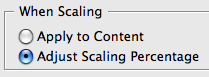
If you increase the scale of the object significantly, most effects appear pixelated onscreen.

With the object selected, you can see the percentage of increase in the Control Panel.

Since InDesign is keeping track of the scaling percentage, effects will be scaled, regardless of whether you apply them before or after scaling the object.
If you want your effects to revert to their original size, but not affect the size of the object, choose Redefine Scaling as 100% from the Control Panel menu.

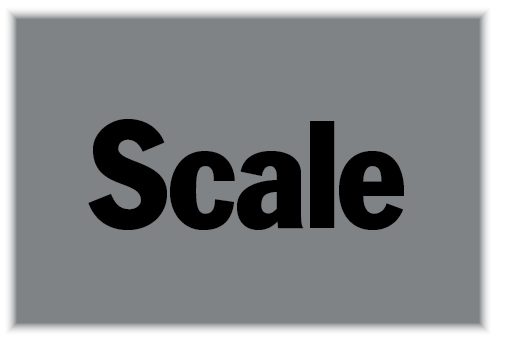
This matches what you’d see if you had set your When Scaling preference to Apply to Content.
In some cases you may want scaled effects. So it’s not really a problem, except for the pixelated display. Changing your Display Preferences to High Quality won’t help. At least it’s only a screen artifact.
Since they use transparency, the output resolution of effects comes from your Transparency Flattener settings (if you print or output to flattened PDF). Specifically, flattened effects are rendered at the Gradient and Mesh Resolution, down to a lower limit of 96 ppi. If you don’t output flattened PDF, the resolution of effects can be set later on.

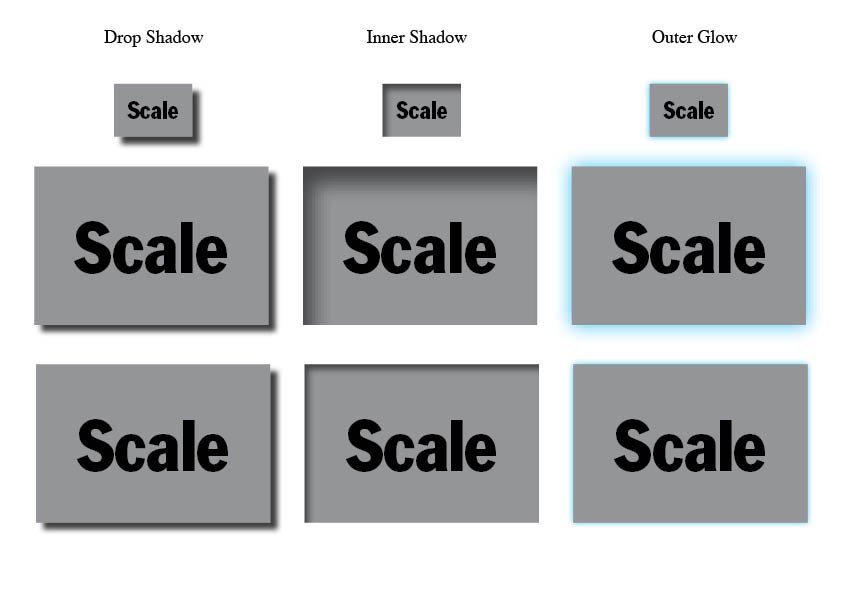
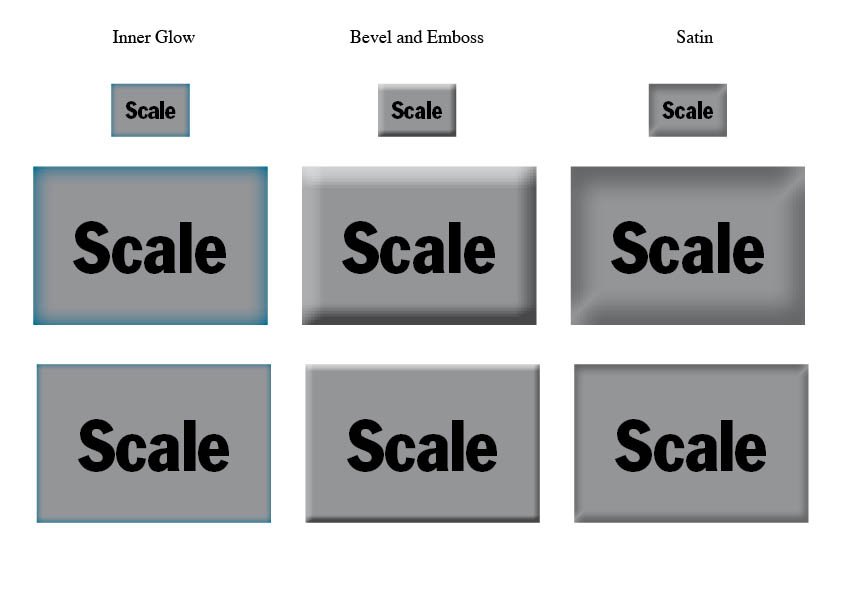
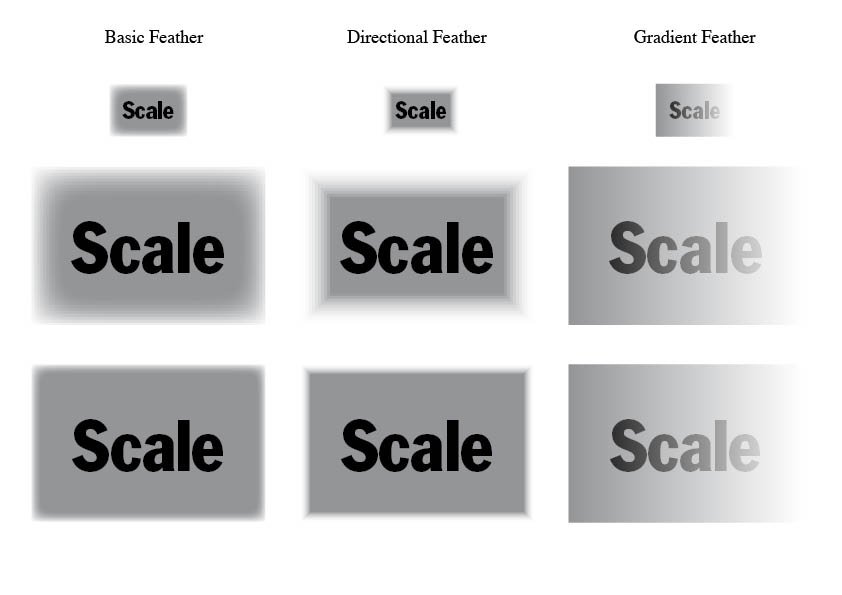
Interestingly, not all effects behave the same way. Drop shadows and gradient feathers are immune to scaling, regardless of how you set your preferences. All others follow the When Scaling preference.
The following screen grabs show the nine flavors of effects applied to a small text frame, and what happens when that text frame is scaled 300%. The top frames are the originals. The middle frames show the results when using Adjust Scaling Percentage. The bottom frames show the results when using Apply to Content. Click on the pictures for a closer look.
This article was last modified on December 20, 2021
This article was first published on January 21, 2010
Commenting is easier and faster when you're logged in!

Recommended for you

Tip of the Week: Making Torn Paper Effects
This InDesign tip on making torn paper effects was sent to Tip of the Week email...

Create Flashing Holiday Lights in InDesign
Learn how to make lights flash on and off, with the help of a transparency effec...

How to Adjust Image Scale and Crop in Illustrator
Learn some quick tricks for re-sizing and cropping images in Illustrator, includ...