



Bruce wrote and asked:
I wonder if you can answer a problem I have with Bridge (CS3). I can view the thumbnails of some InDesign pages I have created, and only the icon of others. In others again all I can see is a white square…
Adobe Bridge cannot “build” thumbnails for InDesign documents. The thumbnails for InDesign documents are built by InDesign itself…depending on a preference setting in InDesign.
In InDesign, choose Preferences > File Handling. In the Preferences dialog, check the “Always Save Preview Images with Documents” option. You’ll also have a choice of how many pages to save thumbnails of (CS5 only), and how large to make the thumbnails.
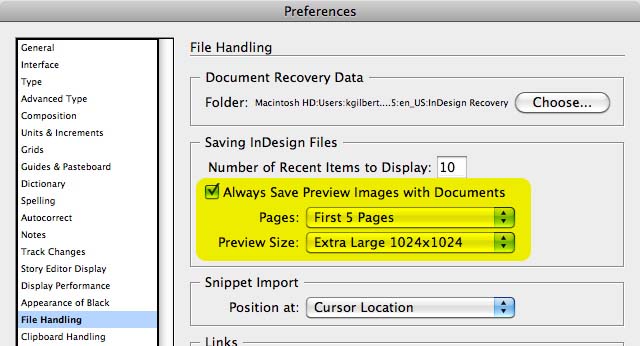
This preference setting will affect all InDesign documents that you save in the future. There is no way to have thumbnails magically appear for old documents that haven’t been saved with these new preference settings.
When you choose File > Save As, you will see the “Always Save Preview Images with Documents” option. This gives you the ability to turn off the preview image generation right in the Save dialog (to make a file as small as possible, for example). But be careful, if you turn it off here, it also turns off the preference setting. You will need to turn it back on the next time you save a file.

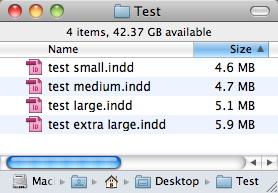
Each thumbnail image takes up space in the file. I saved the same 11 page InDesign file four times. My preferences were set to include thumbnails for the first five pages. I changed the thumbnail size each time, from “small” to “extra large”. As you can see, 5 extra large thumbnails took 1.3 mb more space than 5 small thumbnails.
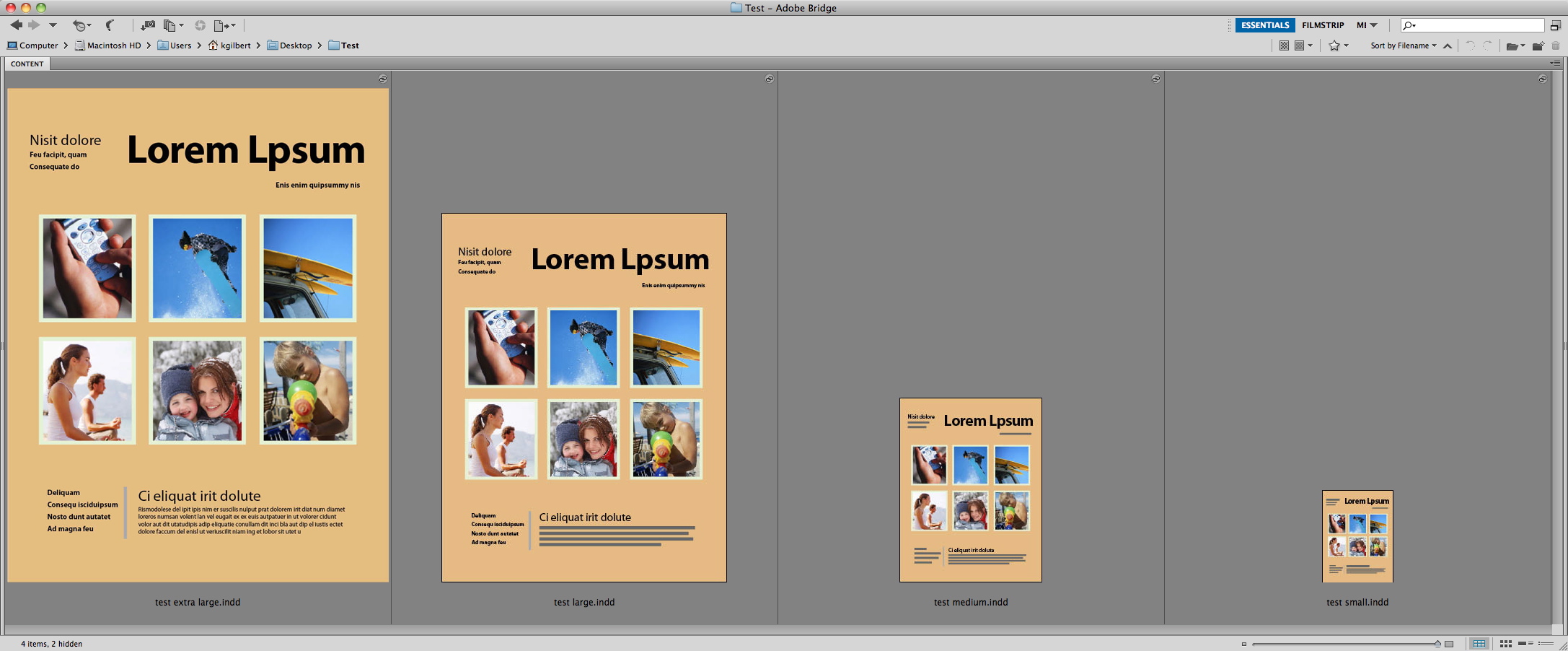
When you view the files in Bridge, and increase the icon size to the maximum, this is what you see:
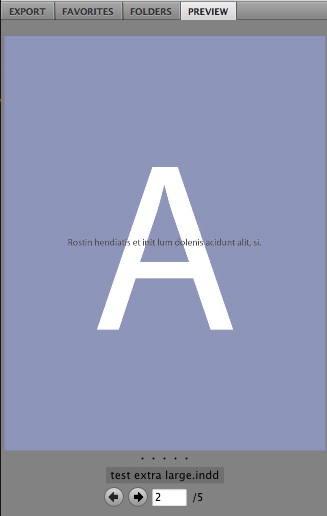
If you have Bridge CS5, and have saved multi-page thumbnails in InDesign CS5, you can use the Bridge Preview panel to view additional pages of the InDesign file.
This article was last modified on December 21, 2021
This article was first published on September 29, 2011
Commenting is easier and faster when you're logged in!

Recommended for you

Creating a Dynamic Autofit Effect for Image Grids With the Gap Tool
If you’re like many InDesign users, you might not use the Gap tool very mu...

Designing Forms with InDesign? Acrobat’s Replace Pages Feature is at Your Service.
Revising a PDF form doesn't have to mean a lot of work.

Secret life of Character Styles and Running Headers
Back in InDesign CS3 Text Variables were introduced. Amongst a number of things...