




Wacom pulled some features from its Intuos line of tablets by adding ExpressKeys and Touch Strips to both sides of the Cintiq 21UX’s screen. ExpressKeys are physical buttons you can program to generate key presses or modifier keys. This saves you from having to keep one hand on the keyboard to change tools or press modifier keys while painting. Touch Strips are pressure-sensitive strips that let you zoom in and out of a window by sliding your finger up and down along the strip.
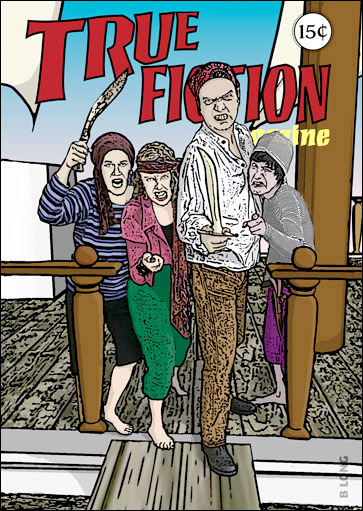
I hand-repainted this heavily modified photo using the Cintiq 21UX. The programmable ExpressKeys were particularly handy for scrolling, changing brush sizes, and selecting layers.
I like these features on the Intuos tablets, and with a screen the size of the Cintiq 21UX, they’re even more useful. The Cintiq 21UX consumes a good amount of desk space, meaning your keyboard probably isn’t going to be too handy. If you set up your ExpressKeys properly, you’ll be able to perform most of your painting tasks without having to reach your keyboard.
One downside to the Touch Strips is that it’s easy to brush against them while working near the edge of the screen, resulting in sudden, unwanted window zooms. I found this to be a common enough problem that I moved my windows to the center when I needed to paint on the edge of a document.
The Cintiq 21UX’s image quality is very good, offering a wide viewing angle and a sharper image than some of Wacom’s previous screen tablets. I found it to be slightly more washed out than my PowerBook and Cinema Displays, and not quite as bright. However, because I tend to get right on top of the screen when working, the slightly dimmer screen is actually welcome, as staring into a bright screen would quickly become painful.
If you’re dead set on working on a perfectly calibrated monitor, you may be out of luck with the Cintiq 21UX. But remember that you can use it as a secondary screen; pair it with a more color-accurate monitor and you have the best of both worlds.
Wacom continues to improve the drawing surface of the Cintiq series. While your pen could skate on the too-slippery surfaces of early versions, the 21UX’s surface has just enough friction to provide control, without being too grippy.
Sometimes More Is Just More
The Cintiq 21UX works exactly as advertised. It’s easy to set up, it has a very comfortable drawing surface and good image quality, and you can draw directly onto your image.
But, while being able to interact directly with the screen may seem the ultimate way to interface with your graphics program, you may find that it’s not the incredible boon you were expecting. The Cintiq 21UX does have its downsides. At 22 pounds, it’s too heavy to comfortably hold in your lap. Though the stand lets you position it almost completely flat, this takes up a lot of desk space. What’s more, when flat, the drawing surface is still five inches off the top of your desk, which means you might need to get a higher chair.
You can, of course, tilt the tablet so it’s more upright, which frees up more desk space, but working in an upright position can be tiring over the long haul.
If you’re already used to using a pressure-sensitive tablet, you might find that the Cintiq 21UX doesn’t give you any advantage over a regular tablet. I’m very comfortable with a tablet and use one for all of my everyday editing tasks. I don’t find anything uncomfortable or untoward about the coordination of working with a tablet in my lap while looking at a screen on my desk. In fact, I like having my drawing hand out of the way of the screen — the flip side is a painting-on-paper problem that the Cintiq 21UX re-introduces.
None of this is meant as a serious criticism of the 21UX, but rather as an explanation for why the seemingly “more natural, more intuitive” interface of drawing directly on-screen may not be for everyone. If you’re not comfortable with the coordination required to use a regular tablet, the Cintiq 21UX will be a great tool that’s well-constructed and that delivers exactly what it claims: the ability to paint with a pressure-sensitive pen directly onto the screen.
This article was last modified on December 14, 2022
This article was first published on July 5, 2005
Commenting is easier and faster when you're logged in!

Recommended for you
How to Carve an Apple in Photoshop
Visit a really good Japanese restaurant and you’ll often find the food dec...

Super Simple Swatch Creation from Hailpixel
For a new and easy way to experiment with color and generate swatches, check out...

Illustrator’s Other Drawing Modes
If you use Photoshop, Illustrator, or InDesign, you ought to be familiar with bo...